
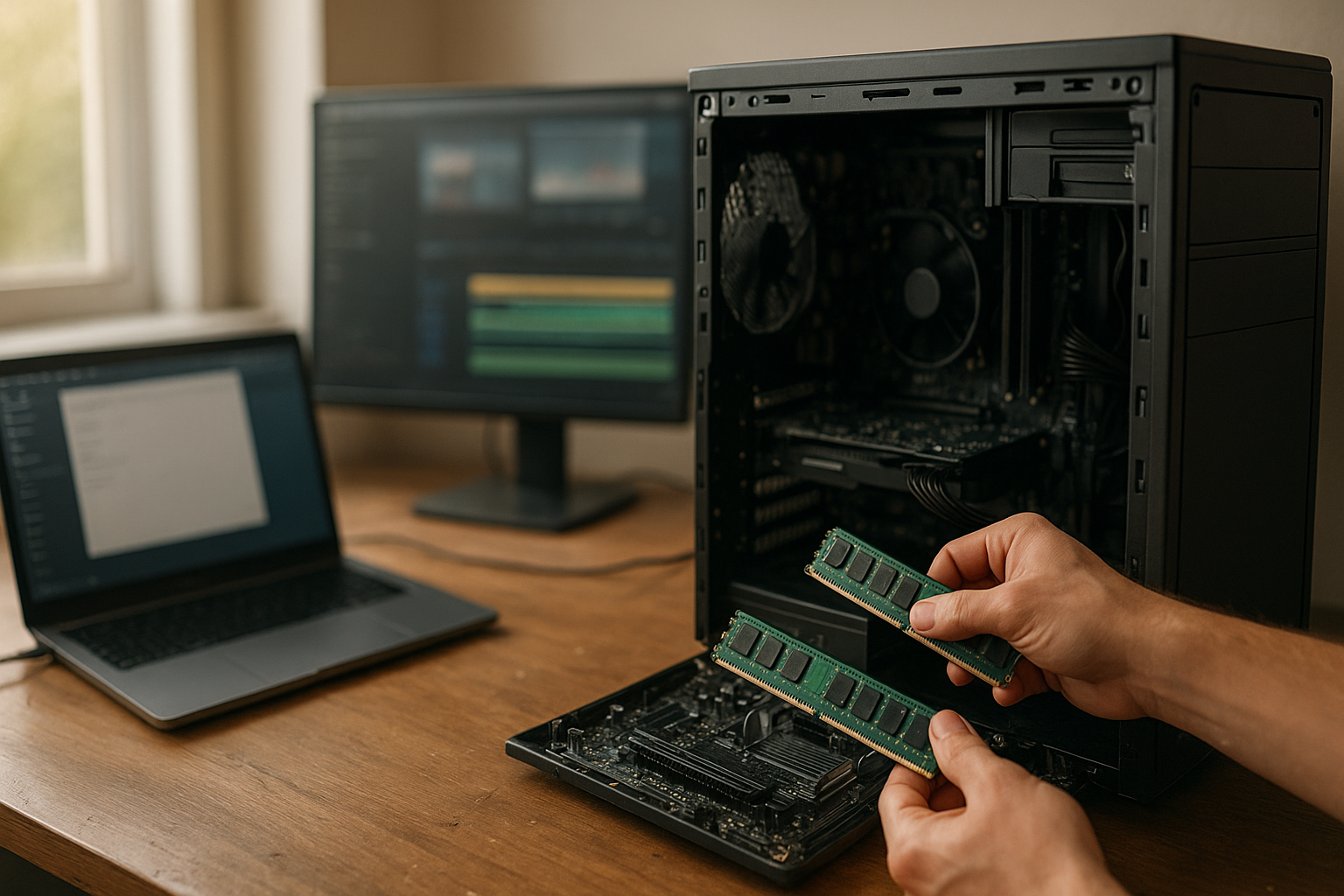
Choosing the right RAM requirements depends less on finding one “correct” number and more on what you do, how many applications you keep open, and whether your computer can be upgraded later. For most people buying a new Windows PC, 16GB is the sensible starting point; 32GB is the stronger long-term choice for demanding games, creative software, development, and heavy multitasking.
This guide explains how much RAM you need for everyday computing, gaming, office work, programming, and video editing. It also covers Windows 11 minimums, the practical difference between 16GB and 32GB, laptop limitations, and how to determine whether a memory upgrade would actually help.
Table of Contents
RAM Requirements at a Glance
The following recommendations assume a current computer running a modern 64-bit operating system. They are practical targets rather than strict technical minimums, since software requirements vary and background applications consume some of your available memory.
| Typical use | Recommended RAM | Why |
|---|---|---|
| Basic browsing, email, and documents | 8GB minimum; 16GB preferred | 8GB can handle light use, while 16GB leaves more room for browser tabs and background apps. |
| Office work and general productivity | 16GB | Suitable for video meetings, spreadsheets, documents, email, and many browser tabs. |
| Gaming | 16GB; 32GB for newer or demanding setups | 16GB remains a practical gaming baseline, but 32GB helps with large games, streaming, mods, and other open applications. |
| Programming and virtual machines | 16GB minimum; 32GB or more preferred | Compilers, IDEs, containers, emulators, browsers, and virtual machines can consume memory quickly. |
| Photo editing | 16GB; 32GB for large projects | Higher capacity helps when working with large images, many layers, and several files at once. |
| Video editing | 32GB for comfortable use | Complex timelines, high-resolution footage, effects, and other creative applications benefit from more headroom. |
| 3D, professional production, and large datasets | 32GB to 64GB or more | Large scenes, simulations, high-resolution media, and datasets can exceed the practical limits of mainstream configurations. |
These figures are starting points, not guarantees. A poorly optimized application, an enormous spreadsheet, dozens of browser tabs, or a virtual machine can require more memory than the category suggests.
What RAM Does in a Computer
RAM, or random-access memory, is the computer’s short-term working space. The operating system loads active programs and data into RAM so the processor can access them quickly. RAM is much faster to access than storage, but it loses its contents when the computer shuts down.
More RAM does not automatically make every task faster. If your computer has enough memory for the applications you are running, adding more may produce little visible improvement. Additional capacity becomes useful when your workload would otherwise force the operating system to move data between RAM and the slower SSD or hard drive.
RAM capacity, speed, and channels are different
- Capacity is how much memory the computer can hold, such as 8GB, 16GB, or 32GB.
- Memory speed affects how quickly data can move, subject to the limits of the processor and motherboard.
- Memory channels describe how the system communicates with installed modules. Matching modules can allow dual-channel operation on supported systems.
- Latency and timings influence responsiveness, but capacity is usually the first priority for a computer that is running out of memory.
For most buyers, capacity should come before chasing small speed differences. A computer with adequate, compatible 16GB memory is generally a better experience than one with faster memory but insufficient capacity for the user’s applications.
RAM versus storage
RAM is not the same as storage. An SSD stores the operating system, applications, and files when the computer is turned off; RAM holds the data currently being used. Increasing SSD capacity gives you more room for files, but it does not substitute for having enough RAM.
When RAM fills, Windows can use a page file on the storage drive. This prevents some applications from immediately failing, but it is not equivalent to adding physical memory. Heavy paging often causes pauses, slower application switching, and noticeably less responsive multitasking.
Minimum RAM for Windows 11
Microsoft lists 4GB of RAM as the minimum system memory requirement for Windows 11. That is a compatibility floor, not a comfortable recommendation for a modern everyday PC. Windows, security software, browser tabs, updates, and applications can use much of that capacity before you begin your actual work.
You can review Microsoft’s complete Windows 11 specifications and requirements, which also include processor, storage, firmware, and security requirements. Meeting the RAM minimum does not guarantee that every application or game will run well.
For a new Windows 11 computer, 8GB can work for basic browsing and simple documents, but 16GB is the more balanced target. It gives the operating system room to work while leaving capacity for a browser, office applications, communications software, and background utilities.
Older computers with 4GB may still boot Windows 11 where supported, but upgrading may not be worthwhile if the processor, storage, or firmware also falls short. Check the complete system requirements before spending money on memory alone.
RAM Requirements by Use Case
RAM for browsing, streaming, and basic home use
Light browsing, email, word processing, music streaming, and occasional video playback can run with 8GB. The experience depends heavily on the number of browser tabs, extensions, and web applications you use.
Choose 16GB if you regularly keep many tabs open, use online office suites, join video calls, or leave several programs running. Browser tabs can contain complex applications rather than simple pages, so a tab-heavy workflow benefits from additional headroom.
RAM for work and productivity
RAM for work and productivity is usually best set at 16GB. That capacity suits documents, spreadsheets, presentations, email, cloud storage clients, messaging apps, and video conferencing on the same computer.
Consider 32GB when your work involves large spreadsheets, data analysis, frequent multitasking across multiple monitors, local databases, design tools, or several professional applications open simultaneously. If you spend much of the day waiting for programs to switch or reload, additional RAM may improve your workflow more than a small processor upgrade.
For office work, avoid paying for 64GB without a specific reason. Extra capacity will sit unused if your normal workload never approaches the limit.
RAM for gaming
RAM for gaming depends on the game, operating system, launcher, and what remains open in the background. A 16GB configuration is a sensible baseline for a gaming PC, especially when it uses two compatible modules rather than a single module where the platform supports dual-channel memory.
Move to 32GB if you play demanding modern titles, use large mod packs, stream or record locally, run a browser and voice chat alongside games, or want more flexibility for future software. Extra RAM cannot compensate for a weak graphics card, slow processor, or insufficient video memory, so consider it alongside the rest of the system.
- Choose 16GB for a focused gaming system with a manageable background workload.
- Choose 32GB for gaming combined with streaming, recording, mods, browsers, or creative tools.
- Choose more than 32GB only when a particular game, mod setup, simulator, or parallel workload justifies it.
Always check the requirements for the games you actually play. There is no universal RAM requirement for every PC game, and the listed minimum often describes the ability to launch rather than a consistently smooth experience.
RAM for programming and development
For basic web development, scripting, and smaller projects, 16GB is generally a comfortable starting point. An editor, browser, terminal, and local development server can fit within that capacity, although large projects and many browser tabs add pressure.
Developers working with Android emulators, multiple containers, large builds, databases, game engines, or virtual machines should strongly consider 32GB. A virtual machine needs its own allocated memory while the host operating system and other applications continue to run.
Choose 64GB when you routinely run several virtual machines, large local clusters, substantial data-processing tools, or a professional development environment that demonstrably exceeds 32GB. Monitor actual usage before making that jump.
RAM for photo editing and design
For general photo editing, 16GB is a practical minimum target. It works well for ordinary projects, but large raw files, many layers, panoramas, batch operations, and several open documents can increase demand.
RAM for video editing typically deserves more consideration. A 32GB system is a sensible target for comfortable editing with high-resolution footage, multiple video tracks, effects, and a separate browser or audio application. Very complex projects, motion graphics, 3D work, and high-resolution production can justify 64GB or more.
Adobe publishes application-specific guidance in its Premiere Pro system requirements. Treat that information as a baseline for the software version you use, then account for your footage resolution, effects, codecs, and other applications running at the same time.
RAM for virtual machines, servers, and large datasets
Virtual machines and containers make RAM requirements easy to underestimate. If your host system needs 8GB and you assign 8GB to a virtual machine, you have not left enough capacity for Windows, macOS, Linux, or background programs.
For a machine used to run several VMs, allocate memory conservatively and leave the host enough capacity to remain responsive. Developers and administrators should also account for database caches, test environments, build tools, and the number of services running concurrently.
Large datasets, scientific applications, and professional media workflows are workload-specific. In these cases, inspect peak memory use from real projects rather than relying on a general consumer recommendation.
16GB vs 32GB RAM: Which Should You Choose?
The practical difference between 16GB vs 32GB RAM appears when your active workload exceeds, or comes close to, 16GB. If your system typically uses 10GB to 13GB, 32GB may not make everyday applications open twice as quickly. If it frequently reaches the limit, 32GB can reduce paging and make switching between applications much smoother.
| Consideration | 16GB | 32GB |
|---|---|---|
| General office work | Usually sufficient | More headroom than most users need |
| Gaming | Good starting point | Better for demanding games, mods, streaming, and background apps |
| Creative work | Suitable for lighter photo and video projects | Better for large files, complex timelines, and multiple creative applications |
| Development | Works for smaller projects and one main environment | Preferable for VMs, containers, emulators, and large builds |
| Long-term flexibility | May be enough, but has less spare capacity | Provides more room for demanding software and multitasking |
| Value | Best when your measured usage stays below the limit | Worth the extra cost when it avoids upgrades or paging |
When 16GB is the better choice
- Your main tasks are browsing, office work, media consumption, and moderate gaming.
- You are buying a budget or mid-range computer and need to prioritize the processor, graphics, or SSD.
- Your current memory usage remains comfortably below 16GB during normal work.
- The computer has an accessible upgrade path, allowing you to add memory later.
When 32GB is worth it
- You edit video, work with large design files, or use demanding creative software.
- You game while streaming, recording, browsing, or running communication tools.
- You use virtual machines, containers, emulators, or large development environments.
- You want a new computer that will remain flexible as applications and projects become more demanding.
Do not select 32GB solely because a larger number sounds faster. Confirm that your motherboard or laptop supports the capacity, and check whether the memory is included as one module or a matched kit. Configuration details can affect performance and upgrade options.
Laptop RAM Requirements and Upgrade Limits
Laptop RAM requirements are affected by portability, cooling, battery goals, and whether the manufacturer solders the memory to the motherboard. Some laptops have removable SO-DIMMs, some combine soldered memory with one expansion slot, and others cannot be upgraded at all.
For a basic laptop, 8GB may be acceptable if the memory cannot be upgraded and the workload is light. A 16GB model is safer for general use, study, office work, and multitasking. Choose 32GB at purchase for video editing, development, engineering applications, or any laptop where the memory is permanently soldered.
Check these details before buying or upgrading
- Maximum supported capacity: Confirm the limit in the laptop or motherboard documentation, not only in a retailer listing.
- Memory type: Check whether the system needs DDR4, DDR5, or a specific low-power laptop module. These are not interchangeable.
- Module layout: A laptop with 8GB soldered and one empty slot has different upgrade possibilities from a laptop with two occupied slots.
- Speed and compatibility: Installed modules may run at the slower supported speed, and mixed kits can have compatibility limitations.
- Warranty and access: Opening some devices may be difficult or may affect warranty terms, depending on the manufacturer and region.
For a desktop, upgrades are often simpler, but not every motherboard supports unlimited capacity or every memory generation. Check the motherboard manual and processor platform before buying a kit.
How to Check Installed RAM
Before deciding whether you need more memory, check both the installed capacity and the amount currently in use. A computer may have 16GB installed but show less usable memory because integrated graphics or hardware reserves part of it.
Windows 11 and Windows 10
- Open Settings.
- Select System, then About.
- Look for Installed RAM under device specifications.
For live usage, press Ctrl + Shift + Esc to open Task Manager, then choose Performance and Memory. This view shows total memory, current use, available memory, speed, and often the number of slots in use.
Task Manager is particularly useful because it shows whether a problem is really memory-related. If memory use is low but the computer feels slow, storage health, CPU load, thermal throttling, malware, or an application-specific issue may be more relevant.
macOS
- Open the Apple menu.
- Select About This Mac or System Settings and then the general device information.
- Review the listed memory or unified memory capacity.
On Apple silicon Macs, memory is unified: the processor, graphics hardware, and applications share the same pool. That makes capacity especially important for workloads that use graphics memory, but it also means you generally cannot upgrade the memory after purchase.
Linux
Most desktop environments show memory in their system monitor. From a terminal, commands such as free -h can report total, used, and available memory. Tools differ across distributions, so consult the documentation for your particular environment if you need slot, speed, or hardware details.
Signs You Need More RAM
Slow performance alone does not prove that RAM is the problem. Look for a repeatable pattern while performing the task that feels slow.
- Memory usage stays near full: Task Manager or a system monitor repeatedly shows very little available memory during normal work.
- Frequent disk activity during app switching: The system pauses while moving between programs, especially when the storage drive is busy.
- Applications reload: Programs or browser tabs repeatedly discard and reload content after you switch away.
- Creative applications warn about memory: Editing or design software reports insufficient memory during large operations.
- Virtual machines become unusable: Both the virtual machine and host slow down when multiple environments run together.
Close unnecessary applications and repeat the test. If the issue disappears, reduce startup programs or background tools where practical. If memory remains nearly full during your normal workload, an upgrade is more likely to help.
When adding RAM will not solve the problem
More memory will not fix a weak graphics card in a demanding game, a failing SSD, an overheating processor, a poor internet connection, or software that is simply inefficient. It also will not make a computer with an old hard drive feel like one with a modern SSD.
Check CPU, GPU, disk, and temperature usage alongside RAM. Upgrade the component that is consistently limiting the task rather than choosing memory based only on a general recommendation.
Key Takeaways
- 16GB is the best general target for most new Windows laptops and desktops.
- 8GB can work for basic browsing, documents, and media, but it provides less room for multitasking.
- 32GB is worthwhile for gaming with background applications, programming with VMs or containers, and creative workloads.
- Video editing, 3D work, and large datasets may require 32GB, 64GB, or more depending on project size.
- Windows 11’s 4GB minimum is not a comfortable target for most current users.
- Check upgradeability before buying a laptop, because soldered memory cannot normally be replaced.
- Measure memory usage before upgrading. A full memory graph is more useful evidence than a vague feeling of slowness.
Frequently Asked Questions
How much RAM do I need for everyday use?
For browsing, email, documents, streaming, and video calls, 8GB can be enough if you keep your workload light. For a new Windows computer, 16GB is the better recommendation because it provides more room for browser tabs, background services, updates, and multitasking. If the device uses soldered memory, buying 16GB from the start is especially sensible because you may not have an upgrade option later.
Is 16GB RAM enough for gaming?
16GB remains a practical starting point for gaming on a modern PC. It is generally suitable when the game is your main workload and you are not running many demanding programs in the background. Choose 32GB if you stream or record, use large mods, keep many browser tabs open, run a voice application, or want more capacity for demanding future games. Always check the requirements for the individual titles you play.
Is 32GB RAM overkill for office work?
For ordinary documents, email, spreadsheets, presentations, and video meetings, 32GB is usually more than necessary. It becomes reasonable when your work involves very large spreadsheets, data analysis, multiple professional applications, several monitors, local databases, or many browser-based tools running together. If 16GB handles your normal workload without heavy paging, putting the extra budget toward storage, display quality, battery life, or processor performance may offer more value.
What is the minimum RAM for Windows 11?
Microsoft lists 4GB as the minimum RAM requirement for Windows 11. That figure indicates a basic compatibility threshold, not a recommendation for comfortable multitasking. An 8GB system can handle light use, while 16GB is a more suitable target for most new Windows 11 laptops and desktops. The computer must also meet Windows 11’s other requirements, including supported processor, storage, firmware, and security features.
How much RAM do I need for video editing?
16GB can work for lighter editing projects, especially with modest resolutions and simple timelines. For a more comfortable experience with high-resolution footage, multiple tracks, effects, and other applications open, 32GB is a better target. Professional motion graphics, complex projects, 3D work, and very large media files can justify 64GB or more. Check the requirements for your editing software and consider the size and complexity of your actual projects.
Can I mix different RAM sizes or brands?
Sometimes, but compatibility is not guaranteed. Modules need to use the correct memory generation and form factor, and the system may run all installed memory at the speed and timings of the slowest module. Different capacities can also affect channel operation on some platforms. A matched kit recommended for your motherboard or laptop is usually the safer choice. Before mixing modules, check the system manual and compare the specifications of the existing memory.
How can I tell whether I need more RAM?
Monitor memory while performing the task that feels slow. In Windows, Task Manager’s Performance and Memory panel shows current usage and available capacity. If memory is repeatedly almost full and disk activity rises during application switching, more RAM may help. If memory remains comfortably available, investigate CPU, graphics, storage, temperatures, startup programs, or the application itself instead of upgrading memory automatically.
Conclusion
The right RAM requirements depend on your workload, but the decision is straightforward for most buyers: choose 16GB for general computing, 32GB for demanding multitasking, gaming alongside other applications, development, and creative work, and more only when your projects prove they need it.
Before buying, check how much memory you use now, confirm whether the laptop or desktop can be upgraded, and review the requirements for your most demanding software. That quick check will help you spend on useful capacity rather than paying for RAM you will never use.