
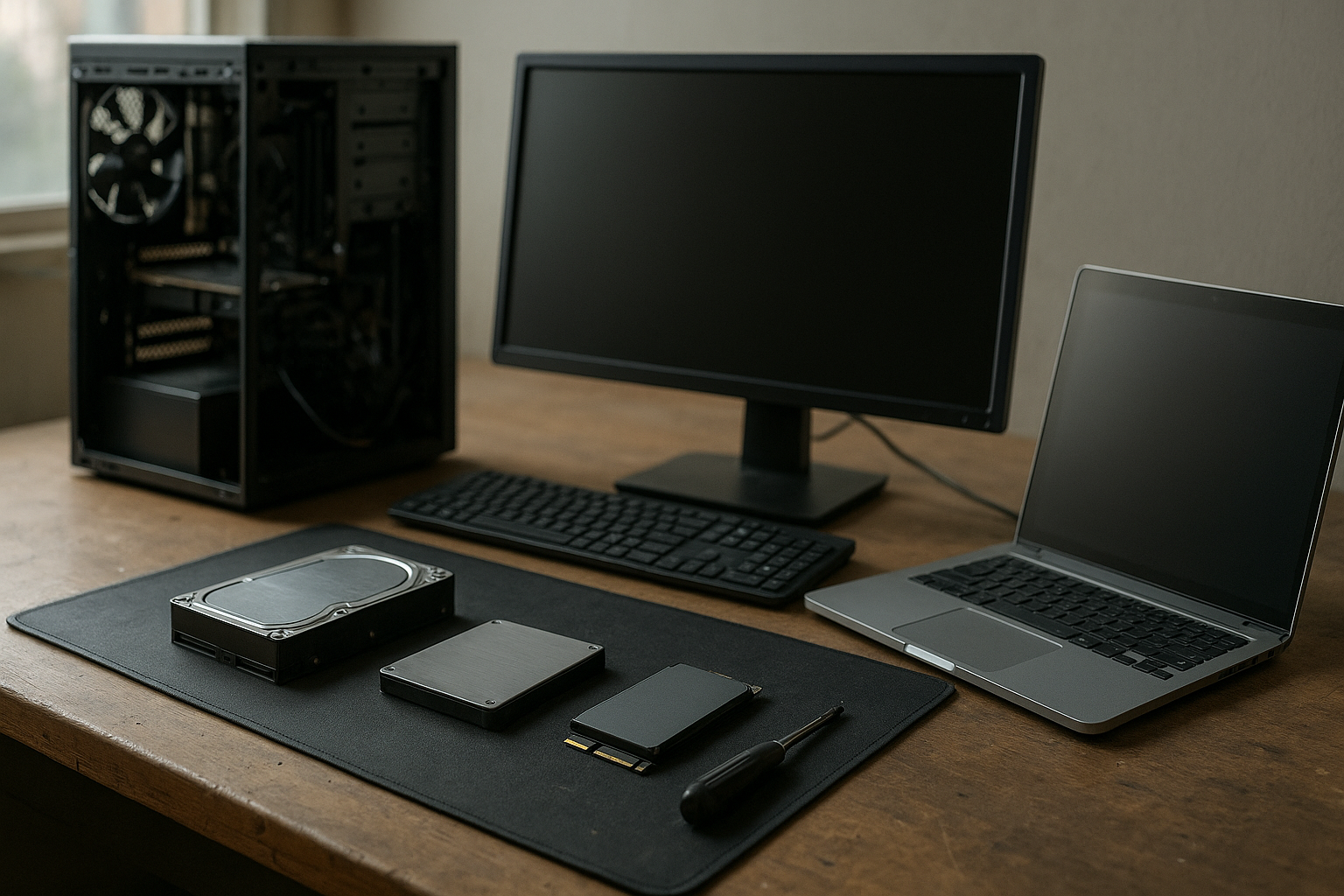
Choosing among desktop storage drives is less about finding one universally “best” model and more about matching the drive to your workload, computer, available connection, and backup plan. A fast NVMe SSD can transform application load times, while a high-capacity hard drive often remains the practical choice for media libraries and backups.
This comparison explains the main types of internal storage drives, when an SSD or HDD makes more sense, what to look for in desktop and laptop upgrades, and how to avoid compatibility mistakes. You will also find practical recommendations for gaming, office work, creative projects, bulk storage, and older computers.
Table of Contents
Best Desktop Storage Drives by Use Case
The best desktop storage drives depend on what you need the drive to do. A boot drive has different priorities from an archive drive, and a laptop upgrade has different physical constraints from a desktop build with several drive bays.
| Use case | Best fit | Why it works | Limitations |
|---|---|---|---|
| Operating system and everyday applications | NVMe SSD or 2.5-inch SATA SSD | Fast response, silent operation, and strong random-access performance | Higher cost per unit of capacity than an HDD |
| Modern gaming | NVMe SSD, provided the system supports the required interface | Shorter game loads and quick installation or update handling | Large game libraries can become expensive at higher capacities |
| Video, photo, and audio projects | SSD for active projects plus a separate high-capacity HDD for storage | Fast editing workspace without using SSD capacity for every archived file | Requires sensible file organization and backups |
| Large media library | High-capacity internal HDD | More economical capacity for movies, photos, documents, and local archives | Slower, noisier, and more vulnerable to movement than an SSD |
| Older desktop or laptop with a 2.5-inch drive bay | 2.5-inch SATA SSD | Often provides a straightforward speed upgrade without requiring an NVMe slot | Limited by the SATA interface and the computer’s mounting hardware |
| Secondary backup inside a desktop | HDD or SSD, depending on backup frequency and capacity needs | Provides another local copy of important files | An internal backup does not protect against theft, fire, or some malware incidents |
For most new desktops, a useful combination is an SSD for Windows and applications, followed by a larger HDD or SSD for files. If the budget allows only one drive, choose an SSD for a general-purpose computer unless you need substantial capacity at the lowest possible cost.
Quick recommendations
- Best all-round choice: an NVMe SSD that matches the motherboard’s M.2 slot and PCIe support.
- Best value upgrade for an older computer: a 2.5-inch SATA SSD.
- Best for bulk capacity: a desktop-class HDD with an appropriate workload rating and warranty.
- Best for a laptop with no accessible M.2 slot: a compatible 2.5-inch SATA SSD, if the laptop has a 2.5-inch bay.
- Best for demanding creative work: a fast SSD for active files, with separate storage and backup for completed projects.
SSD vs HDD for Desktop and Laptop Computers
The central SSD vs HDD for desktop decision is a trade-off between responsiveness, capacity, price, noise, and physical durability. SSDs use flash memory and have no spinning platters. HDDs store data magnetically on rotating platters and use a mechanical read/write head.
Why choose an SSD?
SSDs make a computer feel faster because they handle small, scattered reads and writes far more responsively than mechanical drives. Windows startup, application launches, file searches, and many game-loading tasks benefit from this responsiveness even when the computer’s processor has not changed.
An SSD is also silent and better suited to mobile systems because it has no spinning mechanism. That does not make data loss impossible: SSDs can fail, and deleted or corrupted files still require backups.
- Excellent system responsiveness and application loading.
- No mechanical noise or vibration.
- Lower sensitivity to physical movement than an HDD.
- Available in compact M.2 formats as well as 2.5-inch designs.
The main disadvantages are cost at high capacities and the need to check the interface carefully. An M.2 drive is not automatically NVMe; some M.2 drives use SATA, and the computer must support the relevant protocol and keying.
Why choose an HDD?
HDDs remain useful when capacity matters more than instant response. They are commonly used for large photo collections, video libraries, completed projects, local backups, and other data that does not need SSD-level access times.
- Generally lower cost per unit of capacity.
- Large capacities are widely available for desktop use.
- Useful for secondary storage and cold or infrequently accessed files.
- Suitable for many sequential workloads, such as storing and playing media.
Mechanical drives are slower for random access, can make audible noise, and should be handled carefully while operating. A desktop HDD is not a substitute for a backup strategy, and it should not be treated as indestructible simply because it is used inside a stationary computer.
Does an SSD improve every task?
No. An SSD can make software and file access more responsive, but it does not automatically increase processor performance, graphics performance, or internet speed. Large sequential transfers may also be limited by the source drive, destination drive, USB connection, network, or thermal throttling.
For that reason, a balanced setup often works better than spending the entire budget on the fastest available drive. Put frequently used software and active projects on an SSD, then use a larger drive for data that does not need constant high-speed access.
Types of Internal Storage Drives
Understanding the physical format and interface is essential before buying internal storage drives. Capacity and advertised speed cannot compensate for a drive that cannot connect to the computer.
NVMe SSDs in M.2 format
Most current NVMe SSDs use a slim M.2 board that mounts directly to a compatible motherboard or laptop. NVMe is a storage protocol designed for non-volatile memory, while PCIe is the interface used to connect the drive to the system. The NVM Express organization’s technical resources provide background on the standard.
Before buying, check the motherboard or laptop manual for M.2 slot support, supported drive length, PCIe generation, and whether the slot accepts NVMe, SATA, or both. Some slots share bandwidth with SATA ports or other expansion slots, so the manual is more reliable than a generic compatibility list.
2.5-inch SATA SSDs
A 2.5-inch SATA SSD is a strong choice for many older desktops and laptops. It uses the same basic data and power connections found on 2.5-inch SATA hard drives, although a desktop may need a mounting bracket or tray adapter.
SATA limits the maximum interface speed compared with modern PCIe NVMe connections, but the practical improvement over an old mechanical boot drive can still be substantial. This makes a 2.5-inch SATA SSD one of the best laptop storage drives for systems that lack an accessible NVMe slot.
Desktop HDDs
Desktop HDDs usually use a 3.5-inch form factor and connect through SATA. They are designed for computers with adequate space, airflow, and a stable mounting position. Some models are optimized for general desktop workloads, while others target surveillance, network-attached storage, or enterprise environments.
Do not choose a drive only by its capacity. Consider the intended workload, acoustic behavior, warranty terms, vibration environment, and whether the drive is appropriate for continuous or multi-drive use.
External and portable drives
External drives connect through USB or another external interface. They are convenient for backups, moving large files, and expanding laptop capacity, but their real-world performance depends on the drive mechanism, USB standard, enclosure controller, cable, and host computer.
An external drive is often safer than an internal backup because it can be disconnected after a backup finishes. However, it should still be stored securely, and important files should have another copy in a separate location.
Desktop Storage Drives for Different Workloads
Office work, study, and home computing
A modestly sized SSD is usually the most noticeable upgrade for a computer that still uses a mechanical system drive. It improves startup and application responsiveness without requiring a high-end model. For documents and ordinary web use, prioritize compatibility, capacity, reliability, and warranty over headline sequential speed.
A secondary HDD can provide inexpensive room for photos, downloads, and archived documents. Keep current work and frequently used programs on the SSD, and avoid filling the system drive to the point that updates and temporary files have no working space.
Gaming storage drives
Gaming storage drives should be selected around the games you actually play and the expansion options in your computer. An NVMe SSD is a sensible default for a new gaming desktop, while a SATA SSD remains a useful upgrade for an older system.
Game performance is not determined by storage alone. A drive can reduce loading and installation times, but frame rates primarily depend on the processor, graphics hardware, memory, game engine, and settings. Newer games may also have storage-related requirements, so review the game and platform documentation rather than assuming every title benefits equally.
Keep enough free space for game updates and temporary installation files. If the computer has multiple M.2 slots, check whether adding another drive disables a SATA port or shares lanes with a graphics slot.
Photography, video, and music production
Creative applications benefit from a fast working drive when they repeatedly read source media, previews, cache files, and project databases. A sensible arrangement is an SSD for the operating system and applications, a second SSD for current projects or cache data, and an HDD or network storage system for completed work.
Large sequential transfers can expose limitations elsewhere in the workflow. Fast storage cannot overcome a slow card reader, a congested network, an older USB port, or a destination drive that writes more slowly than the source.
Do not rely on a cache or scratch drive as the only copy of source material. Cache files can usually be recreated; original footage, photographs, recordings, and project files may not be recoverable after a drive failure.
Large collections and home servers
High-capacity hard drives are appropriate for media collections, disk images, and files that are accessed occasionally. For a desktop with several HDDs, provide good airflow and avoid placing drives where vibration can accumulate.
If you are building a server or NAS, use drives intended for that environment and follow the enclosure or array manufacturer’s compatibility guidance. A redundant array can improve availability, but redundancy is not the same as a backup: accidental deletion, malware, and some hardware failures can affect multiple copies.
Gaming laptops and thin laptops
Laptop upgrades require more caution than desktop upgrades. Some laptops have a replaceable M.2 drive, some have a 2.5-inch bay, some offer both, and others use soldered storage that cannot be replaced. Consult the exact model’s service manual before opening the machine.
A laptop NVMe SSD for laptops should match the slot’s physical length and protocol. Thermal conditions also matter: a high-performance drive may require a heatsink that a thin laptop cannot accommodate, and sustained transfers can cause the drive to reduce speed as it manages heat.
How to Choose a Storage Drive
Use the following checklist before comparing brands or shopping by advertised speed. It prevents the common mistake of selecting an impressive-looking drive that does not fit the computer or the workload.
- Identify the available interface. Check for an M.2 NVMe slot, M.2 SATA support, a 2.5-inch SATA bay, or open 3.5-inch bays.
- Confirm the physical size. M.2 drives have different lengths, and a 2.5-inch drive may need a desktop mounting adapter.
- Choose the required capacity. Account for the operating system, applications, games, project files, and free space for updates.
- Match the workload. Select an SSD for responsiveness and active work; select an HDD when economical bulk capacity is the priority.
- Check endurance and warranty information. For heavy writes, compare the manufacturer’s endurance rating and terms rather than relying only on read speed.
- Consider heat and airflow. High-performance NVMe drives can run warm, while several HDDs can add vibration and heat inside a case.
- Plan the backup. Decide where the second copy will live before moving valuable data to the new drive.
Capacity planning without waste
Buy based on your next few years of use, not just the files on the computer today. A nearly full SSD can make housekeeping difficult, and game libraries, camera footage, and operating-system updates can grow faster than expected.
At the same time, oversized capacity can consume money that would be better spent on a backup drive or memory upgrade. If your collection changes frequently, a smaller system SSD combined with expandable secondary storage may be more flexible than one very large premium SSD.
Read speed, write speed, and endurance
Sequential read and write figures are useful for large file transfers, but they do not describe every aspect of drive behavior. Random access, latency, sustained write performance, controller behavior, and the amount of data being transferred can matter more for everyday use.
Endurance is especially relevant to scratch disks, virtual machines, frequent video exports, and other write-heavy workloads. For an ordinary home or office boot drive, compatibility and reliable backup practices usually matter more than paying a premium for the highest endurance tier.
QLC, TLC, and other flash considerations
Flash SSDs use different memory architectures, including TLC and QLC designs. These labels can help explain differences in endurance and sustained-write behavior, but they should not be treated as a complete quality ranking. The controller, firmware, capacity, warranty, workload, and manufacturer’s specifications all matter.
For a typical boot drive, a reputable consumer SSD with suitable capacity can be entirely adequate. For continuous heavy writes, investigate the published specifications more carefully and consider a product designed for that workload.
Installation, Compatibility, and Maintenance
Back up important data before replacing or cloning a drive. If the old drive still works, verify that the backup can be opened and that the files you need are present. A cloning operation is not a backup if the original and clone later fail together or if corrupted files are copied without detection.
Desktop installation checks
- Shut down the computer, disconnect power, and follow the case and motherboard safety guidance.
- Confirm that the power supply has the required SATA power connectors for a 2.5-inch or 3.5-inch SATA drive.
- Use a data cable for SATA drives and connect it to a supported motherboard port.
- Secure HDDs firmly and leave reasonable airflow around them.
- Install an M.2 drive using the correct screw and standoff position; do not bend the board.
- Check whether the motherboard manual lists shared ports or lane limitations.
Laptop installation checks
Use the exact laptop service documentation where possible. Some systems require a specific M.2 length, a replacement mounting screw, a thermal pad, or a bracket that is not included with the drive. Opening the chassis can also affect warranty coverage depending on the manufacturer and region.
After installation, initialize and format a new drive only after confirming that it is the intended disk. When migrating an operating system, verify boot settings, partition layout, encryption status, and recovery options before wiping the old drive.
Health monitoring and backups
Modern drives can report health information through technologies such as S.M.A.R.T., but a “healthy” status is not a guarantee that failure will not occur. Tools such as smartmontools can read drive health data on supported systems, although interpreting warnings still requires care.
Use at least one backup that is not permanently connected to the computer. For irreplaceable files, maintain an additional copy in a separate physical location or a reputable cloud service. Test restoration occasionally: a backup that cannot be restored is only an assumption.
Windows users can also review Microsoft’s guidance on protecting recovery information when device encryption is enabled, but confirm the current support page for your specific Windows edition and account setup. Drive replacement and cloning can interact with encryption, so save recovery keys before making hardware changes.
Common Buying Mistakes to Avoid
Assuming every M.2 drive is NVMe
M.2 describes a physical card format, not a guarantee of protocol or performance. An M.2 SATA drive and an M.2 NVMe drive may look similar but are not interchangeable in every slot. Check the manual and the drive specification before ordering.
Buying for peak benchmark numbers
Maximum sequential speeds are often measured under specific conditions and may not represent long transfers or ordinary desktop use. A drive with lower headline numbers can be the better purchase if it has the correct capacity, better thermal behavior, suitable endurance, and a stronger support policy.
Using a desktop HDD in a portable role
A 3.5-inch desktop HDD is not designed to be carried around like a laptop drive. Movement while the platters are spinning can increase the risk of damage, and the drive also needs external power. Use a suitable portable drive or SSD for mobile storage.
Treating RAID as backup
RAID can protect availability when a drive fails, depending on the array level and implementation. It does not protect against accidental deletion, ransomware, fire, theft, or files being overwritten incorrectly. Keep independent backups even when using redundant storage.
Ignoring the operating system and firmware
An older computer may need a firmware update, a particular partition format, or a different boot mode to use a new drive correctly. Check the manufacturer’s documentation before changing firmware settings, especially on a computer that contains an encrypted operating system.
Key Takeaways
- Choose an SSD for system responsiveness, applications, current projects, and most modern gaming installations.
- Choose an HDD when economical, high-capacity storage is more important than fast random access.
- An M.2 drive is not automatically NVMe; verify the protocol, slot, length, and PCIe support.
- A 2.5-inch SATA SSD is often the safest upgrade path for older desktops and laptops with SATA bays.
- For demanding workloads, compare endurance, sustained-write behavior, cooling, and warranty—not just peak speed.
- Internal storage drives do not replace independent backups, even when used in a redundant array.
- Check the exact computer manual before buying, installing, cloning, or replacing a drive.
Frequently Asked Questions
What are the best desktop storage drives for most people?
For most new desktops, the best choice is an NVMe SSD that fits the motherboard and provides enough capacity for the operating system, applications, and frequently used files. Add a larger HDD or secondary SSD if you need economical bulk storage. For an older desktop without a compatible M.2 slot, a 2.5-inch SATA SSD is usually a more practical upgrade than replacing the entire computer.
Is an SSD or HDD better for a desktop computer?
An SSD is better for the operating system, applications, games, and any workload where responsiveness matters. An HDD is better when you need a large amount of storage at a lower cost and can accept slower access, mechanical noise, and vibration. Many desktops benefit from using both: an SSD as the primary drive and an HDD for archives or less frequently accessed files.
What are the best laptop storage drives?
The best laptop storage drive is the type the laptop actually supports. An NVMe SSD is a good option when the laptop has an accessible, compatible M.2 slot. A 2.5-inch SATA SSD is appropriate for laptops with a SATA bay, while some thin laptops have soldered storage that cannot be upgraded. Check the exact model’s service manual for size, interface, and installation requirements.
Are NVMe SSDs worth it for gaming?
NVMe SSDs are worthwhile for a new gaming computer because they offer fast access and fit neatly into modern systems. However, the difference between a SATA SSD and an NVMe SSD is not identical in every game, and neither drive directly increases graphics performance. Choose sufficient capacity, good thermal behavior, and compatibility before paying a large premium for top benchmark speeds.
How much storage should a desktop PC have?
There is no single correct capacity. Start by adding the operating system, applications, games, project files, and media you expect to keep locally, then leave practical free space for updates and temporary files. If your needs are uncertain, a moderately sized SSD for the system plus a separate expandable drive is often more flexible than using a small SSD that fills quickly.
Can I use an M.2 SATA SSD in an NVMe slot?
Not always. M.2 is a physical format, while SATA and NVMe describe different storage protocols. Some M.2 slots support both types, but others support only NVMe or only SATA. The motherboard or laptop manual is the authoritative source. Confirm the slot’s supported protocol and the drive’s keying before purchasing.
Do high-capacity hard drives need special hardware?
They may require a suitable desktop bay, SATA data connection, SATA power connection, adequate airflow, and an operating system that supports the drive’s capacity and partition format. A multi-drive system may also need a power supply and case designed for additional heat and vibration. For very large or server-oriented drives, follow the computer, enclosure, and drive manufacturer’s compatibility guidance.
Conclusion
The best desktop storage drives are the ones that fit both your computer and your workload. Select an NVMe SSD for a modern responsive system, a 2.5-inch SATA SSD for many older upgrades, and a high-capacity HDD when affordable bulk storage is the priority.
Before buying, identify the available slot or bay, confirm the protocol and physical size, estimate future capacity needs, and check endurance and cooling requirements. Then create a verified backup plan before moving important data. That process will produce a better result than choosing a drive based on a single speed number or a generic “best” list.