
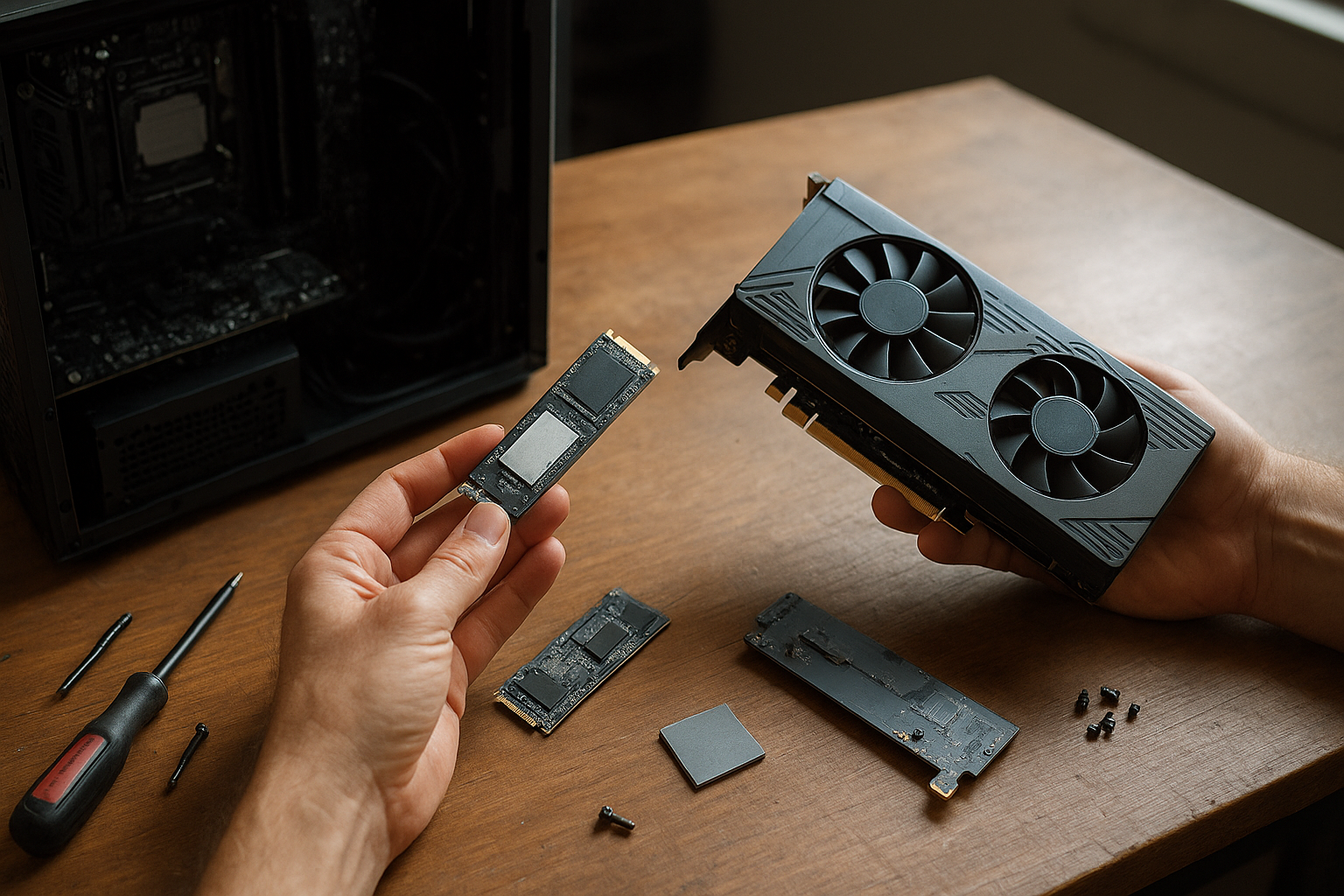
Graphics cards with M.2 slots combine a graphics card with an NVMe SSD mounting point on a single expansion card. This design can free a motherboard M.2 socket and, on some models, give the SSD a dedicated heatsink. It does not turn the SSD into video memory: the drive remains system storage and still depends on the card’s internal PCIe design, motherboard support, and firmware.
This guide explains how a GPU with M.2 SSD slot works, when graphics card SSD integration makes sense, and what it cannot improve. You’ll also find a practical comparison with motherboard M.2 sockets and dedicated storage expansion cards, along with a compatibility checklist to help you decide whether the feature suits your PC.
Table of Contents
What Are Graphics Cards With M.2 Slots?
A graphics card with an M.2 slot is an add-in board with a socket for an NVMe SSD, usually positioned on the card’s backplate or rear side. Instead of connecting directly to the motherboard, the SSD uses PCI Express storage lanes routed through the graphics card.
This design is not the same as using an SSD as extra VRAM. Games and applications still recognize the drive as a standard storage device with a volume and drive letter. The graphics processor does not automatically use its capacity to compensate for limited video memory.
Most products in this category are specialized models rather than a standard feature across the graphics card market. The implementation varies by card: one model may offer only a bare M.2 socket, while another may add a thermal pad and metal cover that uses the graphics card’s cooler to remove heat from the SSD.
What problem does the design try to solve?
The primary goal is flexible storage placement. A builder may have a motherboard with limited M.2 sockets, a socket blocked by a large graphics card, or a small-form-factor layout where a separate storage adapter would be inconvenient. Mounting the drive on the graphics card can also keep the SSD away from a hot chipset or a crowded area around the CPU socket.
Simply placing an SSD on a graphics card does not create a universal performance advantage. A high-quality motherboard M.2 socket can deliver the same SSD performance, while the drive’s speed still depends on its controller, NAND, PCIe generation, thermal conditions, and workload.
How Graphics Card SSD Integration Works
The key requirement is a PCIe data path for the M.2 socket. A graphics card may route some lanes from its host interface to the SSD, or it may use an onboard PCIe switch or related controller to share the connection. The product manual should explain the arrangement; the card’s exterior cannot reveal whether the design supports full SSD bandwidth.
In a conventional PC, the processor and chipset provide PCIe connectivity for the GPU and storage devices. A graphics card with an M.2 SSD slot adds another layer between the SSD and those system resources. That arrangement can work well, but it makes compatibility more dependent on the card’s firmware and the platform’s lane configuration.
Does the SSD connect directly to the GPU?
Usually, no. “GPU with M.2 SSD slot” describes the physical product, not a storage architecture in which the graphics processor owns the SSD. The SSD normally communicates with the host system over PCIe, while the GPU communicates over its own PCIe link.
Some modern software can coordinate storage and GPU data transfers more efficiently than older software. Microsoft’s DirectStorage documentation explains the relevant Windows API, but support for a specific feature depends on the application, operating system, driver, GPU, and storage device. Installing an SSD on a graphics card does not, by itself, enable DirectStorage or eliminate normal CPU and system-memory involvement.
Why PCIe lane sharing matters
PCIe lanes act as the road system connecting components. If a card routes storage through a limited or shared link, the SSD may not receive the same bandwidth available through a dedicated motherboard socket. On some platforms, adding or enabling a storage device can also change how motherboard slots operate, although the exact behavior is platform-specific.
Check the motherboard manual and the graphics card manual for terms such as PCIe bifurcation, lane sharing, storage-device detection, and slot bandwidth. Do not assume that an x16-looking graphics card provides an independent x4 connection to its M.2 socket.
M.2 Slot Graphics Card Benefits
The M.2 slot graphics card benefits are practical, not magical. For the right build, this feature can solve a layout or expansion problem without requiring another add-in card.
- More storage flexibility: You may gain an additional NVMe installation point when the motherboard’s sockets are already occupied.
- Cleaner expansion planning: One physical card can provide graphics output and storage mounting, which may simplify a compact build.
- Potentially useful SSD cooling: A well-designed card can place a thermal pad and metal cover over the drive.
- Less dependence on a motherboard heatsink: This can help when a motherboard M.2 heatsink is blocked by a large GPU or difficult to access.
- Convenient physical placement: The SSD may be easier to install than a drive hidden beneath the graphics card or CPU cooler.
Saving a motherboard M.2 socket
This is the clearest use case. Suppose a workstation needs separate drives for an operating system, project files, scratch data, and a virtual-machine library. If all motherboard sockets are occupied, a graphics card storage bay may provide another option without using a PCIe slot for a dedicated NVMe adapter.
That advantage applies only when the graphics card’s storage connection is compatible with the motherboard. A spare socket on the card is not useful if the firmware cannot enumerate it or if the host platform does not support the required lane arrangement.
Graphics card cooling and SSDs
NVMe SSDs can reduce their speed when sustained writes or heavy reads cause the controller to become too hot. An SSD mounted on a graphics card may benefit from airflow or a heatsink, but its proximity to a GPU also exposes it to heat from a high-power component.
Cooling performance depends on the design. A thermal pad that contacts a metal backplate can help spread heat, while a poorly fitted pad or a backplate with little airflow may do less. Before choosing a model, review the manufacturer’s installation instructions, SSD thickness limits, and warnings about double-sided drives.
Useful for compact or unusual builds
A card-mounted SSD can make sense in a system with limited space around the motherboard, provided the case offers sufficient clearance behind the graphics card. It may also help a workstation that needs several independent volumes but has few accessible motherboard sockets.
However, the card still occupies the graphics slot and may make SSD servicing more cumbersome. If replacing the drive requires removing the graphics card every time, the convenience will depend heavily on how often you upgrade storage.
Limitations and Risks
The main weakness of graphics cards with M.2 slots is added complexity without a guarantee of better performance. A standard motherboard socket is simpler, easier to document, and usually easier to troubleshoot.
Compatibility is product-specific
M.2 describes a physical form factor and connector family, not complete compatibility. The SSD must use the correct protocol, keying, size, and electrical interface. An NVMe PCIe drive is the usual target, but the card’s manual takes priority over general assumptions.
Check whether the socket supports a 2230, 2242, 2260, or 2280 drive. Also confirm whether it accepts single-sided or double-sided modules. A drive can fit the connector yet still conflict with a cover, thermal pad, screw post, or nearby component.
Possible bandwidth limits
The M.2 socket may operate through a narrower link than the motherboard’s primary storage socket. Even when the SSD works correctly, shared bandwidth can reduce peak throughput when the GPU and SSD are busy at the same time.
Peak sequential numbers are not the whole story. Game loading, application launches, and many creative workloads often depend on latency, queue depth, small-file behavior, and software optimization. A card-mounted SSD may feel no different from the same drive installed in a standard motherboard socket.
Higher troubleshooting complexity
When a motherboard-mounted SSD is missing from firmware, the usual checks include reseating the drive, inspecting the socket’s lane mode, updating firmware, and verifying boot settings. A storage bay on a graphics card adds the card’s firmware, driver behavior, physical cover, and lane routing to that list.
Possible symptoms include a drive that appears only after a cold boot, an SSD that disappears under sustained load, or a system that detects the GPU but not the storage device. These symptoms do not necessarily mean the SSD is defective.
Heat and serviceability trade-offs
The SSD may sit near the system’s hottest area. If the graphics card cooler exhausts warm air into the case, the drive’s temperature can rise even when the card provides a heatsink. Conversely, a tightly sealed cover can restrict airflow when its thermal design is poor.
Installation may also be less convenient. You could need to remove the graphics card, disconnect power, and handle a heavy board to replace a small storage module. That is a meaningful disadvantage for users who regularly rotate test drives.
Graphics Cards With M.2 Slots Compared With Other Storage Options
The best choice depends on what matters most to you: simplicity, expansion capacity, physical access, cooling, or the ability to reserve motherboard sockets for other devices. A GPU storage expansion feature is not automatically better than a standard M.2 installation.
| Storage approach | Main advantages | Main drawbacks | Best fit |
|---|---|---|---|
| Motherboard M.2 socket | Usually the simplest installation; platform documentation is normally clear; easy to replace before installing the GPU | Socket count is limited; some sockets share lanes or disable other ports; access can be blocked by a large graphics card | Most desktop PCs and upgrades where a compatible socket is available |
| Graphics card with M.2 slot | Can add a storage position without a separate adapter; may include a card-mounted heatsink; useful in selected layouts | Product-specific compatibility; possible shared bandwidth; SSD servicing may require GPU removal; additional firmware and thermal variables | Builders who have a clear expansion or layout problem and have verified the card manual |
| Dedicated PCIe NVMe adapter | Broad choice of adapter designs; some support multiple drives; does not tie storage to a particular GPU | Consumes another PCIe slot; multi-drive models may require bifurcation or a switch; cooling varies widely | Workstations and storage-heavy systems with an available slot |
| 2.5-inch SATA SSD | Widely compatible; simple cable-based placement; useful for bulk game or project storage | Lower interface bandwidth than PCIe NVMe; requires data and power cables; occupies a mounting location | Older systems, secondary storage, and builds where convenience matters more than peak throughput |
When a motherboard socket remains the better choice
Use the motherboard socket when it is available, accessible, and connected at the required PCIe generation. This option generally minimizes variables and makes firmware updates, operating-system installation, drive replacement, and warranty support more straightforward.
It is also preferable when the SSD will be used as a boot drive and the graphics card manufacturer provides limited information about boot support. A card may detect an SSD inside an operating system yet still have restrictions during pre-boot initialization.
When a dedicated NVMe adapter makes more sense
Choose a separate adapter when you need several drives, want to move storage between systems, or prefer not to tie the SSD to a particular graphics card. A dedicated adapter can also be easier to replace if the storage hardware changes later.
Before buying a multi-drive adapter, verify its PCIe bifurcation requirements. Some adapters need the motherboard to split one x16 slot into multiple x4 links, while others include a PCIe switch and have different platform requirements.
M.2 SSD GPU Compatibility and Installation Checklist
M.2 SSD GPU compatibility should be confirmed through documentation, not inferred from the connector’s shape. Use this checklist before buying the graphics card, then repeat the physical checks before powering on the system.
- Confirm the protocol: Verify that the card supports PCIe NVMe drives. Do not assume that a SATA M.2 drive will work unless the product documentation explicitly says so.
- Check the supported drive length: Confirm the exact module sizes, especially if you plan to use a common 2280 SSD.
- Check single-sided and double-sided clearance: A thick SSD may not fit beneath the card’s cover or thermal pad.
- Read the motherboard requirements: Look for lane-sharing notes, slot-mode settings, BIOS requirements, and restrictions involving the primary PCIe slot.
- Verify boot support: If the SSD will host the operating system, confirm that the platform can initialize and boot from the card-mounted drive.
- Inspect case clearance: Measure the space behind the graphics card, including the side panel and any vertical GPU mount.
- Plan airflow: Make sure the SSD cover is not pressed against a cable, side panel, or adjacent expansion card.
- Install the thermal hardware correctly: Remove protective film from thermal pads and use the supplied screw or standoff without overtightening it.
- Update firmware only when appropriate: Follow the graphics card and motherboard manufacturers’ instructions, and do not interrupt an update.
- Test before filling the drive: Check detection in firmware and the operating system, then run a sensible storage test while monitoring temperatures.
Do drivers control the SSD?
The graphics driver is primarily responsible for the GPU. The operating system normally uses its NVMe storage driver to communicate with the SSD, while the card’s firmware or PCIe hardware manages the connection between the two. For that reason, a graphics driver update should not be assumed to fix every storage-detection issue.
Use the graphics card’s support page, motherboard manual, and SSD manufacturer documentation together. If those sources disagree with a retailer listing or a forum post, trust the manufacturer documentation and ask support for clarification before purchasing.
How to manage temperatures
Monitor both GPU and SSD temperatures during a sustained workload instead of relying only on idle readings. A short benchmark may not reveal thermal throttling that appears during a large file transfer, shader-cache operation, video export, or game installation.
Do not remove the graphics card’s factory thermal material unless the manufacturer’s instructions require it. Modifying the cooler or substituting a thicker thermal pad can create poor contact, mechanical pressure, or warranty concerns.
Are Graphics Cards With SSD Slots Worth It?
Are graphics cards with SSD slots worth it? For most buyers, only when the slot solves a specific problem. Treat the feature as an expansion and layout option, not as a reason to pay substantially more for graphics performance.
Buy one if these conditions apply
- Your motherboard has no convenient M.2 socket left, and the card is documented as compatible with your platform.
- You are building a compact or storage-heavy system where another PCIe adapter would create a bigger space problem.
- The card has a credible thermal design for the SSD and clearly states supported drive sizes and interfaces.
- You understand the card’s lane-sharing behavior and do not need every component to operate at maximum simultaneous bandwidth.
- You plan to keep the card and SSD together for a long time, making the tied-together design acceptable.
Avoid one if these conditions apply
- Your motherboard has an unused, well-cooled, fully compatible M.2 socket.
- You want the simplest possible boot-drive installation and the graphics card has unclear storage firmware support.
- You frequently replace, test, or move SSDs between systems.
- You expect the SSD to increase VRAM, improve rasterization, or fix graphics-card memory limitations.
- The card’s documentation does not state the SSD protocol, supported sizes, thermal limits, or platform requirements.
For a normal gaming PC, spending the difference on a faster or larger SSD installed in a standard motherboard socket is often the more sensible choice. For a workstation with constrained expansion, the combined card can be a tidy solution if its limitations are acceptable.
Key Takeaways
- Graphics cards with M.2 slots provide a physical NVMe storage location; they do not convert an SSD into VRAM.
- The drive’s real connection depends on PCIe routing, lane sharing, switches, firmware, and motherboard support.
- The main benefits are added storage capacity, flexible placement, and potentially useful SSD cooling.
- The main risks are compatibility uncertainty, shared bandwidth, extra troubleshooting, heat, and harder drive replacement.
- A motherboard M.2 socket is usually the simplest option when one is available and accessible.
- Check protocol, drive length, thickness, boot support, PCIe lane behavior, and case clearance before buying.
- Choose a card-mounted SSD because it solves a verified hardware problem, not because the feature sounds faster.
Frequently Asked Questions
What is a GPU with M.2 SSD slot?
A GPU with M.2 SSD slot is a graphics card that includes an NVMe storage socket, commonly on its rear side or backplate. The installed drive remains standard system storage and does not become graphics memory. Its performance and availability depend on the card’s PCIe design, the motherboard, firmware, operating system, and the SSD itself.
Can an M.2 SSD on a graphics card improve gaming performance?
It can increase storage capacity or reduce loading times compared with a slower drive, but placing the SSD on the graphics card does not automatically make it faster. If the same NVMe SSD performs similarly in a motherboard socket, moving it to the GPU-mounted socket will not improve frame rates. Game performance still depends mainly on the GPU, CPU, memory, game settings, and software.
Can the SSD be used as extra VRAM?
No. An SSD is much slower and behaves differently from dedicated graphics memory. Games and applications may use system memory or storage for caches, asset streaming, or virtual-memory operations, but that is not equivalent to adding VRAM. A graphics card with built-in SSD support cannot correct a GPU that lacks enough video memory for a particular workload.
Will every NVMe M.2 drive work in a graphics card M.2 slot?
No. The card may restrict the SSD to a particular PCIe generation, module length, thickness, or number of NAND sides. Some sockets may not support SATA M.2 drives at all. Confirm the exact requirements in the graphics card manual, then check that the SSD fits beneath the cover and thermal hardware.
Does the graphics card need a special driver for its SSD?
The operating system generally communicates with the NVMe drive through its storage support, while the graphics card’s firmware and PCIe hardware provide the physical connection. A graphics driver is not automatically a storage driver. If the drive is missing, check firmware detection, motherboard lane settings, card documentation, and operating-system storage management rather than updating only the GPU driver.
Can a graphics card-mounted SSD overheat?
Yes. The SSD may be close to the GPU’s heat source, and sustained storage workloads can warm its controller. A dedicated heatsink or thermal pad can help, but its effectiveness depends on contact and airflow. Monitor temperatures during long transfers or other sustained workloads, and follow the manufacturer’s instructions for the supplied thermal solution.
Is a motherboard M.2 socket better than a graphics card SSD bay?
Usually, a motherboard socket is simpler and easier to service when it provides the required interface and bandwidth. A graphics card bay becomes attractive when motherboard sockets are full, blocked, or unsuitable for the build. The better option is the one with clearly documented compatibility, adequate cooling, and a connection that meets your workload.
Conclusion
Graphics cards with M.2 slots are specialized storage-expansion solutions, not replacements for VRAM and not guaranteed performance upgrades. Their strongest advantages are an additional NVMe mounting point, flexible system layouts, and—in well-designed products—dedicated SSD cooling.
For your next build, start by reviewing the motherboard manual and identifying every usable M.2 socket. If you still need storage expansion, compare a graphics card with built-in SSD support with a dedicated PCIe adapter. Before buying, verify the card’s SSD protocol, lane routing, boot support, thermal design, and case clearance.