
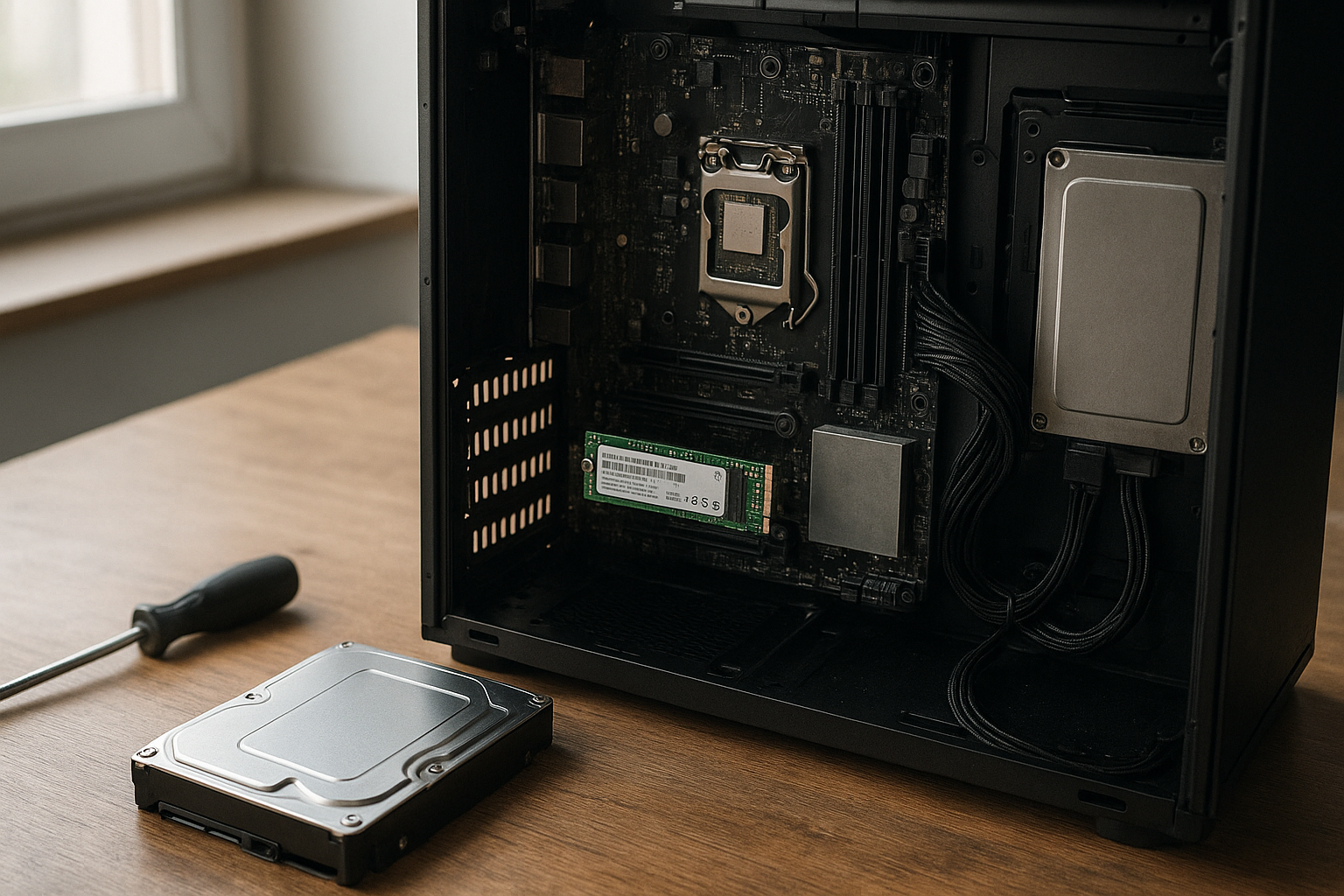
The best internal hard drives depend on what you store, how quickly you need it, and which drive bays or M.2 slots your computer supports. A PCIe NVMe SSD is usually the right choice for Windows, applications, and games, while a large SATA HDD remains practical for bulk files, backups, and media libraries.
This guide explains how to choose an internal hard drive in 2026 without confusing capacity with performance. You will learn the differences between SATA SSDs, NVMe SSDs, and mechanical HDDs; which specifications matter; when a hybrid setup makes sense; and which type of drive suits gaming, creative work, office storage, or backup use.
Table of Contents
- Best Internal Hard Drives by Use Case
- Internal SSD vs HDD: What Is the Difference?
- Drive Types and Interfaces Explained
- How to Choose an Internal Hard Drive
- Recommended Storage Configurations
- Installation and Setup Checklist
- Reliability, Backups, and Maintenance
- Key Takeaways
- Frequently Asked Questions
- Conclusion
[[IMAGE: A clear comparison of a 2.5-inch SATA SSD, 3.5-inch desktop HDD, and M.2 NVMe SSD beside a desktop motherboard, with labels for connectors, form factors, and typical uses]]
Best Internal Hard Drives by Use Case
There is no single best internal hard drive for every computer. A fast NVMe SSD can transform system responsiveness, but it may cost more per terabyte than an HDD. A large mechanical drive can hold a substantial media collection at a lower cost, but it is slower, noisier, and more vulnerable to physical shock.
The following categories provide a more useful starting point than a simple ranked list. Always check the exact model’s warranty, endurance rating, workload suitability, and current price before buying.
Best internal hard drive for gaming
For a gaming PC, a PCIe NVMe SSD is generally the strongest primary choice. It reduces operating-system and game-loading delays, handles game updates more smoothly, and avoids the seek-time penalty of a mechanical disk. The benefit is most noticeable when the computer currently uses an HDD as its boot drive.
Choose an NVMe model that matches your motherboard’s supported PCIe generation. A newer SSD can work in an older slot in many systems, but it will operate at the limits of that slot. Do not pay a premium for a drive whose peak interface speed your platform cannot use unless you plan to move it to a newer computer later.
A SATA SSD is still a sensible gaming upgrade for an older desktop without a suitable M.2 slot. It is much more responsive than a mechanical HDD for game storage, although it usually cannot match the sequential or random performance of a current NVMe drive.
Best high-capacity internal hard drives for media and archives
A 3.5-inch SATA HDD is often the practical choice for large photo libraries, video files, installers, local archives, and games that you rarely play. Desktop-class lines from established manufacturers are available in multiple capacities and are designed for internal PC use, but their workload ratings and intended environments differ.
For files that must remain available around the clock, consider a NAS-oriented HDD rather than a basic desktop model. NAS drives may include firmware and vibration-management features intended for multi-drive enclosures, but those features do not replace a backup.
Use an SSD for projects you actively edit and an HDD for completed projects or reference material. Video editors, photographers, and music producers often benefit from this division because it keeps large, inexpensive storage separate from the faster workspace.
Best SATA hard drives for older desktops
“SATA hard drive” can mean either a SATA SSD or a SATA HDD. If your computer has a 2.5-inch bay and SATA data and power connectors, a 2.5-inch SATA SSD is usually the best performance upgrade. If you need several terabytes for the lowest practical cost, a 3.5-inch SATA HDD is more appropriate.
Check whether your desktop has a free 2.5-inch mounting point or whether you need a bracket. The drive may function without a dedicated bracket in some cases, but securing it properly prevents cable strain and unnecessary movement.
Fastest internal storage drives for demanding work
The fastest internal storage drives are PCIe NVMe SSDs, but their real-world advantage depends on the workload. Large sequential transfers, scratch-disk operations, software builds, virtual machines, and high-resolution media work can benefit more than ordinary web browsing or office documents.
Look beyond the advertised peak read speed. Sustained-write behavior, controller temperature, thermal throttling, random performance, capacity, and the presence or absence of a DRAM cache can matter more during long transfers. Professional users should also check endurance specifications and warranty terms rather than treating a benchmark number as a complete buying decision.
Internal SSD vs HDD: What Is the Difference?
The central difference is physical. An HDD stores data on rotating magnetic platters and uses moving read/write heads. An SSD stores data in flash memory and has no moving storage mechanism, which gives it much lower access latency and better resistance to movement during normal use.
| Storage type | Main strengths | Main limitations | Best suited to |
|---|---|---|---|
| PCIe NVMe SSD | Very low latency, high throughput, compact M.2 designs | Higher cost per terabyte, possible heat, finite write endurance | Operating systems, games, applications, demanding work |
| 2.5-inch SATA SSD | Fast everyday response, broad compatibility, silent operation | Limited by the SATA interface, usually less competitive for very large capacities | Older desktops, laptops with SATA bays, affordable system upgrades |
| 3.5-inch SATA HDD | Large capacities and low cost per terabyte | Mechanical latency, noise, vibration, slower random access | Archives, media libraries, bulk storage, secondary game libraries |
For everyday responsiveness, the jump from an HDD to any decent SSD is usually more meaningful than the jump from a SATA SSD to a high-end NVMe SSD. The latter can still be valuable, but its gains are workload-dependent rather than automatic.
When an SSD is the better choice
- Boot time and application launch speed matter.
- You frequently load large games or professional applications.
- You move many small files or use virtual machines.
- The computer is exposed to vibration or is moved regularly.
- You want silent storage with low access latency.
SSDs are not indestructible. Flash cells have finite program/erase limits, and an SSD can fail electronically without the warning signs sometimes associated with a degrading HDD. Keep independent backups of important files, regardless of drive type.
When an HDD is the better choice
- You need several terabytes for media, documents, or archives.
- The files are accessed occasionally rather than continuously.
- Capacity per dollar matters more than fast loading.
- You are building a secondary storage pool for a desktop PC.
- You need a local backup destination with more capacity than an SSD budget allows.
HDDs work best as secondary storage in a quiet, well-ventilated desktop. They are a poor choice for a modern system drive if you want fast startup and responsive software.
Drive Types and Interfaces Explained
PCIe NVMe SSDs
NVMe is a storage protocol designed for nonvolatile memory, while PCIe is the interface used to connect the drive to the system. Most current consumer NVMe SSDs use an M.2 2280 physical format, but M.2 describes the shape and connector rather than guaranteeing a particular speed or protocol.
Before buying, confirm that the motherboard’s M.2 slot supports NVMe over PCIe. Some M.2 slots support SATA drives, some support NVMe drives, and some share bandwidth with SATA ports or other expansion slots. The motherboard manual is the reliable source for those details.
Many high-performance NVMe drives include or require a heatsink. A motherboard’s built-in M.2 heatsink may be sufficient, but verify that it makes proper contact and that the SSD fits beneath the graphics card or other components.
2.5-inch SATA SSDs
A SATA SSD uses the same basic data and power connections as a 2.5-inch SATA HDD. This makes it a convenient upgrade for systems that lack an NVMe slot, although the SATA interface places a ceiling on throughput well below that of modern PCIe SSDs.
SATA SSDs remain useful for secondary application storage, older desktops, compact systems, and computers whose available expansion slots are already occupied. They are also simpler to install because the drive can mount in a standard bay and connect with familiar cables.
3.5-inch SATA HDDs
Desktop HDDs generally use the 3.5-inch form factor and SATA interface. They need both a SATA data connection to the motherboard and a SATA power connection from the power supply. Capacity, spindle speed, cache size, recording technology, acoustics, and workload rating vary by model.
Do not compare HDD cache size as if it were equivalent to SSD performance. A larger cache may help with certain access patterns, but it does not eliminate the mechanical latency inherent in the drive.
CMR and SMR recording
Some HDDs use conventional magnetic recording (CMR), while others use shingled magnetic recording (SMR). SMR can provide high areal density, but sustained rewriting and random-write workloads may behave differently from CMR designs.
For an archive that is written occasionally, SMR may be perfectly adequate. For a frequently rewritten work drive, RAID array, or demanding NAS workload, check the manufacturer’s documentation and prefer a model whose recording method and workload rating fit the use case.
The SATA-IO overview of SATA technology provides useful background on the interface, while the NVM Express specifications page explains the NVMe standard and its revisions.
How to Choose an Internal Hard Drive
1. Confirm physical and platform compatibility
Start with the computer, not the product listing. Identify available M.2 slots, SATA ports, drive bays, motherboard lane-sharing rules, operating-system support, and power-supply connectors. A drive that cannot be mounted or connected is not a bargain, even if its specifications look excellent.
For a prebuilt desktop, check the manufacturer’s service manual and maximum supported drive configuration. Some compact systems use unusual mounting brackets, limited airflow, or proprietary power connections.
2. Match performance to the workload
Sequential read and write figures describe large, orderly transfers. Random read and write performance, latency, and queue-depth behavior are more relevant to operating-system responsiveness and many application tasks.
HDDs are dominated by mechanical seek time, so their random-access performance is far below that of SSDs. NVMe SSDs are strongest when software can issue many operations or transfer large files, but a premium model may deliver little visible benefit for light office work.
3. Choose capacity with working space in mind
Do not fill a drive to its last few gigabytes. Operating systems, games, temporary files, updates, and SSD housekeeping all need room. An SSD’s available free space can also influence sustained performance, depending on its controller, NAND configuration, and workload.
A useful planning method is to estimate your current data, add the amount you expect to create over the next two or three years, and reserve space for temporary work. For a gaming PC, include the size of several current games rather than assuming every title is small.
4. Evaluate SSD endurance and warranty
SSD endurance is commonly expressed as a terabytes-written rating, but that figure is not a promise that the drive will fail immediately afterward. It is a product-rating measure that should be compared with your workload and warranty conditions.
Read the warranty carefully. Check its duration, total-bytes-written limit, support process, and whether the manufacturer requires registration or specific diagnostic information. A higher endurance rating is especially relevant for video scratch disks, databases, virtual machines, and other write-heavy uses.
5. Consider temperature and sustained performance
Fast NVMe SSDs can generate meaningful heat during long transfers. If the drive throttles to protect itself, a headline peak speed may not represent sustained performance. Good airflow and an appropriate heatsink can matter more than choosing the most expensive model.
Leave the M.2 drive clear of heat sources where possible. A graphics card positioned directly over the slot, restricted case airflow, or an incorrectly installed heatsink can raise temperatures.
6. Treat reliability as a system property
Reliable PC storage drives come from more than a brand name. Firmware quality, controller design, NAND type, manufacturing consistency, workload, temperature, power stability, and backup practices all influence the result.
Look for a clear manufacturer support page, published specifications, firmware tools, and an understandable warranty. Avoid choosing solely from an anonymous marketplace listing that does not identify the exact model, revision, or recording technology.
7. Compare total cost, not just purchase price
Include mounting hardware, a heatsink if needed, backup capacity, and possible cloning software or adapters. A cheap primary drive that quickly runs out of space can cost more to replace than a slightly larger model bought initially.
For high-capacity internal hard drives, calculate cost per usable terabyte but also consider electricity, noise, and the value of your time. An HDD may be cheaper to buy, while an SSD may reduce waiting time and improve the overall experience.
Recommended Storage Configurations
One-drive mainstream desktop
Use a sufficiently large NVMe SSD for Windows, applications, and your active files. This is the simplest arrangement and usually gives the best everyday experience, but it requires a separate backup destination because one drive is still a single point of failure.
Gaming desktop with a large library
Install the operating system and frequently played games on an NVMe SSD. Add a second SSD if you regularly move between large games or use the computer for content creation. An HDD can hold older games and installers, but games installed on it may load noticeably more slowly.
Creator workstation
A practical layout is an NVMe system drive, a second fast SSD for current projects or cache files, and a large HDD for completed work. The exact arrangement depends on the application, but separating active and archival data can prevent a single busy disk from becoming a bottleneck.
Budget desktop with substantial storage needs
Use a modest SSD for the operating system and applications, then add a larger HDD for bulk data. This approach provides much of the responsiveness people expect from a modern PC without requiring every terabyte to use flash storage.
Local backup arrangement
A second internal HDD can serve as one backup target, but it should not be the only copy. If malware, theft, power damage, or a failed power supply affects the computer, both internal drives may be lost. Keep at least one backup disconnected or stored separately, and consider an encrypted cloud or off-site copy for irreplaceable data.
Installation and Setup Checklist
- Back up important files. Storage installation should not begin with your only copy of important data.
- Shut down and disconnect power. Follow the computer or motherboard manufacturer’s handling instructions.
- Install the drive securely. Use the correct screw, bracket, or motherboard retention mechanism without overtightening.
- Connect SATA drives correctly. A SATA drive needs a data cable to the motherboard and a power cable from the power supply.
- Check BIOS or UEFI detection. If the drive is missing, inspect the slot-sharing rules, cables, power, and firmware settings.
- Initialize and format the drive in the operating system. Select the partition style and file system appropriate for your platform and use case.
- Update firmware only with a stable power supply. Use the manufacturer’s official utility and follow its instructions.
- Test the volume before relying on it. Copy noncritical data first and confirm that the operating system reports the expected capacity.
New drives may show less usable capacity than the number printed on the box because manufacturers and operating systems calculate terabytes differently. A small difference is normal; a substantial mismatch deserves investigation.
If an NVMe SSD is not detected, do not assume the drive is defective. The slot may be disabled when certain SATA ports are populated, the drive may be installed at an angle incorrectly, or the system may need a firmware update. Consult the motherboard manual before changing advanced settings.
[[IMAGE: A step-by-step desktop PC storage installation showing an M.2 NVMe SSD being secured under a motherboard heatsink and a 3.5-inch HDD connected with SATA data and power cables]]
Reliability, Backups, and Maintenance
Monitor drive health
Use the manufacturer’s dashboard or a reputable SMART-monitoring tool to check temperature, reported health, error counts, and total writes where those values are available. SMART warnings are useful signals, but a clean SMART report is not a guarantee that a drive cannot fail.
The open-source smartmontools project on GitHub documents tools commonly used to read SMART information. Windows, Linux, and macOS may also expose some drive-health data through built-in or vendor utilities.
Keep firmware and backups separate
Firmware updates can fix compatibility or reliability problems, but they also carry some risk if power is interrupted. Back up first, use the official utility, and avoid updating during unstable power conditions.
Backups should be versioned when possible. A mirrored drive or RAID array can improve availability, but it is not a complete backup because accidental deletion, corruption, ransomware, and some hardware faults can be copied to every member.
Manage heat, vibration, and power
Keep HDDs firmly mounted and provide airflow through the drive area. Excessive vibration can increase noise and may affect multi-drive systems. SSDs benefit from cooling during sustained workloads, while both drive types benefit from a reliable power supply and sensible shutdown behavior.
Secure sensitive data
If a drive will contain financial records, personal photographs, business files, or customer information, use operating-system encryption or a hardware-supported encryption feature that you understand and can recover. Store recovery keys separately from the computer.
When retiring a drive, securely erase it using a method appropriate to the storage technology. Traditional overwrite assumptions do not always apply cleanly to SSDs because of wear leveling, so follow the manufacturer’s secure-erase guidance.
Key Takeaways
- For most modern PCs, an NVMe SSD is the best primary system drive.
- A SATA SSD is an excellent upgrade for older desktops without a useful NVMe slot.
- Choose a 3.5-inch HDD when capacity and cost per terabyte matter more than speed.
- The best internal hard drive for gaming is usually an NVMe SSD, with SATA SSD storage as a capable alternative.
- Check form factor, interface support, lane sharing, capacity, endurance, warranty, and cooling before buying.
- CMR and SMR recording can behave differently under sustained rewriting, so verify the intended workload.
- RAID improves availability in some scenarios but does not replace an independent backup.
- Monitor drive health, keep firmware current, and maintain at least one separate copy of important data.
[[IMAGE: A practical three-drive desktop storage layout diagram showing an NVMe SSD for the operating system, a second SSD for active projects or games, and a high-capacity HDD for archives and backups]]
Frequently Asked Questions
What is the best internal hard drive for most desktop PCs?
For a modern desktop, a PCIe NVMe SSD is usually the best primary drive because it offers low latency, compact installation, and strong performance for the operating system and applications. A 2.5-inch SATA SSD is the better choice when the motherboard lacks a suitable NVMe slot. Add a 3.5-inch HDD when you need inexpensive bulk storage rather than maximum responsiveness.
Is an NVMe SSD always faster than a SATA SSD?
At the interface level, NVMe drives connected through PCIe can provide much higher throughput and lower latency than SATA SSDs. However, the visible difference depends on the workload. Booting, browsing, and office applications may feel similar on both, while large transfers, virtual machines, software development, and demanding media work can show a clearer advantage for NVMe.
Are HDDs still worth buying in 2026?
Yes, for the right role. HDDs remain useful for large media collections, archives, local backups, surveillance storage, and files that do not need instant access. They are generally less suitable as a primary system drive because mechanical seek time makes Windows, applications, and games feel slower. Pairing an SSD with an HDD often provides a better balance than choosing only one technology.
How much internal storage should a gaming PC have?
The answer depends on the size of your game library and whether you uninstall titles after finishing them. A practical plan is to use an SSD with enough free space for Windows, applications, updates, and several frequently played games. If you keep many large games installed, add a second SSD or a high-capacity HDD for less frequently played titles, accepting slower loading from the HDD.
Should I buy a SATA SSD or an HDD for extra storage?
Choose a SATA SSD when you value silent operation, quick file access, and responsive applications, or when the additional storage will hold games and active projects. Choose an HDD when you need multiple terabytes at the lowest purchase cost and most files are accessed occasionally. If budget allows, an SSD for active data plus an HDD for archives is often the most flexible arrangement.
What is the difference between CMR and SMR hard drives?
CMR writes tracks without the same degree of overlap used by SMR. SMR can offer higher storage density, but sustained rewriting and some random-write workloads may behave differently because data tracks can require additional management. SMR can suit write-once or occasionally updated archives, while frequently rewritten desktop, NAS, or RAID workloads deserve a model whose recording method is explicitly appropriate.
Does RAID replace a backup?
No. RAID can keep a system available after some drive failures, depending on the array level and its condition, but it does not protect against accidental deletion, malware, file corruption, theft, or many system-wide incidents. Maintain a separate, preferably versioned backup. For irreplaceable data, keep an additional copy off-site or in a reputable encrypted cloud service.
Conclusion
The best internal hard drives are selected by workload rather than by a single speed number. Choose an NVMe SSD for a fast system or gaming drive, a SATA SSD for broad compatibility, and a high-capacity HDD for economical bulk storage. A mixed setup often delivers the best balance of speed, capacity, noise, and cost.
Before ordering, open your motherboard or desktop manual, confirm the available slot or bay, estimate your real capacity needs, and check the exact model’s endurance, recording technology, warranty, and cooling requirements. Then plan a separate backup, because even the most reliable PC storage drive is not a substitute for another copy of your data.