
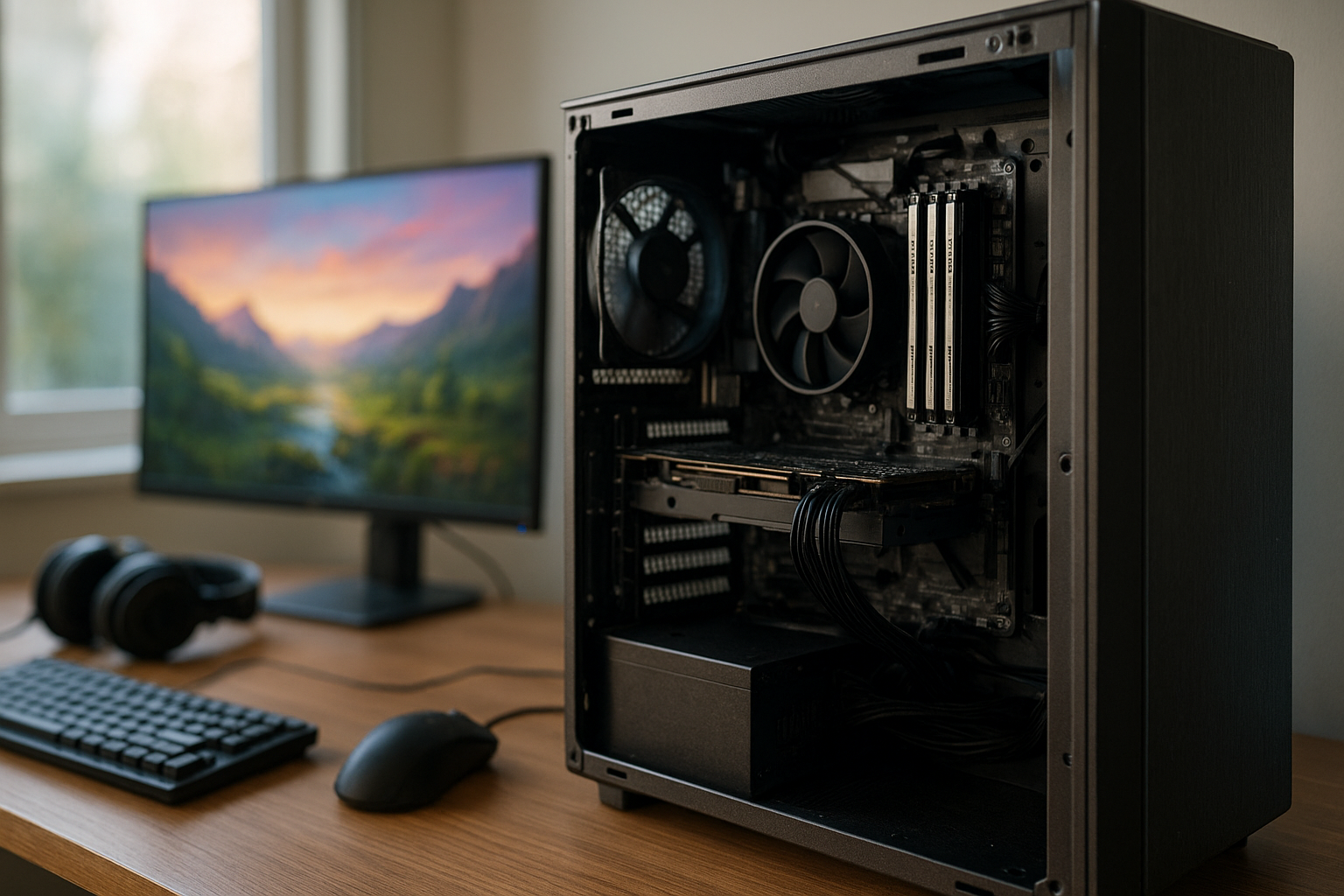
32GB RAM for gaming is now a practical target for many new gaming PCs—especially if you play demanding releases, use mods, stream, or keep several applications open. However, 32GB is not a magic performance switch: your graphics card, processor, storage, and in-game settings still determine most of your frame rate.
This guide explains how much RAM for gaming different players actually need, when 16GB still makes sense, why some modern games feel smoother with 32GB, and how to plan a sensible upgrade without wasting money.
Table of Contents
Why 32GB RAM for gaming Matters
System RAM stores the data Windows and your active programs need quick access to. A game may load textures, world geometry, shaders, artificial intelligence data, audio, and recently visited areas into memory, while Windows, a browser, a voice-chat app, and a game launcher draw from the same pool.
With 32GB available, the computer has more room for these tasks before it must move less-used data to the storage drive. This process, called paging or swapping, is far slower than accessing RAM. It can contribute to hitching when a game loads a new area or when you switch between the game and another application.
More memory does not automatically increase average frames per second. If your graphics card is already the limiting component, moving from 16GB to 32GB may produce little change in the average frame rate. The benefit often appears instead as fewer interruptions, smoother background multitasking, and more consistent frame delivery.
Does gaming need 32GB RAM?
Not every game needs 32GB. Many games run well with 16GB when the PC has a clean background workload and the game’s own requirements are modest. The real question is whether 16GB leaves enough headroom for your complete session—not merely whether the game launches.
32GB is especially useful when you combine gaming with any of the following:
- A web browser with many tabs, game guides, music, or video playing in the background.
- Voice chat, recording software, RGB utilities, hardware monitoring, and launchers.
- Large texture packs, extensive mods, or games with detailed open worlds.
- Streaming or recording while playing.
- Video editing, photo editing, virtual machines, or other demanding work on the same PC.
In other words, 32GB RAM for gaming is primarily a headroom and consistency upgrade. Its value grows as the rest of your software workload expands.
How Games Use System Memory
It helps to distinguish between three resources that are often confused: system RAM, graphics memory, and storage. System RAM is installed on the motherboard. VRAM is built into or attached to the graphics card and holds data the GPU needs. An SSD or hard drive stores the game files when they are not actively in use.
RAM is not a replacement for VRAM
Installing 32GB of system memory cannot compensate for a graphics card with insufficient VRAM. If a game exceeds the GPU’s available video memory, it may use system RAM as a slower fallback, but that does not provide the same bandwidth or latency as dedicated VRAM.
Conversely, a graphics card with plenty of VRAM cannot solve a system-memory shortage. A game can have enough video memory for its textures and still stutter because Windows and the game are competing for too little system RAM.
For a balanced upgrade, check both the game’s system requirements and your PC’s actual usage. Official requirements are useful starting points, but they do not always show how much memory the game consumes alongside a browser, streaming software, mods, or a recording buffer.
Why available memory changes during a session
Windows uses spare RAM for caching and other routine tasks, so seeing some memory marked as “used” is not automatically a problem. More useful warning signs include sustained high memory usage, a sharp increase in hard faults, noticeable disk activity during gameplay, and stutter that disappears after you close background applications.
You can inspect this in Windows Task Manager. Open it with Ctrl + Shift + Esc, select the Performance tab, and choose Memory. Check usage while the game is running in the actual situation that causes trouble, such as a busy multiplayer match or a heavily modded save.
Do not diagnose a memory problem from one number alone. A game may use a large amount of RAM without causing any issue, while a smaller workload can stutter because of a driver problem, shader compilation, slow storage, thermal throttling, or unstable memory settings.
16GB vs 32GB RAM Gaming
The practical difference between 16GB and 32GB depends on what runs alongside the game. For a focused gaming session, 16GB can still be adequate. For a modern desktop that must handle a game plus several active applications, 32GB gives the operating system considerably more breathing room.
| Memory capacity | Best suited to | Strengths | Limitations |
|---|---|---|---|
| 8GB | Older or lightweight games and basic desktop use | Low cost and acceptable for limited workloads | Little headroom for current games, background apps, or multitasking |
| 16GB | Mainstream gaming with a controlled background workload | Good value and sufficient for many games | Can become restrictive with demanding games, mods, streaming, or many open applications |
| 32GB | Modern gaming, multitasking, mods, and gaming with content creation | More headroom, fewer memory-related compromises, and a stronger long-term position | Costs more and may not improve frame rates when another component is the bottleneck |
| 64GB or more | Heavy modding, content creation, development, virtual machines, and specialist workloads | Excellent capacity for combining several demanding tasks | Usually unnecessary for ordinary gaming and offers diminishing returns for game performance alone |
When 16GB remains a sensible choice
Choose 16GB if you are building to a strict budget, mostly play esports or older titles, and do not run demanding software at the same time. It can also be a reasonable temporary configuration if the motherboard has two free memory slots and you have confirmed that a later upgrade will be compatible.
There is an important distinction between “the game runs” and “the system has comfortable headroom.” A 16GB PC may work perfectly in one title, then become cramped in another once you add a browser, launcher, voice chat, and recording tool.
When 32GB is the better value
32GB is the stronger default for a new mid-range or high-end gaming PC when the price difference does not force you to downgrade the graphics card. A faster GPU normally has a more direct effect on image quality and frame rate, so memory capacity should not come at the expense of a badly unbalanced graphics card choice.
For an existing 16GB computer, the upgrade makes the most sense when monitoring confirms that memory usage is regularly close to the available capacity or when the system begins paging during the exact games and tasks you care about. If the system never approaches its limit, an upgrade may not change your experience.
Gaming PC RAM Requirements by Use Case
There is no universal answer to how much RAM for gaming because “gaming” covers very different workloads. A competitive player running one optimized game has different requirements from someone who streams an open-world game while recording locally and keeping a browser-based chat dashboard open.
Competitive and esports games
Many competitive games are less demanding than the newest cinematic single-player releases, particularly at lower settings and resolutions. In this use case, 16GB can be enough if the PC is dedicated primarily to the game.
32GB can still be worthwhile for tournament tools, streaming, recording, browser tabs, and a longer upgrade cycle. It will not by itself fix input latency or low frame rates caused by a weak processor or graphics card.
Large open-world and visually demanding games
Modern open-world games can stream large amounts of data as you travel between areas. Their memory behavior varies by engine, settings, patches, and the rest of the system, so avoid treating one game’s result as a rule for every title.
A 32GB configuration gives these games more room to coexist with Windows and background services. It is particularly attractive if you use high-resolution texture packs or mods, although the graphics card’s VRAM remains crucial for texture quality.
RAM for gaming and streaming
Streaming adds encoding, scene composition, browser sources, alerts, chat, and possibly a local recording workload. The exact demand depends on the encoder and settings: hardware encoding can shift much of the work to a supported GPU, while software encoding uses the processor.
That does not make memory irrelevant. RAM for gaming and streaming should cover the game, the broadcast application, browser sources, chat tools, and Windows without forcing the system to page. OBS publishes its current official system requirements and compatibility guidance, but your game and scene collection determine the real workload.
Modded games and simulation titles
Modded games can use substantially more memory than their unmodified versions because of additional assets, scripts, maps, and texture data. Strategy, simulation, city-building, and management games may also maintain large world states or lengthy sessions, although the specific memory pattern differs from game to game.
For these workloads, 32GB is a sensible starting point rather than a guarantee. Extremely large mod lists, development tools, or multiple game instances can justify 64GB, but capacity should follow measured use rather than a general fear that more is always better.
When 32GB Improves Gaming Performance
The relationship between gaming performance and memory covers more than the average FPS number. A useful upgrade can improve frame-time consistency, reduce pauses during asset streaming, and make switching between applications less disruptive.
Average FPS versus frame-time consistency
Average FPS describes the mean rendering rate over a test period. It does not reveal every short pause. A system that averages 90 FPS but repeatedly drops frames during area transitions can feel less responsive than a system with a slightly lower average that maintains steadier frame times.
Insufficient RAM is one possible cause of inconsistent performance, but it is not the only one. CPU scheduling, shader compilation, asset decompression, storage speed, background updates, overheating, and game-engine behavior can all create stutter.
Use repeatable testing when investigating. Compare the same location or sequence with the same settings, record memory usage, and change one variable at a time. If closing background programs solves the issue, that supports a capacity or software-workload diagnosis; it does not prove that RAM was the only cause.
Windows paging and storage activity
When physical RAM becomes scarce, Windows can move inactive memory pages to a paging file on the storage drive. An SSD handles this better than a hard drive, but it remains much slower than RAM and can add latency when data must be brought back.
Disabling the paging file is not a reliable fix. Windows manages virtual memory for many applications, and removing that safety net can create application errors or crashes. A better approach is to close unnecessary programs, identify the workload using memory, and install more RAM if the capacity is repeatedly inadequate.
Loading times are a separate issue
More RAM does not automatically make a game load faster. Loading is affected by the storage device, game engine, CPU decompression work, asset layout, and the game itself. RAM helps by keeping active data available and reducing pressure to page, but it cannot turn a slow drive into a fast one.
Microsoft’s DirectStorage documentation explains the Windows technology involved in modern asset loading paths. Support still depends on the game, operating system, storage device, and graphics hardware, so memory capacity is only one part of the loading pipeline.
Choosing and Installing 32GB Memory
Capacity is the first decision, but compatibility and configuration determine whether your upgrade works properly. A nominally faster kit is not useful if the motherboard does not support it reliably or if mixing modules forces conservative settings.
Use a matched kit when possible
For 32GB, a matched two-module kit is commonly preferable to combining unrelated sticks. Two modules can enable dual-channel operation on compatible desktop platforms, increasing available memory bandwidth compared with a single module.
Check the motherboard manual for the recommended slots. On many boards, the correct arrangement is not simply the two slots closest to the processor. The manual identifies the preferred paired slots and explains the supported memory configurations.
Match the memory generation
DDR4 and DDR5 are different memory standards and are not interchangeable. A motherboard designed for DDR4 cannot accept DDR5 modules, and vice versa. Laptop memory also uses different physical formats from standard desktop DIMMs.
Before buying, confirm:
- The memory type supported by the motherboard or laptop.
- The total capacity and module size supported by the platform.
- The number of available slots and whether existing modules can remain installed.
- The rated speed and profiles supported by the motherboard and processor.
- Whether the kit’s height will interfere with a large CPU cooler.
Speed, timings, and stability
Memory speed can influence performance, but its effect varies by processor, game, graphics card, and resolution. Capacity usually matters first when the system is running out of memory; speed matters after the system has enough capacity and the platform can use the faster settings reliably.
Many memory kits advertise an overclocking profile that must be enabled in the motherboard firmware. On compatible systems, this may appear as XMP or EXPO, depending on the platform. Enable it only after checking stability, and update the motherboard firmware if the manufacturer lists improved memory compatibility.
If a new kit produces crashes, corrupted installations, or game errors, return the memory to default settings and test it. Memory instability can look like a game bug, a graphics-driver failure, or a bad Windows installation.
Upgrading from 16GB to 32GB
The cleanest upgrade is often replacing an existing 2 × 8GB kit with a matched 2 × 16GB kit. Adding another 2 × 8GB kit can work, but four populated slots may place more electrical load on the memory controller, and mixed kits may use different chips or profiles.
Compatibility is platform-specific, so do not assume that two separately purchased kits with identical advertised specifications are guaranteed to behave as one validated kit. If you must mix modules, use the motherboard manufacturer’s memory support information, update firmware where appropriate, and test the result thoroughly.
Who Should Buy 32GB and Who Should Wait
32GB is a good choice for these users
- People building a new gaming PC intended to last several years.
- Players who use mods, high-resolution asset packs, or large simulation games.
- Anyone who streams, records, edits clips, or runs a browser and chat tools while playing.
- Users who regularly see memory usage near the installed capacity during gameplay.
- People who want a future-proof gaming PC upgrade without moving immediately to 64GB.
“Future-proof” should be used carefully. No memory capacity guarantees that a PC will meet future game requirements, and RAM cannot compensate for an outdated graphics card or processor. Still, 32GB reduces the chance that system memory becomes the first major constraint as software workloads grow.
16GB may be the better decision for these users
- Budget-focused buyers who need to protect spending on the graphics card.
- Players who mainly run lightweight games with few background applications.
- People buying a platform with an easy, well-documented upgrade path.
- Users whose monitoring shows plenty of unused memory during their normal sessions.
Do not upgrade solely because a higher number sounds faster. If your game is GPU-limited, adding RAM will not deliver the improvement you want. In that situation, compare GPU utilization, graphics memory usage, CPU thread utilization, temperatures, and frame-time behavior before choosing the next component.
A practical upgrade checklist
- Record memory usage during your most demanding game and normal background workload.
- Check the game’s recommended requirements and any mod or streaming software requirements.
- Identify whether your PC uses DDR4 or DDR5 and confirm the motherboard’s supported kits.
- Prefer a matched kit over an assortment of old and new modules.
- Install the modules in the motherboard’s recommended paired slots.
- Enable the advertised memory profile only if your system supports it.
- Test several games and applications for crashes or errors after the upgrade.
For broader context, the Steam Hardware & Software Survey can show how PC hardware adoption changes over time. It is a useful snapshot of the Steam audience, not a direct recommendation for the RAM capacity your particular games require.
Key Takeaways
- 32GB RAM for gaming is a strong default for a new modern gaming PC, particularly with multitasking, streaming, mods, or demanding open-world titles.
- 16GB remains capable for many games when background applications are limited and the system is well balanced.
- More RAM mainly adds headroom and can improve frame-time consistency; it does not automatically raise average FPS.
- System RAM and graphics-card VRAM solve different problems. More of one cannot fully replace the other.
- A matched dual-module kit with verified motherboard compatibility is generally safer than mixing unrelated memory sticks.
- Monitor real usage before upgrading. Stutter can also come from storage, drivers, shaders, CPU limits, thermals, or game-engine issues.
- 64GB is sensible for heavy modding, content creation, virtual machines, or other professional workloads, not as a requirement for ordinary gaming.
Frequently Asked Questions
Is 32GB RAM enough for modern gaming?
For most gaming-focused PCs, 32GB is enough and provides useful headroom for Windows, a game, voice chat, a browser, and recording or streaming tools. It is not a guarantee of maximum performance because the graphics card and processor remain critical. Very large mod collections, professional content creation, virtual machines, or several demanding applications at once can still justify 64GB or more.
Does gaming need 32GB RAM, or is 16GB enough?
Gaming does not universally need 32GB. Many games can run well with 16GB, especially when you close unnecessary background applications. However, 32GB is the more comfortable choice for a new PC if you play demanding releases, use mods, stream, record, or want more headroom for future software. Check actual memory usage before upgrading an existing 16GB system.
Will 32GB RAM increase FPS?
It may increase FPS in situations where 16GB causes paging or severe memory pressure, but that is not the usual reason to buy it. More often, 32GB reduces memory-related hitching and improves frame-time consistency. If your graphics card is already fully utilized and system memory is not close to its limit, moving from 16GB to 32GB may produce little or no measurable average-FPS improvement.
Is 32GB RAM better for gaming and streaming?
Usually, yes. Streaming can involve the game, broadcast software, browser sources, alerts, chat, and a local recording process at the same time. A supported hardware encoder can reduce processor load, but it does not eliminate memory use. 32GB gives this combined workload more room than 16GB, while the ideal capacity still depends on the game, scene complexity, encoder, and recording settings.
Is two 16GB RAM sticks better than four 8GB sticks?
A matched 2 × 16GB kit is often the simpler choice for a 32GB upgrade. It leaves more expansion room and may be easier for the memory controller to run at the kit’s rated settings. Four 8GB sticks can work correctly, but stability and supported speeds depend on the motherboard, processor, memory chips, and firmware. Always follow the motherboard manual and test after installation.
Can I mix two different RAM kits to reach 32GB?
You can sometimes mix kits, but manufacturers generally validate a kit as a complete group rather than guaranteeing every combination of separately purchased modules. Different memory chips, ranks, voltages, or profiles can cause instability or force lower settings. If possible, replace the old modules with one matched 32GB kit. If you mix memory, use conservative settings and test the system thoroughly.
Should I buy 64GB RAM for gaming instead of 32GB?
Buy 64GB if your workload includes heavy modding, video editing, software development, virtual machines, large creative projects, or several demanding programs at once. For ordinary gaming, 64GB often provides capacity you will not use and may be less valuable than improving the graphics card, processor, or storage. 32GB is the better balance for most modern gaming systems.
How can I tell whether RAM is causing game stutter?
Monitor memory usage and disk activity while reproducing the problem, ideally with the same game area and settings. If memory is consistently near full and closing background programs makes the hitching disappear, insufficient capacity may be involved. Also investigate GPU and VRAM usage, CPU limits, temperatures, shader compilation, drivers, and storage performance. RAM is one possible cause, not a universal explanation for stutter.
Conclusion
For most new gaming PCs, 32GB RAM for gaming is the sensible middle ground: it supports demanding games while leaving room for browsers, chat, streaming, recording, mods, and ordinary Windows activity. It will not replace a capable graphics card or fix every stutter, but it reduces the chance that limited system memory becomes an avoidable bottleneck.
If you already have 16GB, monitor your complete gaming workload before spending money. If memory regularly approaches its limit, paging appears during play, or multitasking forces you to close essential tools, move to a matched 32GB kit and verify motherboard compatibility. If memory usage remains comfortable, direct your next upgrade toward the component that your performance measurements identify as the real limit.