
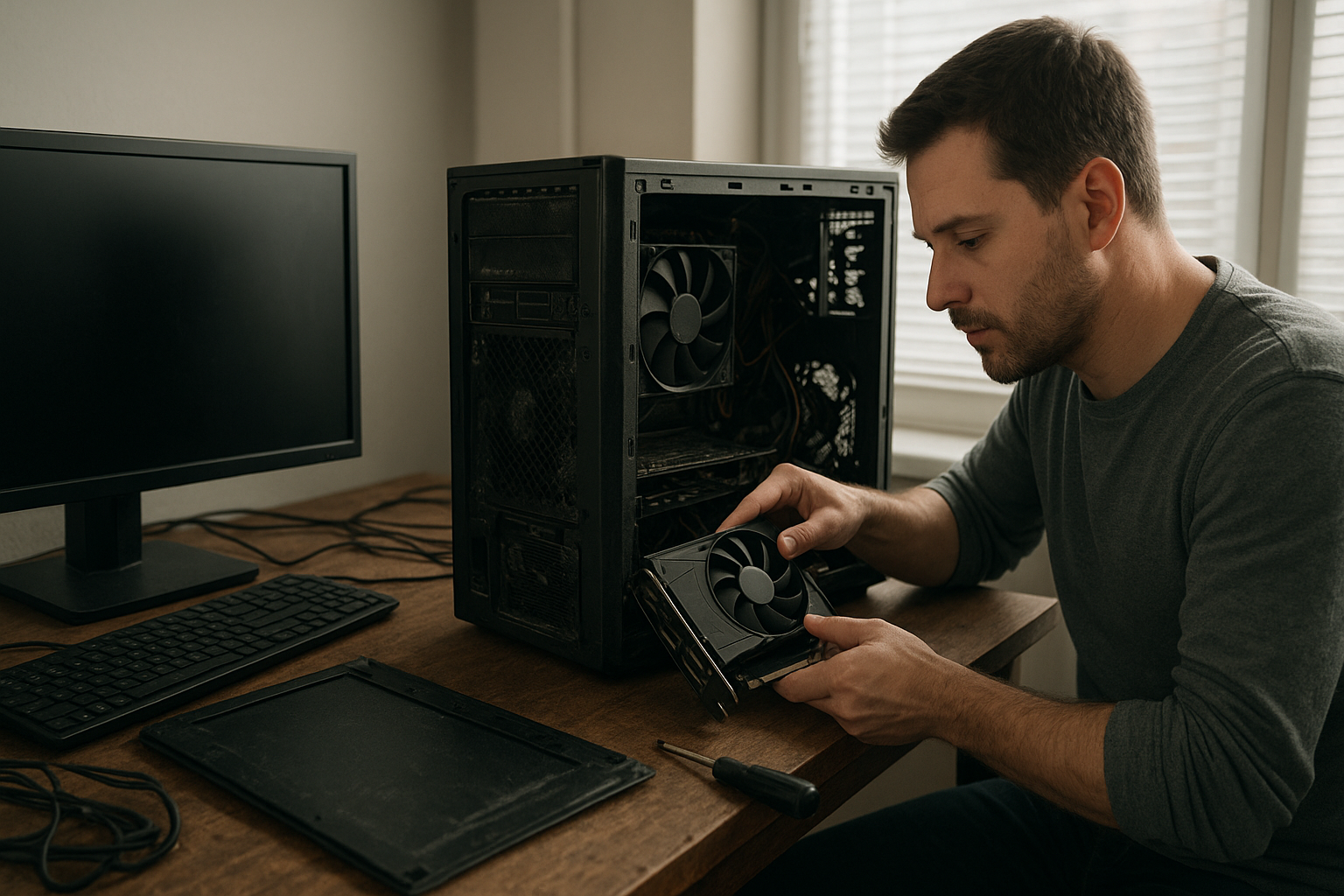
Windows 11 gaming crashes can stem from a recent update, a graphics driver conflict, damaged game files, overlays, unstable overclocking, or an issue limited to one title. The fastest solution is not to reinstall everything at once. First determine whether the crash affects the whole system, one game, or a recent change. This guide shows you how to check Windows patches, identify likely causes, apply safe fixes, and decide when rolling back an update or driver makes sense.
The steps below cover crashes to the desktop, freezes, sudden restarts, black screens, and games that fail during launch. They also address common cases involving Windows 11 game crashes after update and PC games crashing after Windows update, without assuming that Windows itself is responsible for every failure.
Table of Contents
First steps after a crash
Before changing drivers or removing a Windows update, record what happened. A game that closes to the desktop points to a different class of problem than a full system reboot, blue screen, or display driver timeout.
- Crash to desktop: often involves game files, mods, overlays, permissions, or an application-level conflict.
- Black screen with recovered display: commonly indicates a graphics driver timeout, GPU instability, or a display pipeline issue.
- Blue screen or automatic restart: may indicate a driver, memory, storage, power, or hardware problem rather than a normal game bug.
- Only one game fails: check that game’s files, settings, launcher, mods, and support channels first.
- Several games fail after the same change: investigate Windows patches, GPU drivers, background software, and system stability.
Restart Windows once after the initial crash, then test the game without launching recording tools, RGB utilities, overclocking software, or third-party overlays. Do not repeatedly force shutdowns while Windows is installing an update; interrupting servicing can create additional problems.
What to write down
Note the game, crash timing, Windows version, graphics driver version, and whether the problem began after an update. Also record whether the game is installed through Steam, Epic Games Store, Xbox, or another launcher, and whether mods or an injector such as a reshade tool are active.
This brief log helps prevent a common mistake: treating a single game’s faulty patch as proof that the operating system is broken. If a crash occurs in multiple unrelated games, that broader pattern is more useful than any one error message.
Check Windows 11 patches and known issues
Windows update gaming issues are easiest to investigate by comparing the date of the first crash with Windows Update history. Open Settings > Windows Update > Update history and expand the quality, driver, and other update sections. The exact update identifier matters because “the latest update” can include more than one package.
For release notes and known issues, consult Microsoft’s Windows 11 release health information. Microsoft may document a problem there, provide a workaround, or state that an issue affects only particular configurations. A missing entry does not prove that an update caused your crash, but a matching known issue significantly strengthens that diagnosis.
Use a change timeline
Create a simple timeline with three points: the last time the game worked, the first failed launch, and the changes made between those events. Include Windows updates, graphics driver updates, game patches, BIOS changes, new peripherals, security software, and graphics settings.
If both a game patch and a Windows patch arrived on the same day, do not assume which one is responsible. Test a second game that uses the same graphics API or anti-cheat system. This comparison can distinguish a game-specific regression from broader Windows 11 gaming patch problems.
Do not confuse optional updates with required updates
Windows Update may offer optional driver updates alongside normal security and quality updates. An optional driver is not automatically newer or better than the driver supplied directly by your graphics-card manufacturer. If a crash began immediately after an optional driver installation, record it separately and consider returning to the previously stable driver.
For security and reliability, avoid leaving Windows permanently unpatched as a first response. A temporary pause while you investigate can be reasonable, but a long-term pause leaves the PC exposed and may prevent later fixes from installing.
Identify the real cause
Windows 11 gaming crashes can look identical even when their underlying causes differ. Use the following tests in order, changing one variable at a time. This takes longer than applying ten fixes simultaneously, but it reveals which workaround actually helped.
Test another game and a clean launch
Start a second, known-working game. If only one title crashes, verify its files through the launcher, remove temporary mods, reset its configuration, and check the publisher’s support page. If several games crash, focus on shared components such as the graphics driver, DirectX-related files, overlays, memory stability, and Windows.
Disable overlays temporarily, including those from game launchers, chat applications, GPU software, and Windows Game Bar. Overlays hook into the rendering process, so they can conflict with a game update or anti-cheat component even when the game itself is undamaged.
Check Reliability Monitor and Event Viewer
Reliability Monitor provides a more readable timeline than Event Viewer for many desktop crashes. Search Windows for View reliability history, select the day of the failure, and inspect the red critical-event marker. Look for the game executable, a display driver module, or a Windows component.
Event Viewer can add context, but its warnings are easy to misread. A “DistributedCOM” warning appearing near a crash is not automatically the cause. Give more weight to an error that occurs at the exact crash time and names the affected application or driver.
Separate software crashes from instability
If the PC reboots, freezes outside games, produces visual artifacts, or fails stress tests, investigate system stability rather than only the game. Temporarily return CPU, GPU, and memory settings to their default values, including profiles enabled through the BIOS or tuning software.
Memory overclocking can appear stable in everyday use and still fail under a particular game workload. Likewise, a graphics driver update may expose an unstable factory or manual GPU overclock without being the sole underlying fault.
Windows 11 gaming crashes: practical fixes
These are the most useful Windows 11 gaming crash fix steps for common software causes. Start with the least destructive option, move toward more disruptive measures only when necessary, and retest after each major change.
1. Verify or repair the game installation
Use the launcher’s verify, repair, or scan function. This replaces missing or altered files without normally removing your saves, although you should confirm how the specific launcher handles mods and local configuration.
If verification reports repeated corruption, check storage health and free space. A nearly full drive, failing SSD, or file-system error can recreate the problem after every repair. Avoid downloading unofficial replacement DLL files; they can introduce malware and may not match the game’s required version.
2. Reset the game’s configuration
A damaged graphics configuration can crash a game before its menu appears. Rename the game’s configuration folder rather than deleting it, allowing the title to create a fresh profile. Back up save files first, because some games store saves and settings together.
After the reset, start with conservative settings. Disable ray tracing, frame-generation features, high-resolution texture packs, and custom launch arguments until the game is stable. Then restore options one at a time.
3. Update or reinstall the graphics driver
Download a driver from the official NVIDIA, AMD, or Intel support site that matches your GPU. If the crash began after a driver update, the newest package may not be the best choice for your system; rolling back to the last known-good version can be more effective.
A clean installation can remove remnants of older packages, but it should not be the first response to every crash. Follow the manufacturer’s documented procedure, create a restore point when available, and avoid unofficial driver bundles.
Microsoft’s guidance on updating drivers manually in Windows explains how Device Manager and manufacturer packages differ. For gaming GPUs, the manufacturer’s support page usually provides more complete release notes and installation choices.
4. Disable overlays and background hooks
Turn off one overlay at a time and retest. Common candidates include the launcher overlay, voice-chat overlay, GPU performance overlay, screen capture, hardware monitoring, and RGB control applications.
Do not permanently disable antivirus protection as a general workaround. Instead, check whether the security product quarantined a game file and use its documented game mode or a narrowly scoped exception only when you trust the installation.
5. Repair Windows system files
Open Windows Terminal or Command Prompt as an administrator and use Microsoft’s documented System File Checker procedure. The official System File Checker repair instructions explain the appropriate sequence when Windows components may be damaged.
System-file repair is useful when Windows features are malfunctioning or an interrupted update caused corruption. It will not repair a broken game installation, defective RAM, or a game developer’s coding bug, so treat it as a targeted test rather than a universal solution.
6. Repair required runtimes and launch components
Some games depend on Microsoft Visual C++ redistributables, DirectX components, launch services, or anti-cheat software. Reinstall only the runtime identified by the game publisher or launcher. Download redistributables from Microsoft or the game’s official installer, not from random “DLL fix” websites.
For older titles, compatibility settings or administrator privileges may help, but they can also interfere with modern launchers and anti-cheat systems. Test those options individually and undo them if they make no difference.
Driver and hardware workarounds
When PC games are crashing after Windows update, graphics driver conflicts deserve special attention. Windows may install a driver through Update, while the GPU manufacturer’s package, motherboard utilities, or a previous driver remains part of the system. The result can be a crash that appears only under a particular API or display mode.
Try a controlled graphics configuration
Use the game’s default renderer if it offers a choice between DirectX versions or Vulkan. Disable overlays, frame limiters, sharpening filters, and experimental features while testing. If the game becomes stable, re-enable features one at a time to identify the trigger.
Switching from exclusive fullscreen to borderless windowed mode can help with some display or alt-tab failures, but it may change latency, scaling, or multi-monitor behavior. Treat it as a diagnostic workaround, not proof that fullscreen is universally faulty.
Check temperatures, power, and memory
Monitor temperatures and clock behavior while reproducing the crash, but do not rely on one sensor reading as a diagnosis. Sudden rebooting under load can involve power delivery, overheating, unstable memory, or a protection response from the hardware.
Return tuning software to default settings before running longer tests. If the issue disappears, reapply changes gradually or leave the unstable profile disabled. Hardware troubleshooting is particularly important when Windows 11 gaming crashes affect multiple demanding games and occur without any recent software change.
Compare the workaround options
| Workaround | Best use case | Main benefit | Limitation or risk |
|---|---|---|---|
| Verify game files | One game fails or reports missing data | Repairs the installation with limited system impact | Will not fix driver, hardware, or Windows-wide problems |
| Disable overlays and mods | Crashes began after a game or overlay change | Quick, reversible conflict test | Removes features temporarily and may not identify the exact conflict |
| Roll back a graphics driver | Several games fail immediately after a driver update | Tests whether the previous driver was more stable | Older drivers may lack fixes, security improvements, or game support |
| Return hardware to default | Crashes include reboots, artifacts, or failures in several games | Removes overclocking as a variable | Does not repair defective hardware |
| Uninstall a recent Windows update | A documented or strongly correlated update regression is suspected | Can restore a previously working system state | Removes update protections and should be temporary when possible |
When to uninstall an update
Uninstalling an update is a reasonable Windows 11 game crash workaround only when the timing is clear, the failure affects more than one title or matches a documented issue, and safer tests have not helped. Open Settings > Windows Update > Update history > Uninstall updates and review the package details before proceeding.
Not every update can be removed. Some servicing components are permanent, and uninstalling a security update can increase risk. If the option is available, use it as a temporary diagnostic step while monitoring Microsoft’s release-health notes for a corrected package.
Pause updates without hiding the problem
Pausing updates can prevent an immediate reinstall while you gather evidence. It should not replace troubleshooting or become a permanent gaming configuration. Keep a record of the update identifier and resume updates once a fix or stable installation path is available.
If Windows automatically reinstalls a problematic driver, use the manufacturer’s supported driver-management options or Windows’ documented update controls. Avoid aggressive third-party “debloater” tools that remove update services, because they can create harder-to-diagnose failures later.
A practical diagnostic order
Use this sequence when you want a clear how to fix game crashes on Windows 11 checklist:
- Restart the PC and reproduce the crash once without changing anything.
- Test another game and note whether the problem is isolated or widespread.
- Check Update history, driver history, and the game’s own patch notes.
- Disable overlays, mods, recording tools, and tuning profiles.
- Verify the affected game’s files and reset its configuration.
- Update or roll back the graphics driver based on the timeline.
- Check Reliability Monitor for application or driver errors.
- Repair Windows components if there are signs of system-file corruption.
- Test default hardware settings and inspect temperatures, memory, and storage.
- Consider uninstalling a recent update only when the evidence supports it.
Stop once the problem is fixed and document the successful change. Making additional alterations after recovery can reintroduce the original issue and make future troubleshooting more difficult.
Key Takeaways
- Windows 11 gaming crashes are not automatically caused by Windows Update; establish whether one game, several games, or the whole PC is affected.
- Use Update history and Microsoft’s Windows 11 release-health pages to identify the exact patch involved.
- Test overlays, mods, game files, configuration files, and graphics drivers before making disruptive system changes.
- Return overclocked CPU, GPU, and memory settings to their defaults when crashes include reboots, artifacts, or instability outside games.
- Roll back a driver or uninstall an update only when the timing and symptoms support that conclusion.
- Keep Windows and security updates enabled whenever possible; treat pauses and removals as temporary troubleshooting measures.
Frequently Asked Questions
Why are my Windows 11 games crashing after an update?
An update can change a graphics driver, Windows component, security behavior, or compatibility layer, but the game’s own patch may have arrived at the same time. Start by checking Update history and the game’s patch notes, then test another game. If several titles fail after the same change, investigate the graphics driver, overlays, hardware stability, and documented Windows issues rather than repeatedly reinstalling one game.
How do I know whether Windows Update caused the crash?
Look for a strong timeline: the game worked before a specific update, began failing afterward, and the failure is reproducible. Test with overlays and mods disabled, verify the game files, and compare another title. A matching issue in Microsoft’s release-health documentation provides stronger evidence. Without that pattern, the crash may instead come from a game patch, GPU driver, damaged files, or unstable hardware.
Should I roll back my graphics driver?
Consider a rollback when multiple games began crashing immediately after a graphics-driver update and the previous driver was stable. Download the older package from the GPU manufacturer, not a third-party driver site, and keep track of the version you install. Do not assume the newest driver is always responsible: if only one game fails, verify its files and remove its overlays or mods first.
Can Windows 11 game crashes be fixed by disabling Game Mode?
Disabling Game Mode is not a universal fix. It can be a useful, reversible test if a particular background-recording, notification, or scheduling feature conflicts with a game, but many crashes have unrelated causes. Test Game Mode alongside overlays, capture tools, and tuning utilities rather than changing every gaming setting at once. Re-enable features that make no difference so the PC retains its normal behavior.
Is it safe to uninstall the latest Windows 11 update?
It can be safe as a temporary diagnostic step when the update clearly matches the beginning of the crashes and Windows offers an uninstall option. However, removing a security update reduces protection, and some updates cannot be removed. Record the update identifier, check Microsoft’s known-issue guidance, and reinstall or replace the update when a corrected version becomes available.
Why do games crash but Windows remains stable?
A game can stress a specific rendering path, shader, anti-cheat component, or GPU feature without exposing a general Windows problem. A damaged game file, incompatible overlay, bad configuration, or game-specific bug is more likely when the desktop remains responsive and other games work normally. Verify the installation, reset settings, disable modifications, and test a different renderer if the game supports one.
What if every demanding game crashes on Windows 11?
Broader failures suggest a shared component or stability issue. Return CPU, GPU, and memory settings to default values, test the graphics driver, inspect temperatures and storage health, and use Reliability Monitor to look for recurring driver errors. If the PC reboots, shows artifacts, or crashes outside games, stop treating it as only a game problem and investigate power, cooling, memory, and hardware condition.
Conclusion
The most reliable response to Windows 11 gaming crashes is a controlled diagnosis: identify the exact change, compare one game with another, and test reversible fixes before removing patches or rebuilding Windows. Check Microsoft’s release notes, verify game files, disable overlays, and update or roll back the graphics driver according to the evidence.
Start by opening Update history and Reliability Monitor, recording the crash pattern, and following the diagnostic order without changing multiple variables at once. That approach gives you a practical Windows 11 gaming crash fix when one exists—and clearer evidence for the game developer, driver vendor, or Microsoft when the problem requires an official patch.