
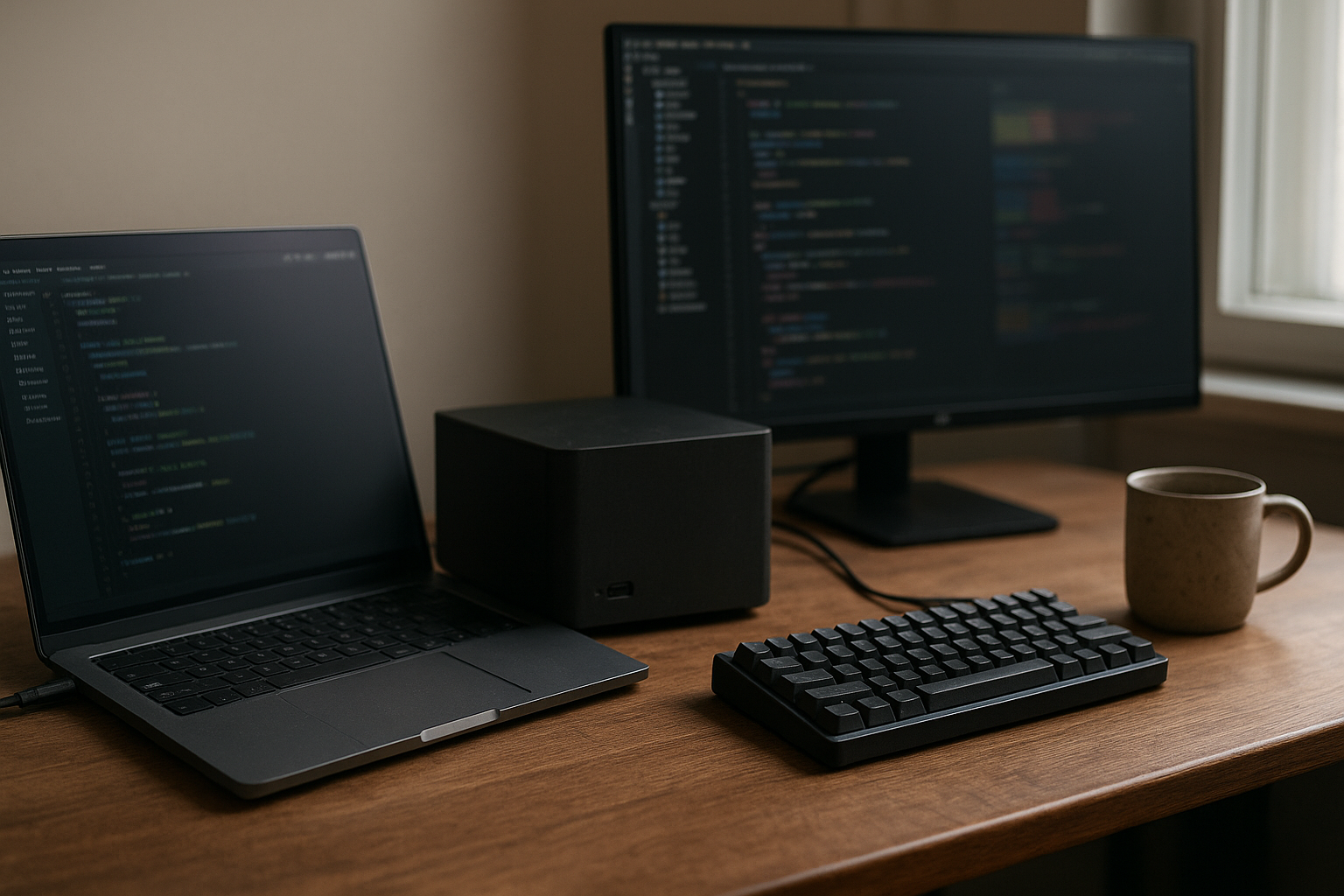
Microsoft Linux tools have evolved into a practical development layer, not just a collection of isolated utilities. WSL, Windows Terminal, Visual Studio Code’s WSL integration, .NET, PowerShell, Git, and container tooling let developers use Linux workflows without leaving Windows. At the same time, NVIDIA’s compact DGX Spark platform—often described informally as an RTX Spark desktop—has sparked greater interest in running local AI workloads alongside those tools.
This matters because the hardware and software solve different problems. Microsoft’s tools address operating-system compatibility and developer productivity, while an NVIDIA AI desktop supports local model development and inference. This guide explains how the pieces fit together, what recent Microsoft Build developer updates mean in practice, where AI guardrails belong, and which Windows Linux development workflow makes sense for different teams.
Table of Contents
- What Microsoft Linux Tools Actually Include
- Why Linux on Windows Matters for Developers
- How an RTX Spark Desktop Fits the Workflow
- Comparing Windows and Linux Development Options
- A Practical Windows Linux Development Workflow
- AI Guardrails for Developers
- Who Should Use This Setup—and Who Should Avoid It
- Key Takeaways
- Frequently Asked Questions
- Conclusion
What Microsoft Linux Tools Actually Include
“Microsoft Linux tools” is a useful search term, but it is not the name of a single Microsoft product. Instead, it describes the technologies Microsoft provides to run, manage, or support Linux-oriented development on Windows and across Microsoft’s wider platform ecosystem.
The central component is Windows Subsystem for Linux documentation. WSL lets users install supported Linux distributions and run Linux command-line tools on Windows. WSL 2 uses a lightweight virtualized Linux environment, giving it better compatibility with many Linux applications than the original WSL architecture.
Core Microsoft Linux Developer Tools
- WSL 2: A Linux environment integrated with Windows, useful for shells, package managers, compilers, scripting, and many server-side development tasks.
- Windows Terminal: A tabbed terminal application for PowerShell, Command Prompt, WSL distributions, and other shells.
- Visual Studio Code with WSL: The editor runs its interface on Windows while connecting to development tools and files inside the Linux environment. Microsoft’s official Remote Development with WSL guide explains the model.
- .NET on Linux: Modern .NET applications can target Linux, Windows, containers, and other supported environments through the same general toolchain.
- PowerShell: Microsoft’s cross-platform shell can run on Linux as well as Windows, helping teams standardize automation across operating systems.
- Git and container tooling: These are not all Microsoft products, but they commonly sit alongside Microsoft’s tools in a Windows-based Linux workflow.
- Azure development tools: Microsoft’s command-line interfaces, SDKs, and container services can be used from WSL or a native Linux machine.
The practical distinction is between a Linux-compatible development environment and a complete Linux workstation. WSL is excellent for many command-line and application-development tasks, but it does not automatically reproduce every hardware, kernel, desktop, networking, or production condition found on a dedicated Linux installation.
Why Linux on Windows Matters for Developers
Many deployment targets use Linux, even when the developer’s main desktop runs Windows. Web servers, container images, Kubernetes nodes, CI runners, and cloud virtual machines commonly expose Linux-specific behavior. Having a Linux shell and package ecosystem locally can narrow the gap between development and deployment.
Before WSL became widely used, developers often chose between a full virtual machine, dual booting, a remote server, or replacing Windows with Linux. Each option remains valid, but each introduces friction. WSL lowers the setup cost for developers who need Linux tools for Windows developers without giving up Windows applications such as Microsoft 365, enterprise management clients, or Windows-only design software.
Where the Windows Linux Development Workflow Helps
- Web and API development: Run language runtimes, package managers, databases, and shell scripts in an environment closer to common server deployments.
- Open-source contribution: Use familiar Linux commands and build instructions while keeping Windows as the host operating system.
- Infrastructure automation: Work with shell scripts, Terraform, cloud CLIs, and configuration files from one terminal.
- Container projects: Build and test Linux-based containers without maintaining a separate physical Linux computer.
- Cross-platform .NET development: Compile and test applications that may later run on Linux servers or in containers.
There are important boundaries, too. File access across Windows and WSL can affect performance, especially for projects that perform many small file operations. When Linux tools do most of the work, developers should generally keep Linux-oriented source trees inside the WSL filesystem rather than placing every repository under a mounted Windows path.
Hardware access requires separate consideration. GPU acceleration, USB devices, kernel modules, privileged networking, and low-level operating-system experiments may need specific WSL support, a native Linux installation, or a remote machine. Microsoft Linux tools make these scenarios more accessible, but they do not eliminate platform differences.
How an RTX Spark Desktop Fits the Workflow
The phrase “RTX Spark desktop” can be confusing. NVIDIA’s local AI workstation initiative has been branded around DGX Spark, while “RTX” is commonly used for NVIDIA graphics hardware and AI-capable PCs. Unless a vendor explicitly uses “RTX Spark” as a product name, treat the phrase as shorthand for a compact NVIDIA-based local AI development system—not as a Microsoft product or a standard Windows component.
This class of hardware serves a different role from WSL. Microsoft Linux tools provide the environment in which code runs; local AI development hardware provides compute and memory for model experimentation, inference, embeddings, data preparation, and related workloads. A developer might use WSL for the shell and project files while connecting to an NVIDIA runtime, container, or separate Linux service for GPU work.
What Local AI Development Hardware Can Change
Local hardware can make certain development loops more predictable. Developers can test prompts, retrieval pipelines, model-serving code, and privacy-sensitive prototypes without sending every request to a hosted API. It can also help when network latency, recurring usage charges, or data-governance rules make a cloud-only workflow unsuitable.
That does not mean a local AI desktop replaces cloud infrastructure. Production models may be larger than the local system can run efficiently, and production concerns include availability, monitoring, authentication, scaling, model updates, and abuse prevention. A local workstation is best viewed as another environment in the development pipeline.
| Development need | WSL and Microsoft tools | Local NVIDIA AI workstation | Cloud GPU or managed AI service |
|---|---|---|---|
| Linux shell and package workflow | Strong fit | Usually available through Linux or a connected environment | Available through a remote terminal or development environment |
| Interactive application coding | Strong fit on a Windows desktop | Possible, but hardware is not the main benefit | Possible, with network dependence |
| Private local experimentation | Depends on attached compute | Strong fit when the workload and model fit the hardware | Requires reviewing provider terms, region, and data controls |
| Large-scale training or production serving | Not its primary purpose | Limited by the system’s capacity and operational design | Usually the more flexible option |
| Operational simplicity | High for ordinary developer tasks | Requires GPU drivers, runtimes, and workload-specific setup | Less local hardware maintenance, but more service configuration |
The right architecture may therefore be hybrid. A Windows laptop can host the editor, browser, documentation, and WSL environment; an RTX Spark desktop can handle local AI services; and a cloud environment can run tests that exceed local capacity. Clear boundaries between those environments matter more than forcing everything onto one machine.
For current hardware capabilities, supported software, and product naming, consult the vendor’s current documentation rather than relying on launch coverage or informal labels. GPU memory, supported drivers, model formats, and operating-system integration can change over time.
Comparing Windows and Linux Development Options
No single setup suits every project. The following comparison focuses on workflow characteristics rather than claiming a universal performance ranking.
| Option | Best suited to | Main advantage | Main limitation |
|---|---|---|---|
| WSL 2 on Windows | Web, API, scripting, .NET, DevOps, and mixed Windows/Linux work | Linux tools alongside Windows applications | Not identical to a physical Linux system in every hardware or kernel scenario |
| Native Linux desktop | Linux-first development, kernel work, and direct hardware control | Closest match to Linux production environments | May require alternatives for Windows-only applications and enterprise workflows |
| Linux virtual machine | Isolated environments and repeatable lab setups | Strong separation from the host operating system | Consumes host resources and adds another layer to manage |
| Remote Linux server | Shared environments, heavier builds, and team services | Centralized compute and consistent tooling | Depends on network access and remote resource availability |
| Containers on Windows | Reproducible application packaging and service testing | Environment consistency between developers and CI | Container isolation is not the same as a full virtual machine or host system |
One useful rule is to choose the environment based on the part of the project most likely to fail. If the project depends on Linux shell behavior and containers, WSL may be sufficient. If it depends on custom kernel modules, specialized drivers, or exact production parity, a native or remote Linux environment is safer.
A Practical Windows Linux Development Workflow
A reliable setup starts with clear boundaries. Decide where source code lives, where dependencies are installed, where containers run, and where AI services execute. Avoid letting Windows and Linux package managers manage the same project environment interchangeably.
Step-by-Step Microsoft Linux Tools Setup
- Install and update WSL. Use Microsoft’s current installation guidance, select a supported distribution, and apply normal Linux updates inside that distribution.
- Choose a project location. For Linux-heavy projects, store repositories in the WSL filesystem. Use Windows-mounted paths when Windows applications need direct access and the performance trade-off is acceptable.
- Install project dependencies inside Linux. Keep language runtimes, package managers, virtual environments, and command-line dependencies consistent with the target environment.
- Connect the editor through WSL. The VS Code WSL extension keeps the editor interface on Windows while running commands, extensions, and language services in Linux.
- Define container ownership. Decide whether Docker or another container engine is managed through a Windows application, a WSL distribution, or a remote host. Document the choice for the team.
- Add GPU support only when needed. AI workloads may require compatible drivers, CUDA components, framework builds, and container settings. Install only the versions required by the project and verify them against official vendor documentation.
- Automate repeatable tasks. Put setup steps, tests, formatting, and service startup into scripts or documented commands so that a second developer can reproduce the environment.
Microsoft’s CUDA on WSL user guide is the appropriate reference when a WSL workflow needs NVIDIA GPU acceleration. It covers supported concepts and configuration details that should not be guessed from generic Linux instructions.
Common Setup Mistakes
- Mixing dependency locations: Installing a runtime in Windows and expecting a Linux package manager to use it reliably can create difficult-to-diagnose version conflicts.
- Ignoring line endings and permissions: Cross-platform repositories need deliberate Git settings and build scripts, particularly when executable permissions matter.
- Assuming all containers behave alike: Linux containers, Windows containers, WSL integration, and GPU-enabled containers have different requirements.
- Treating local AI as automatically private: A local model may reduce external data transfer, but logs, telemetry, downloaded models, shared folders, and application code still need review.
- Skipping clean-environment tests: A project that works only because of undocumented host packages is not reproducible, whether it runs on Windows or Linux.
Microsoft’s broader developer announcements can change the preferred setup, especially around Windows, WSL, .NET, security, and AI services. When reviewing Microsoft Build developer updates, separate announced features from generally available features, then check the documentation for supported versions before changing a team’s standard environment.
AI Guardrails for Developers
Local AI development hardware makes experimentation easier, but it does not eliminate the need for engineering controls. Guardrails belong in development, not only after an application reaches production.
Minimum AI Guardrails to Build Early
- Keep secrets out of prompts and repositories. Use environment variables or a secrets manager, and scan commits for credentials.
- Define allowed data. Classify documents before indexing them for retrieval. Personal, confidential, regulated, or customer-owned data may require additional controls.
- Constrain tool access. An AI agent should receive only the file, API, shell, or database permissions required for its task.
- Validate model output. Treat generated code, SQL, configuration, and commands as untrusted until tests or human review verify them.
- Log decisions without logging sensitive content unnecessarily. Record enough information to investigate failures while respecting privacy and retention policies.
- Test failure modes. Include prompt injection, malformed input, data leakage, unsafe tool calls, and incorrect citations in the test plan.
- Pin and review dependencies. Model-serving frameworks, drivers, containers, and model files can all introduce supply-chain or compatibility risks.
For developers, the most important conceptual boundary is between assistance and authority. A coding assistant may suggest a shell command; it should not automatically receive unrestricted access to production credentials or destructive operations. The same principle applies whether the model runs on an RTX Spark desktop, a Windows workstation, or a cloud endpoint.
Local execution can improve control over where data is processed, but “local” is not a security certification. Review the operating system, downloaded model provenance, network services, user permissions, backups, and any telemetry associated with the tools.
Who Should Use This Setup—and Who Should Avoid It
A Good Fit for Microsoft Linux Tools
- Windows users building Linux-targeted web services or APIs.
- .NET, Python, JavaScript, Go, or Rust developers who need Linux command-line tools.
- DevOps and platform engineers working with containers, shell scripts, and cloud CLIs.
- Teams that want one documented workstation workflow without requiring dual boot.
- AI application developers who need a Windows desktop workflow and access to local GPU compute.
When Native or Remote Linux Is Better
- Kernel, driver, embedded, or operating-system development requiring exact Linux behavior.
- Workloads dependent on specialized hardware that WSL does not expose as required.
- Large training jobs or production inference that exceed local hardware capacity.
- Teams that need a tightly controlled, Linux-only build and deployment environment.
- Projects where an additional Windows-to-Linux integration layer would complicate support more than it helps.
Budget and support should also shape the decision. A local AI workstation can reduce dependence on hosted inference for some workloads, but it introduces hardware lifecycle, driver, cooling, access-control, backup, and maintenance responsibilities. Estimate the complete operating cost rather than comparing only a cloud API bill with a hardware purchase.
Key Takeaways
- Microsoft Linux tools are an ecosystem and workflow, not one standalone product.
- WSL 2 is a strong choice for many Windows developers targeting Linux servers, containers, and cloud environments.
- An RTX Spark desktop is best understood as local AI compute that can complement WSL, not replace it.
- Keep Linux-heavy repositories and dependencies inside the Linux environment when possible.
- GPU-enabled development requires checking current Microsoft, NVIDIA, framework, and container documentation.
- Local model execution can improve control and iteration speed, but it does not automatically guarantee privacy or security.
- Use Microsoft Build developer updates as a signal to investigate changes, then verify availability and support in the relevant documentation.
Frequently Asked Questions
What are Microsoft Linux tools?
Microsoft Linux tools is a general term for Microsoft technologies that support Linux-oriented development, especially WSL, Windows Terminal, Visual Studio Code’s WSL integration, cross-platform .NET, and PowerShell. The term can also include Microsoft’s cloud command-line tools and SDKs when they are used from a Linux environment. It does not refer to one official Microsoft product bundle with a single installation process.
Is WSL 2 the same as running Linux on a dedicated PC?
No. WSL 2 provides a highly useful Linux environment inside Windows, but it remains integrated with a Windows host. Many application, scripting, and container workflows work well, while kernel-level development, unusual hardware access, custom drivers, and exact production parity may require native or remote Linux. Test the specific dependency rather than assuming compatibility from the tool’s name.
What does an RTX Spark desktop add to a Windows Linux workflow?
A local NVIDIA AI workstation can provide nearby compute for model inference, embeddings, retrieval experiments, and AI application development. WSL and related Microsoft tools still handle the editor, shell, source control, and much of the application workflow. The hardware is complementary: it may reduce cloud dependence for suitable workloads, but it does not replace cloud capacity, production operations, or software security controls.
Can developers run AI models directly inside WSL?
Some AI workloads can run through WSL with supported GPU drivers, frameworks, and runtime configuration. The exact answer depends on the model, framework, GPU support, container setup, and current software versions. Use the official CUDA-on-WSL guidance and the documentation for the selected framework. Do not copy native Linux GPU instructions without checking whether each component supports WSL.
Should project files live in Windows or inside WSL?
For projects that rely heavily on Linux compilers, package managers, file watchers, and build tools, keeping the repository inside the WSL filesystem is often the cleaner choice. Windows-mounted paths can be convenient when Windows applications need direct access, but file-heavy operations may behave differently. Choose one primary environment for each repository and document the choice instead of moving files between locations casually.
Are local AI models automatically safer than cloud models?
No. Local execution may reduce the need to transmit prompts or documents to a hosted provider, but security still depends on access controls, model provenance, logs, downloaded files, network exposure, secrets handling, and user permissions. A local system can also be compromised or misconfigured. Treat local AI as a different data-governance option, not as an automatic privacy guarantee.
Who should avoid buying local AI development hardware?
Developers who only use small hosted APIs, teams that cannot maintain drivers and hardware, and organizations whose workloads require large-scale training or highly available production serving may gain little from a local AI desktop. A remote Linux machine or managed cloud service may be simpler. Local hardware makes the most sense when privacy, offline access, predictable interactive testing, or repeated local inference justifies the operational responsibility.
Conclusion
Microsoft Linux tools give Windows developers a practical way to work with Linux shells, runtimes, containers, and deployment targets without abandoning the Windows desktop. An RTX Spark desktop or similar local AI development system addresses a separate need: running suitable AI workloads close to the developer and under the organization’s control.
The best next step is to map one real project’s requirements: target operating system, repository location, container engine, GPU needs, data sensitivity, and production environment. Then build the smallest Windows Linux development workflow that meets those requirements, validate GPU support against current official documentation, and add AI guardrails before connecting models to valuable data or tools.