
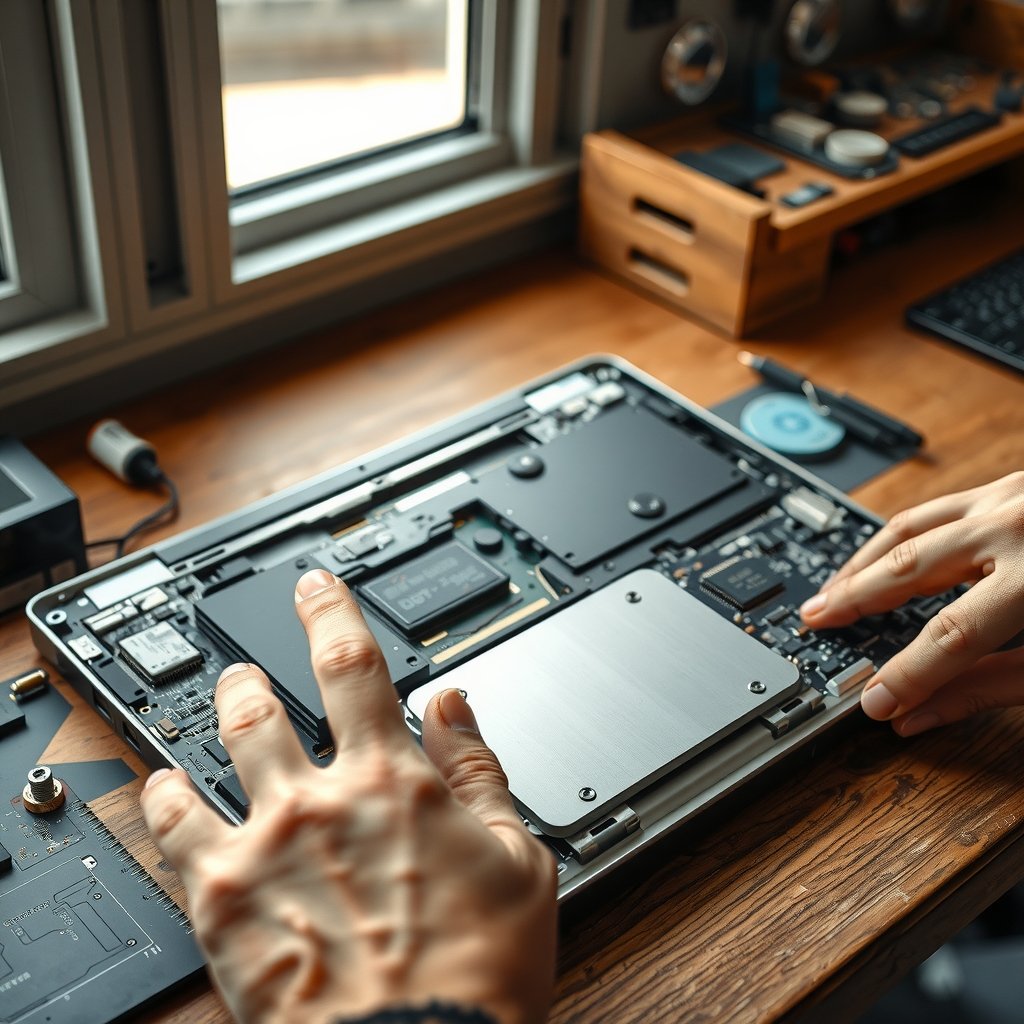
The Framework Laptop 13 Pro is often discussed alongside LPCAMM2 RAM, but there is an important distinction to make first: Framework’s officially documented Laptop 13 models and memory configurations can change by generation, and a product should not be assumed to support LPCAMM2 simply because it is modular. Before buying memory, confirm the exact motherboard and processor configuration on the machine’s support page.
This guide explains what LPCAMM2 RAM is, how it differs from SO-DIMM memory, what is currently known about Framework Laptop 13 compatibility, and how to evaluate a practical memory upgrade. The goal is to help you avoid buying a physically incompatible module or mistaking Framework’s general repairability for universal component compatibility.
Table of Contents
- Framework Laptop 13 Pro and LPCAMM2 Status
- What Is LPCAMM2 RAM?
- LPCAMM2 vs SO-DIMM: The Practical Differences
- Framework Laptop Memory Compatibility
- Framework Laptop 13 Pro RAM Upgrade Considerations
- Installation and Troubleshooting
- Who Should Use LPCAMM2 and Who Should Avoid It?
- Key Takeaways
- Frequently Asked Questions
- Conclusion
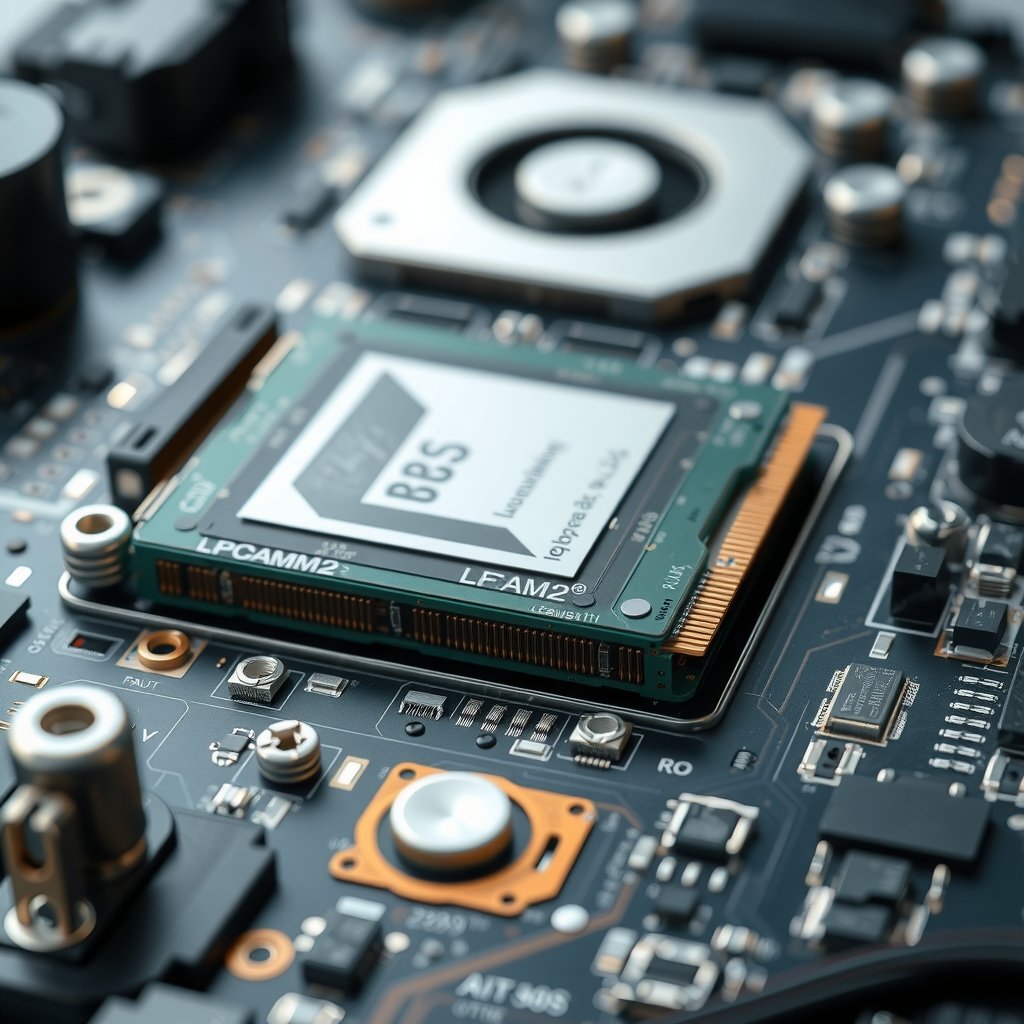
Close-up technical illustration of a modular laptop motherboard showing an LPCAMM2 memory module mounted flat beside the processor, with the
Framework Laptop 13 Pro and LPCAMM2 Status
Framework is known for making several laptop parts replaceable, including many keyboards, displays, batteries, ports, storage devices, and, depending on the model, system boards and memory. That modular approach does not mean every Framework laptop accepts every emerging memory format.
At the time of writing, buyers should treat the phrase “Framework Laptop 13 Pro with LPCAMM2” cautiously. Framework’s established product naming has centered on the Framework Laptop 13 rather than a universally documented “Laptop 13 Pro” model. If a retailer, video, forum post, or search result uses the Pro name, identify the exact product generation and motherboard before making a compatibility decision.
The most reliable evidence is the machine’s official technical documentation, purchase configuration, and motherboard markings. Framework’s official support hub is the right starting point for manuals, repair information, and model-specific guidance.
How to Verify the Model
Use these checks before ordering a Framework laptop memory upgrade:
- Read the exact model name and processor generation from the invoice, system information screen, or motherboard label.
- Look for the memory type in the official specifications rather than relying on a marketplace listing.
- Open the service manual for the exact board and check whether it shows SO-DIMM slots, an LPCAMM2 connector, or soldered memory.
- Confirm the supported capacity, memory speed, voltage, and module arrangement.
- Compare the replacement module’s physical interface with the installed hardware. A similar-looking module is not enough.
If official documentation does not explicitly list LPCAMM2 support, assume the laptop does not support it. Do not buy a module based only on the words “low-power DDR5,” “CAMM,” or “modular RAM.” Those labels describe related technologies, not guaranteed interchangeability.
What Is LPCAMM2 RAM?
LPCAMM2 stands for Low-Power Compression Attached Memory Module 2. It is a newer laptop memory format designed around low-power memory chips, typically LPDDR5 or LPDDR5X, mounted on a removable module rather than soldered directly to the motherboard.
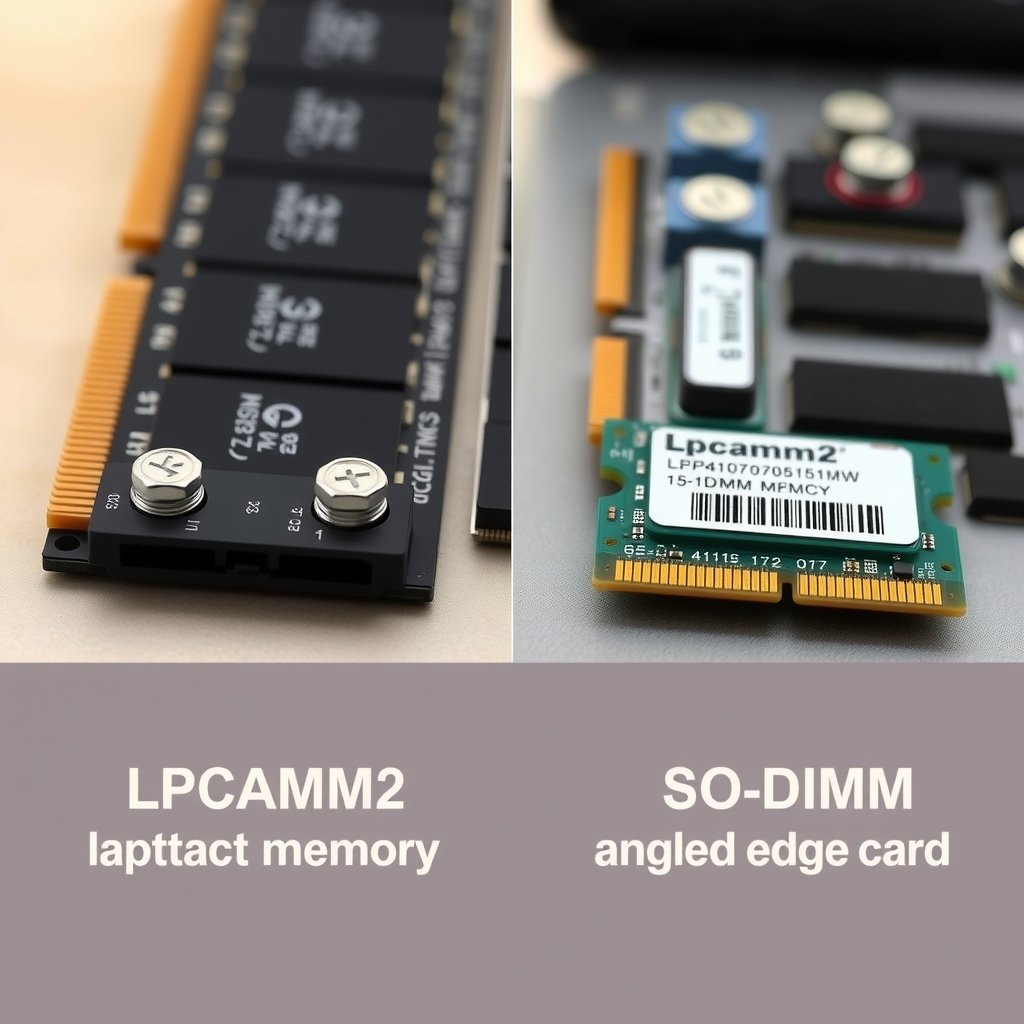
The module normally lies flat against the motherboard and connects through a broad, high-density interface. Screws or a retention mechanism hold it in place. This differs from a SO-DIMM, which is a narrow edge-card module inserted into a socket at an angle.
The “low-power” part refers to the memory technology used on the module, not to a universal power-saving mode that every laptop can enable. Power behavior still depends on the processor’s integrated memory controller, the motherboard, firmware, operating system, and the module’s configuration.
Why LPCAMM2 Was Created
Modern laptops face a compromise between soldered LPDDR memory and socketed SO-DIMM memory. Soldered LPDDR can offer low power consumption and a compact motherboard layout, but replacing or expanding it is usually impossible. SO-DIMM memory is replaceable, yet it can take more board space and may impose design compromises in thin systems.
LPCAMM2 attempts to combine some of these advantages:
- Serviceability: The memory can be replaced if the design supports it.
- Low-power memory: LPDDR technology can help thin laptops manage energy consumption.
- Compact placement: The flat module can use motherboard space differently from conventional SO-DIMMs.
- Potential capacity flexibility: A manufacturer can offer more than one memory configuration without soldering each capacity to the board.
Those benefits do not make LPCAMM2 a drop-in replacement for older laptop memory. The motherboard must be designed for the format from the beginning, including the connector, electrical layout, mounting points, firmware support, and processor memory support.
LPCAMM2 Compatibility Basics
LPCAMM2 compatibility has several layers. The physical connector must match, the memory signaling must be supported, the module’s capacity and organization must work with the processor, and the firmware must initialize the memory correctly during boot.
Even two laptops using LPCAMM2 may not accept the same module. A module can have the right general format but use an unsupported capacity, memory density, speed profile, or firmware expectation. This is why a manufacturer’s compatibility list is more useful than a generic online RAM configurator.
The JEDEC standards documentation is useful for understanding how memory standards are defined, but it is not a substitute for the laptop manufacturer’s service documentation. Standards describe interfaces and requirements; they do not certify a particular module for a particular laptop.
LPCAMM2 vs SO-DIMM: The Practical Differences
The simplest explanation of LPCAMM2 vs SO-DIMM is that both are removable laptop memory formats, but they use different physical and electrical designs. An LPCAMM2 module cannot be inserted into a SO-DIMM slot, and a SO-DIMM cannot be installed in an LPCAMM2 socket.
| Characteristic | LPCAMM2 | SO-DIMM |
|---|---|---|
| Physical design | Flat module secured to a dedicated motherboard connector | Small edge-card module inserted into a slot |
| Memory technology commonly associated with the format | Low-power LPDDR memory, depending on the module and system | Usually standard DDR laptop memory, depending on the generation |
| Interchangeability | Requires an LPCAMM2-compatible motherboard | Requires a matching SO-DIMM slot and supported memory generation |
| Installation method | Positioning the module correctly and tightening its retention hardware evenly | Inserting the module at an angle and pressing it down until the side clips engage |
| Upgrade options | Depends heavily on the laptop’s board design and vendor support | Often straightforward when one or more standard slots are available |
| Main risk when buying | Confusing a new module standard with universal compatibility | Buying the wrong DDR generation, capacity, speed, or form factor |
For users, the biggest difference is not the shape. It is the buying process. SO-DIMM upgrades have existed for years, so retailers often provide broader compatibility information. LPCAMM2 remains newer, making model-specific documentation and return policies especially important.
Does LPCAMM2 Outperform SO-DIMM?
There is no universal answer. Performance depends on the memory generation, data rate, timings, channel configuration, processor, and workload. An LPCAMM2 system may be efficient and fast, but the format alone does not guarantee better application performance than a well-configured SO-DIMM system.
For everyday work, capacity often matters more than a small difference in memory throughput. A laptop with sufficient RAM can feel substantially better than one that frequently relies on storage because it has too little memory, regardless of whether the modules are LPCAMM2 or SO-DIMM.
For integrated graphics, content creation, virtual machines, software development, and large browser workloads, bandwidth and capacity both matter. Look for independent testing of the exact laptop configuration rather than using the memory format as a performance shortcut.
Framework Laptop Memory Compatibility
Framework’s modular philosophy makes memory access easier to discuss, but the correct upgrade path still depends on the specific Framework motherboard. A Framework Laptop 13 model with replaceable SO-DIMM memory has a different upgrade procedure from a hypothetical or future model built around LPCAMM2.
This distinction matters because a laptop can be highly repairable while still using a conventional memory standard. Replaceable ports, a removable battery, and a replaceable system board do not prove that the RAM uses LPCAMM2.
Framework Laptop 13 Pro RAM: What to Check
When evaluating Framework Laptop 13 Pro RAM, check the following in order:
- Exact board generation: Processor families can change the supported memory type even when the chassis looks almost identical.
- Memory location: Determine whether the board uses SO-DIMM sockets, an LPCAMM2 connector, or soldered memory.
- Maximum supported capacity: Do not assume that a physically larger module will work.
- Memory channels: Confirm whether the laptop supports one module, multiple modules, or a single module intended to provide the system’s available channels.
- Firmware support: Check whether a BIOS update is recommended before installing a new memory configuration.
- Operating-system requirements: A 64-bit operating system is needed to use modern high-capacity configurations effectively.
Use the installed module’s label only as a secondary clue. It may reveal capacity and speed, but it cannot confirm the maximum supported configuration or whether another module will work alongside it.
Modular Laptop Memory Does Not Mean Universal Memory
The term modular laptop memory describes a replaceable physical component. It does not describe one universal standard. A laptop can have modular DDR4 SO-DIMMs, modular DDR5 SO-DIMMs, LPCAMM2, or another vendor-specific arrangement.
This is similar to expansion ports. A laptop may have replaceable USB-C modules, but the replacement still needs the correct board shape, cable, firmware behavior, and electrical features. Memory is even less forgiving because the processor and firmware must initialize it at a low level during startup.
For that reason, do not treat a Framework community post about one generation as proof for another. Community repair guides can be valuable, but match the guide’s board revision and processor family to your own machine.
Framework Laptop 13 Pro RAM Upgrade Considerations
A useful RAM decision starts with workload rather than the maximum number advertised by a retailer. More memory helps when your current workload is constrained by memory capacity; it does not automatically improve every task.
How Much Memory Do You Need?
- General office and web use: A moderate capacity is usually adequate, but many open browser tabs and communication apps can increase usage quickly.
- Software development: Larger projects, local containers, emulators, and virtual machines benefit from additional headroom.
- Photo and video work: High-resolution source files and multitasking can make a larger configuration worthwhile.
- Gaming: Capacity requirements depend on the game and graphics hardware. System RAM is not a replacement for dedicated graphics memory.
- Virtual machines and technical workloads: Allocate memory to guests without leaving the host operating system starved.
Check actual memory pressure before upgrading. On Windows, Task Manager shows memory use and committed memory; on Linux, tools such as free and the system monitor provide similar information; on macOS, Activity Monitor reports memory pressure. If the system regularly swaps to storage during normal work, capacity is a sensible upgrade target.
Capacity Versus Speed
Capacity and speed address different problems. Capacity determines how much active data the laptop can hold before it starts compressing or paging memory. Speed and latency influence how quickly the processor can access that data.
For most buyers, the priority order should be:
- Choose a supported memory format.
- Choose enough capacity for the workload.
- Choose a configuration that preserves the supported channel arrangement.
- Then compare speed and timings within the manufacturer’s supported limits.
Installing memory beyond the platform’s validated speed may cause the system to fall back to a lower setting or fail to boot. A stable, supported configuration is more useful than a specification that looks faster on a product page.
Single-Module and Mixed-Memory Risks
Mixing memory can work, but it introduces variables. Different capacities, ranks, densities, timings, or voltage characteristics may cause the system to run at conservative settings—or, in some cases, fail memory training.
With conventional SO-DIMMs, matched modules are often the simplest route when a laptop has two sockets. With LPCAMM2, the vendor may use one module with a layout and capacity that differs from standard two-stick upgrade advice. Follow the exact system instructions rather than applying desktop memory habits.
Buying a matched kit is not automatically necessary for every laptop, but it can reduce uncertainty. If you add to existing memory, record the installed module’s full part number and compare it with the manufacturer’s supported list.
Cost and Long-Term Value
Newer memory formats can cost more because fewer manufacturers and retailers stock them. A lower sticker price is not a bargain if the module has no clear return policy or lacks confirmation for the exact laptop.
Consider the total ownership value:
- Will the capacity remain useful for the laptop’s expected service life?
- Can the module be reused in another compatible system?
- Does the seller provide a reliable return window?
- Is the module a standard retail part or a vendor-specific replacement?
- Will upgrading memory affect your ability to troubleshoot a future motherboard problem?
One advantage of a genuinely socketed or LPCAMM2-based design is repairability. If a memory module fails, replacing that part may be less expensive and less wasteful than replacing an entire motherboard. That benefit exists only when replacement modules remain available.
Side-by-side comparison photograph of a flat LPCAMM2 laptop memory module with mounting screws and a traditional SO-DIMM angled edge-card mo
Installation and Troubleshooting
Installing an upgradeable laptop RAM module is usually manageable for a careful owner, but the procedure is model-specific. Read the service manual before opening the chassis, and prepare a clean, static-aware workspace.
Safe Installation Checklist
- Shut the laptop down completely rather than leaving it in sleep mode.
- Disconnect the charger and peripherals.
- Follow the manufacturer’s instructions for disabling or disconnecting the internal battery.
- Use the recommended screwdriver and keep track of captive and non-captive screws.
- Handle the module by its edges and avoid touching contacts.
- For LPCAMM2, align the module precisely before tightening the retention screws; do not force the connector.
- For SO-DIMM, insert the module at the specified angle and press it down until both clips lock.
- Reassemble the laptop before powering it on unless the service instructions say otherwise.
Static electricity is a real risk to exposed electronics. An antistatic wrist strap connected according to the manufacturer’s safety guidance is helpful, but keeping the work area non-carpeted and avoiding unnecessary handling also reduces risk.
What to Expect on the First Boot
The first boot after a memory change may take longer than usual while firmware performs memory training. Avoid interrupting the process immediately. If the system eventually starts, check the installed capacity and reported speed in the firmware setup and operating system.
Run a memory test after installation, particularly if the laptop will be used for development, research, or other work where silent errors are unacceptable. A successful boot does not prove that every address is stable under sustained load.
If the Laptop Does Not Boot
Power off the system and return to the installation steps. Common causes include an incompletely seated module, a loose retention screw, a disconnected battery cable, or a module that the board does not support.
If possible, reinstall the original memory and test the laptop. If the original works but the replacement does not, compare the replacement’s part number with the official compatibility information. Avoid repeatedly forcing power cycles when the module or connector may be incorrectly installed.
For persistent problems, document the exact motherboard, module part number, firmware version, and symptoms before contacting Framework support or the memory seller. That information is much more useful than saying only that “the RAM is not recognized.”
Who Should Use LPCAMM2 and Who Should Avoid It?
LPCAMM2 Makes Sense For
- Buyers who want low-power memory without permanently soldering it to the motherboard.
- Owners who value future serviceability and can confirm official module availability.
- Professionals who need a higher-capacity configuration than a base model provides.
- Repair-minded users comfortable following model-specific installation instructions.
LPCAMM2 May Not Be Right For
- Buyers who have not confirmed the exact laptop model and motherboard revision.
- Users who need inexpensive, widely available replacement memory.
- People expecting to transfer existing SO-DIMM modules into a newer LPCAMM2 system.
- Owners whose current laptop uses soldered memory and has no compatible upgrade path.
For a Framework purchase, memory should be one part of the configuration decision, not the only reason to choose a model. A laptop with easily replaceable storage and ports may still be the better fit if its memory is conventional SO-DIMM and that is what your budget and workload require.
Key Takeaways
- The phrase Framework Laptop 13 Pro should be matched to an exact, documented Framework model before making a memory purchase.
- LPCAMM2 is a removable low-power memory module format, not a universal replacement for SO-DIMM RAM.
- LPCAMM2 and SO-DIMM modules use different connectors and installation methods.
- Framework’s modular design does not guarantee LPCAMM2 support on every Laptop 13 generation.
- Capacity, processor support, channel configuration, firmware, and module availability all matter in a laptop RAM upgrade.
- Use official service documentation and model-specific compatibility information whenever possible.
- Test the system after installation and keep the original memory until the replacement has proved stable.
Frequently Asked Questions
Does the Framework Laptop 13 support LPCAMM2 RAM?
Support depends on the exact Framework Laptop 13 motherboard and generation. Do not infer LPCAMM2 support from the laptop’s modular chassis or from a retailer using the word “Pro.” Check the official specifications and service manual for the exact processor and board. If the documentation lists SO-DIMM slots or soldered memory instead, an LPCAMM2 module will not be compatible.
Is LPCAMM2 RAM the same as LPDDR5X?
No. LPDDR5X describes a low-power memory technology, while LPCAMM2 describes a removable module format that can use low-power memory. A laptop may use LPDDR5X chips on an LPCAMM2 module, but the two terms are not interchangeable. The processor, motherboard connector, module layout, and firmware must all support the complete design.
Can I install a SO-DIMM in an LPCAMM2 slot?
No. SO-DIMM and LPCAMM2 use different physical connectors, mounting systems, and electrical designs. An adapter would not automatically solve the problem because the processor’s memory interface, signal routing, firmware, and power requirements also need to match. Buy only the memory format listed for the exact laptop motherboard.
Is LPCAMM2 better than SO-DIMM memory?
Neither format is always better. LPCAMM2 can combine removable memory with the compact design and low-power characteristics associated with LPDDR technology. SO-DIMM memory is more familiar, widely stocked, and often easier to replace. Real-world performance depends on capacity, memory speed, timings, channels, and the processor—not the module name alone.
Can I upgrade the RAM in a Framework Laptop 13 after purchase?
Some Framework Laptop 13 configurations use replaceable memory, while others may use a different arrangement depending on the generation. Confirm the exact system board before buying parts. If the laptop has supported memory sockets or a compatible module connector, follow the official service instructions. If memory is soldered, replacing it generally requires replacing the motherboard rather than installing a larger module.
Will more RAM improve the performance of my Framework laptop?
More RAM helps when the laptop is running out of memory and paging data to storage. It is particularly useful for virtual machines, development environments, large creative projects, and heavy multitasking. If your normal workload never approaches the installed capacity, a memory increase may produce little visible improvement. Check memory pressure during your actual work before deciding.
Should I mix a new memory module with the one already installed?
Only if the laptop documentation supports that arrangement and the modules are compatible. Differences in capacity, density, timings, or speed can cause conservative operation or boot problems. Record the existing module’s full part number, compare it with the replacement, and consider a matched configuration when the manufacturer recommends one. Keep the original module until you have completed stability testing.
Where should I verify LPCAMM2 compatibility?
Start with Framework’s official support and service documentation for the exact laptop and motherboard. Then compare the listed memory type, capacity limits, and installation method with the module’s manufacturer specifications. A retailer’s compatibility tool or a forum post can provide useful leads, but official model-specific documentation should decide the purchase.
Conclusion
The central lesson about Framework Laptop 13 Pro and LPCAMM2 RAM is simple: modular construction does not eliminate compatibility requirements. LPCAMM2 can provide a compelling middle ground between soldered low-power memory and replaceable SO-DIMM modules, but it works only when the laptop motherboard, firmware, processor, and module are designed to work together.
Before upgrading, identify the exact Framework model, inspect its official memory documentation, and verify the module’s part number and return policy. If LPCAMM2 is not explicitly supported, choose the documented memory type instead—and keep the original module until the new configuration has passed capacity checks and a proper memory test.