

Cheap laptops can handle schoolwork, office documents, web browsing and streaming well, but the lowest-priced models often make compromises in speed, storage, display quality or build. The right choice depends less on the logo and more on the operating system, processor generation, memory, storage and expected workload.
This cheap laptops buying guide explains which specifications matter, when a Chromebook makes more sense than Windows, how to judge battery claims, and which compromises are sensible. You will also find a practical comparison framework for choosing among the best budget laptops without paying for features you will not use.
Table of Contents
- What cheap laptops can realistically do
- Laptop specifications that matter most
- Chromebook vs Windows laptop
- The best cheap laptops for different uses
- Battery life, display and build quality
- Buying mistakes and misleading deals to avoid
- How to choose a budget laptop
- Key Takeaways
- Frequently Asked Questions
- Conclusion
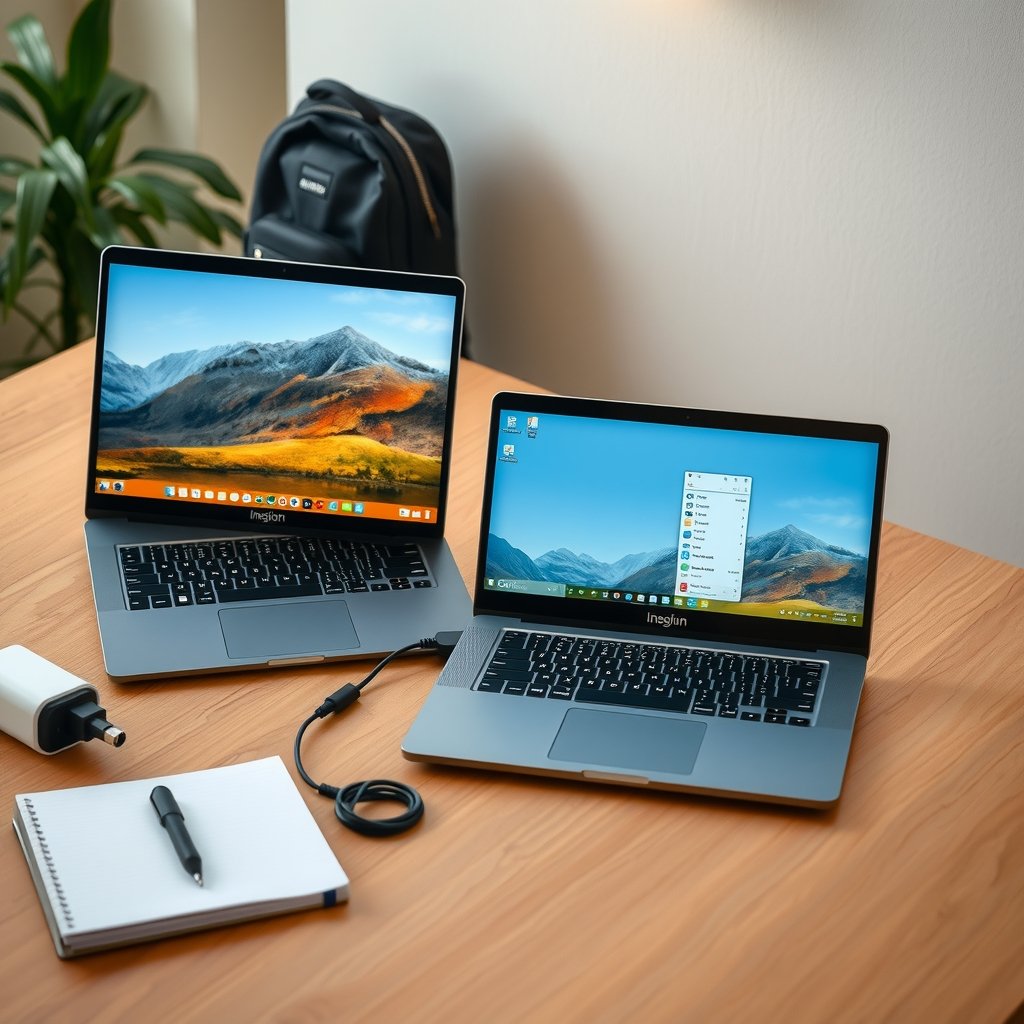
Three affordable laptops on a desk beside a notebook, USB-C charger and student backpack, showing different screen sizes and operating syste
What cheap laptops can realistically do
A cheap laptop is usually designed for everyday computing rather than demanding creative or technical work. It should be able to run a browser with several tabs, email, word processing, video calls and streaming, provided the configuration has enough memory and storage.
Price alone does not define quality. A discounted laptop with an older processor, 4GB of RAM or a slow eMMC drive may feel worse than a slightly more expensive model with 8GB of RAM, an SSD and a newer entry-level processor. A good deal is the model that meets your workload with tolerable compromises, not simply the model with the lowest sticker price.
Who should buy cheap laptops?
Budget models are a sensible choice for students, families, remote workers and anyone who mainly uses browser-based services. They can also work well as a second computer, travel machine or writing device.
- Students: Look for a comfortable keyboard, dependable Wi-Fi, a webcam and enough battery for classes or library sessions.
- Office users: Prioritize 8GB of RAM, an SSD, a sharp display and compatibility with the software your employer requires.
- Home users: A Chromebook may be sufficient for email, streaming, online banking and documents.
- Frequent travelers: Weight, charger size, hinge quality and real-world battery life matter more than peak processor speed.
Who should avoid the cheapest models?
The least expensive laptops are a poor fit for serious video editing, 3D work, modern gaming, large software development projects and professional photo workflows. Some can run light games or older titles, but integrated graphics and limited cooling generally restrict performance.
They may also frustrate users who need specialized Windows applications, local databases, virtual machines or an extensive offline media library. In those cases, move up to a better-equipped Windows laptop or consider a desktop if portability is not essential.
Laptop specifications that matter most
When comparing cheap laptops, start with the parts that affect daily responsiveness. A higher-resolution screen or a premium-looking chassis cannot compensate for insufficient memory and a slow storage device.
| Specification | Practical starting point | Why it matters | Warning sign |
|---|---|---|---|
| Memory | 8GB for general use | Helps browsers, office apps and video calls remain responsive together | 4GB on a laptop intended for multitasking |
| Storage | 128GB SSD for light use; more for local files | An SSD improves startup and application loading | Very small storage or unspecified drive type |
| Processor | A recent entry-level or mid-range mobile processor | Controls general speed, efficiency and supported features | Old processor generation hidden behind a low price |
| Display | Full HD resolution where possible | Provides more usable workspace and sharper text than basic low-resolution panels | Low brightness, poor viewing angles or a vague panel description |
| Connectivity | Current Wi-Fi, USB-A, USB-C and a headphone jack if needed | Determines compatibility with accessories and networks | USB-C present but without charging or display support when you need those features |
| Operating system | ChromeOS or a supported version of Windows | Determines software compatibility, updates and maintenance | Unclear update policy or an operating system nearing support expiration |
Processor: do not compare names alone
Processor branding can be confusing because manufacturers sell several generations and performance levels under familiar families. Check the complete processor model and, where possible, its release generation rather than assuming that a newer-looking product name is faster.
For browsing, documents and video calls, a current entry-level mobile chip is often adequate. A mid-range processor is preferable if you regularly keep many tabs open, use spreadsheets with large files or expect to keep the laptop for several years.
Processor performance also depends on cooling and power limits. Two laptops using related chips may feel different because one has better cooling, faster memory or a more responsive SSD. Reviews that measure sustained performance are more useful than a model name by itself.
RAM and storage: the upgrades you feel every day
8GB of RAM is a sensible baseline for most cheap laptops running Windows or ChromeOS. It is not a guarantee of smooth performance, but it gives a browser and common applications more room than 4GB. If the memory is soldered, choose the capacity you need at purchase because it may not be upgradeable.
An SSD makes a substantial difference to boot times, app launches and file access. Some low-cost laptops use eMMC storage, which can be acceptable for light Chromebook use but is usually less desirable for a Windows machine or a user with many local files.
Storage capacity is easy to underestimate. A 128GB drive will not provide that entire amount to your files because the operating system and recovery data use space. If you store photos, videos or large games locally, choose a larger drive or confirm that the laptop supports a practical storage upgrade.
Windows compatibility and support
Before buying a Windows laptop, confirm that it supports the Windows version you intend to use and that the manufacturer provides current drivers. Microsoft publishes the official Windows 11 specifications and requirements, including processor, memory, storage and security requirements.
Do not assume that an old Windows laptop becomes a good bargain simply because it has been heavily discounted. A device that lacks supported security features or receives limited driver support can cost less initially while creating problems later.
Chromebook vs Windows laptop
The Chromebook vs Windows laptop decision is primarily a software and workflow decision. Chromebooks run ChromeOS and are centered on web applications, Android applications on supported devices and cloud storage. Windows laptops support a broader range of traditional desktop software, peripherals and games.
| Consideration | Chromebook | Windows laptop |
|---|---|---|
| Best for | Web apps, school portals, email, documents and streaming | Microsoft desktop apps, specialist software, broader accessories and gaming |
| Offline work | Possible for supported apps and downloaded files, but check each service | Usually broader offline application support |
| Maintenance | Simple interface and automatic background updates on supported models | More settings, drivers and software-management choices |
| Storage expectations | Often encourages cloud storage and browser-based services | More likely to support a large local application and file collection |
| Software compatibility | Not suitable for every Windows or macOS application | Supports many conventional desktop applications, subject to system requirements |
| Gaming | Best suited to browser, Android or supported cloud gaming | More flexible, although cheap models are not ideal for demanding games |
Is a Chromebook the best Chromebook for students?
There is no single best Chromebook for students because course requirements differ. A Chromebook is attractive when assignments use Google Workspace, Microsoft 365 on the web, learning portals and browser-based research. It is easy to carry and generally straightforward to manage.
Check with the school or university before buying. Some courses require desktop versions of engineering, design, accounting or statistical software that ChromeOS cannot run natively. Also verify the model’s remaining automatic-update period using Google’s ChromeOS Auto Update policy; a low price is less appealing if support ends soon.
When an affordable Windows laptop is the better choice
Choose an affordable Windows laptop if you need desktop Office features, Windows-only applications, extensive file-management options or compatibility with a particular printer, scanner or workplace system. Windows is also the more flexible option for users who are unsure which software they will need later.
That flexibility comes with more maintenance and a greater need to check specifications. On a low-end Windows machine, avoid filling the drive, limit unnecessary startup programs and keep Windows and the browser updated.
The best cheap laptops for different uses
Cheap laptops for work and school
For cheap laptops for work and school, prioritize reliability and comfort over flashy features. A 13- to 15-inch screen, 8GB of RAM, an SSD, a usable webcam and a keyboard suitable for long typing sessions are more valuable than a very high-resolution display.
Students who move between classrooms may prefer a lighter 13- or 14-inch model. A home-based worker may benefit more from a larger screen, a number pad or a generous selection of ports. If the laptop will be used for video meetings, look for a webcam with acceptable image quality and test the microphone reviews rather than relying on resolution alone.
For browsing, streaming and home administration
A Chromebook can be excellent for web browsing, streaming, email and online forms. Windows is a safer choice if several family members use different applications or if you need legacy software and local file storage.
For streaming, screen quality and speakers matter more than a powerful processor. Look for a display with good viewing angles and enough brightness for the room where you will use it. Confirm that the streaming services you rely on work correctly on the selected operating system and browser.
For light gaming
Cheap laptops are usually limited to browser games, older PC games, esports titles at modest settings or cloud gaming. Integrated graphics share system memory and are not a substitute for a dedicated graphics processor.
If gaming is a priority, compare cooling, graphics hardware, memory and upgrade options rather than choosing a laptop solely because it has a fast-sounding CPU. A gaming laptop at the very bottom of the market often sacrifices display quality, battery life and portability, so consider whether a console or desktop would offer better value.

Student using a compact Chromebook in a library beside a Windows laptop, with a comparison checklist showing RAM, SSD, webcam and automatic-
Battery life, display and build quality
How to judge budget laptop battery life
Manufacturers typically measure battery life under controlled conditions that may not match your brightness, browser tabs, video calls or applications. Treat a quoted figure as a comparison within a product family, not a promise of identical real-world use.
Budget laptop battery life often benefits from an efficient processor, a moderate-resolution display and a larger battery, but those features must be balanced against weight. A small, light laptop may be easier to carry while offering less runtime than a slightly heavier model.
When reading reviews, look for tests that describe brightness, web browsing and video playback conditions. Also check charging behavior: USB-C charging is convenient, but a USB-C port does not automatically support charging. The product specifications should explicitly list USB-C power delivery if that feature matters to you.
Display quality is not just screen size
A 15-inch display is not automatically better than a 14-inch panel. Resolution, brightness, contrast, viewing angles, color coverage and whether the surface is glossy or matte all affect comfort.
- Resolution: Full HD is a useful target for clearer text and a more practical workspace.
- Brightness: A dim panel may be acceptable indoors but difficult near a window or outdoors.
- Viewing angles: Important when sharing a screen or moving between positions.
- Refresh rate: Higher rates can make movement look smoother, but they may consume more power and are not essential for office work.
- Touch support: Useful for some tablet-style designs, but not worth sacrificing keyboard, battery or processor quality.
Keyboard, ports and repairability
You interact with the keyboard and trackpad every day, so inspect reviews for key travel, layout, flex and tracking accuracy. A backlit keyboard is useful in dim rooms, but it should not outweigh a poor typing experience.
Count the ports you actually use. USB-A remains convenient for older drives and accessories, while USB-C can handle charging, data or an external display depending on the implementation. If you plan to connect a monitor, dock or wired network, verify the exact port capabilities.
Check whether the RAM, SSD and wireless card are replaceable. Many thin budget laptops use soldered components, while others permit only a storage upgrade. Repairability cannot always be determined from a retailer listing, so consult the manufacturer’s service manual when long-term ownership matters.
Buying mistakes and misleading deals to avoid
An old model is not automatically a bargain
Clearance pricing can be worthwhile, especially when the laptop still receives operating-system updates and has a suitable processor, SSD and battery. However, older models may have shorter support periods, worn batteries or obsolete ports.
Look for the original release context, warranty terms and update policy. A deal from a reputable retailer with a clear return window is safer than an unknown listing that omits the processor generation or sells a device described only as “fast.”
When the specification list hides the compromise
Retail listings often emphasize one attractive component while leaving out important details. “Up to” battery life, a large screen, a recent-sounding processor family or a high storage number can distract from 4GB of RAM, a low-resolution display or a slow drive.
Before buying, confirm:
- The exact processor model and generation.
- Installed RAM and whether it can be upgraded.
- Storage type, capacity and upgrade options.
- Display resolution and, if available, brightness.
- Wireless standard and the number and type of ports.
- Operating-system support and warranty coverage.
- Keyboard layout, charger type and regional compatibility.
Should you consider refurbished cheap laptops?
A professionally refurbished business laptop can offer a stronger keyboard, better port selection and more durable construction than a new entry-level model. It may be a good choice if the seller provides a warranty, a clear condition grade and a reasonable return policy.
Inspect the battery-health policy, screen condition and included charger. Avoid buying a used laptop with an unsupported operating system, a locked corporate-management profile or a battery that the seller refuses to assess.
How to choose a budget laptop: a practical process
The simplest way to choose a budget laptop is to define the workload first and then eliminate unsuitable machines. This prevents a prominent specification, such as screen size, from dominating the decision.
- List your essential applications. Write down every program you use for school, work, communication and entertainment. Identify whether each one is web-based, available for ChromeOS or requires Windows.
- Set a minimum configuration. For general use, start by looking for 8GB of RAM and SSD storage. Raise the storage or processor requirement if you use large files, creative applications or many simultaneous tasks.
- Choose the operating system. Select ChromeOS for a mainly web-based workflow and Windows for broader desktop-software compatibility.
- Decide where you will use it. A lightweight model suits commuting; a larger display may be better for a fixed desk. Consider outlets, lighting and whether you need to connect a monitor.
- Check the overlooked details. Confirm ports, webcam quality, keyboard layout, update support, warranty and return conditions.
- Compare complete configurations. Do not compare one laptop’s processor with another laptop’s storage capacity. Evaluate the whole package, including the charger and any required accessories.
- Read independent testing. Look for evidence about keyboard comfort, fan noise, sustained speed, screen brightness and battery testing conditions.
A simple scoring method for shortlisted models
If two laptops appear similar, score each from one to five for software compatibility, performance, battery expectations, screen quality, comfort, ports and support. Give extra weight to the categories you cannot compromise on; a student may prioritize keyboard and battery, while a home user may prioritize display and storage.
Then calculate the likely cost of ownership. A slightly more expensive laptop may be better value if it avoids an immediate storage upgrade, includes a longer warranty or will remain supported for longer. Conversely, paying for a high-end display or processor makes little sense if all your work happens in a browser.
For additional guidance on evaluating accessibility and usability, the W3C Web Content Accessibility Guidelines are useful even though they focus on websites rather than laptop hardware. They highlight why readable text, sufficient contrast and usable controls matter during everyday computing.
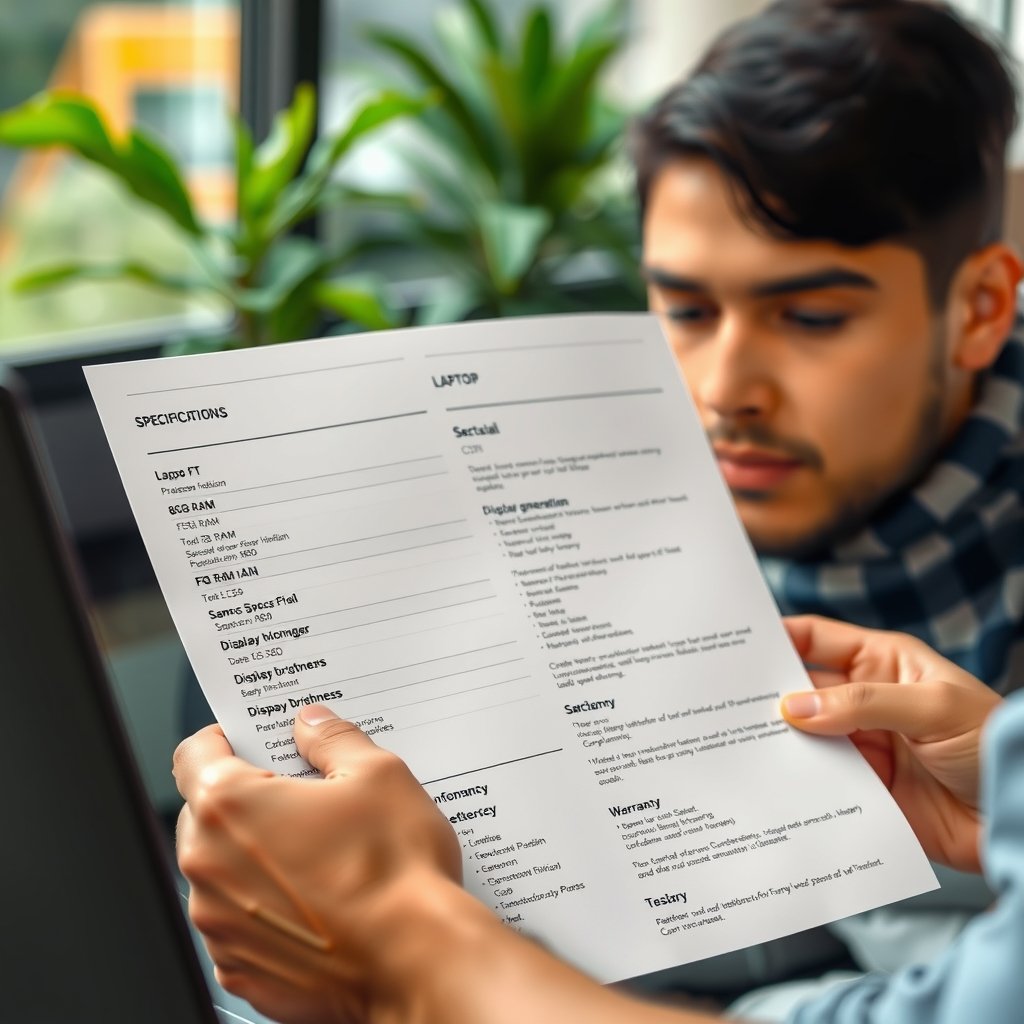
Close-up of a laptop buyer comparing two specification sheets, with highlighted fields for processor generation, 8GB RAM, SSD storage, displ
Key Takeaways
- Buy for your applications and workflow, not the lowest advertised price.
- For most general-purpose users, 8GB of RAM and SSD storage are sensible starting points.
- A Chromebook is often a strong value for browser-based schoolwork, communication and streaming, but it cannot replace every Windows application.
- Choose Windows when you need desktop software, specialist tools, broader peripheral support or greater flexibility.
- Check the exact processor model, storage type, screen quality, ports and operating-system support before purchasing.
- Battery estimates are useful for comparisons, but independent tests reveal more about real-world endurance.
- Refurbished business laptops can be excellent value when the seller provides battery information, a warranty and a return policy.
Frequently Asked Questions
What is a good minimum specification for cheap laptops?
For everyday browsing, documents, email and video calls, look for 8GB of RAM, SSD storage and a current entry-level or mid-range mobile processor. A Full HD display is preferable when available. The exact minimum depends on the operating system and workload: a Chromebook can feel comfortable with modest hardware because it relies heavily on web applications, while Windows benefits from more memory and storage headroom.
Are cheap laptops good for students?
Yes, if the student’s work is primarily browser-based and the laptop has a comfortable keyboard, reliable Wi-Fi, a usable webcam and sufficient battery capacity. A Chromebook can be an excellent student device for online research, documents and learning platforms. Before buying, confirm that the school does not require Windows-only software, and check the laptop’s remaining ChromeOS or Windows support period.
Is a Chromebook better than a cheap Windows laptop?
Neither is universally better. Chromebooks are usually easier to maintain and can provide a smooth experience for web-based work, but they do not run every traditional desktop application. Windows offers broader software and accessory compatibility, though a low-end Windows laptop may need more careful specification matching. Choose ChromeOS for a web-first workflow and Windows when application compatibility is the priority.
How much RAM should a budget laptop have?
8GB is a sensible target for most people buying a new general-purpose laptop. It allows more room for browser tabs, video calls and office applications than 4GB. Users working with large spreadsheets, creative applications or extensive multitasking should consider more, if the laptop supports it. Check whether the memory is upgradeable because many thin laptops have soldered RAM.
Are cheap laptops suitable for gaming?
They are suitable for browser games, older titles, lightweight competitive games at reduced settings and some cloud-gaming services. Most entry-level models use integrated graphics and are not designed for demanding modern games. If gaming is a major reason for buying, compare graphics hardware, cooling and display performance, and consider whether a desktop or console offers better value.
How long should a budget laptop last?
There is no fixed lifespan. Physical durability, battery wear, software support and the user’s changing workload all matter. A laptop with adequate RAM, an SSD, a supported operating system and a warranty can remain useful longer than a cheaper model that is already short on memory. Check the manufacturer’s update policy and avoid buying a device that is close to the end of security support.
Is it worth buying a refurbished laptop?
Often, yes. Refurbished business laptops may offer better keyboards, screens and construction than new entry-level models at a similar cost. Buy from a seller that clearly states the condition, battery policy, warranty and return period. Confirm that the operating system is supported and that the device is not still tied to a company’s management system.
Conclusion
The best cheap laptops are not necessarily the smallest, newest-looking or most heavily discounted models. They are the ones with enough memory and storage for your workload, a supported operating system, a comfortable display and the ports and battery capacity you will actually use.
Start by deciding between ChromeOS and Windows, then set minimum requirements before browsing deals. Compare complete configurations and verify the processor generation, SSD, RAM, update policy and return terms. That process will help you choose cheap laptops that remain useful beyond the first few months rather than saving money on a specification you quickly outgrow.
Your next step is to write down your essential applications and three non-negotiable features. Use that list to remove unsuitable models before comparing price, screen size and extra features.