
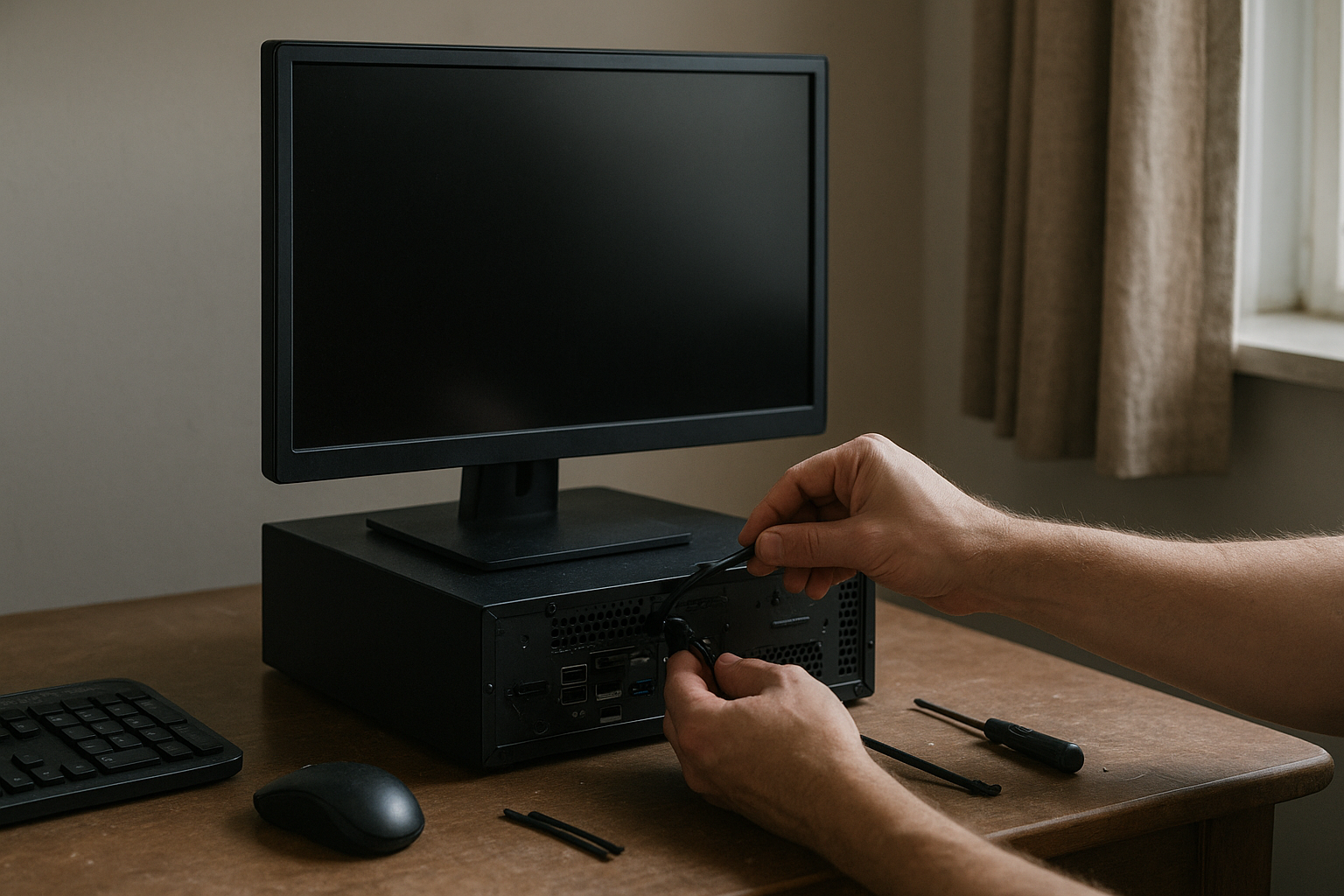
A reliable black screen fix begins by pinpointing where the video signal disappears: before Windows loads, during sign-in, or only when an application uses the GPU. That distinction can separate a loose cable from a failed display driver, unstable graphics card, faulty monitor, or Windows update problem.
This guide shows you how to troubleshoot a monitor that suddenly goes black, recover from a GPU driver crash, test the display path, and recognize when software troubleshooting has reached its limit. The steps apply mainly to Windows 10 and Windows 11 desktop PCs and laptops, with notes for gaming systems and multi-monitor setups.
Table of Contents
Identify When the Screen Goes Black
Start by observing what remains active. If the monitor says “No signal” while the computer’s fans and lights continue running, focus first on the cable, input selection, graphics card, or display driver. If the monitor’s power light also turns off, investigate the monitor, power cable, outlet, or power-saving settings.
A completely frozen computer points to a different problem than a functioning Windows session with no picture. Press Caps Lock a few times: if the keyboard indicator changes, Windows may still be responding even though the graphics output has failed.
Use the timing of the failure as a clue
| When the screen goes black | Most likely areas to check | Best first action |
|---|---|---|
| Immediately after pressing the power button | Monitor input, cable, GPU seating, firmware, or hardware failure | Test another input or cable and check whether the computer reaches its startup logo |
| When the Windows logo appears | Display driver, resolution, refresh rate, or Windows startup software | Try the reset graphics driver shortcut and Safe Mode |
| After signing in | Startup applications, driver settings, HDR, multi-monitor configuration, or corrupted user settings | Use Task Manager, Safe Mode, or another display |
| Only during games or 3D applications | GPU driver crash, overheating, power delivery, overclocking, or an application bug | Return clocks to default and inspect temperatures and power connections |
| After the computer wakes from sleep | Display driver, dock, cable handshake, monitor firmware, or sleep settings | Reconnect the display and restart the graphics driver |
Also note whether audio continues. Sound from a video or voice call suggests that the operating system may still be working, making a graphics-output failure more likely than a complete system crash.
Quick Black Screen Fix Checks
Before changing drivers or opening the computer, work through these low-risk checks. They resolve many cases in which the computer is fine but the monitor is receiving the wrong signal.
- Wake the display. Move the mouse, press a key, and wait several seconds. A sleeping panel can look like a failure.
- Choose the correct input. Use the monitor’s buttons to select HDMI, DisplayPort, USB-C, or the input actually connected to the PC.
- Reseat the cable. Unplug both ends, inspect for bent pins or damage, and reconnect firmly. If possible, try a different cable.
- Restart the graphics output. Press Windows + Ctrl + Shift + B. This is the Windows reset graphics driver shortcut. The screen may flash and Windows may play a brief alert sound.
- Check display mode. Press Windows + P, then use the arrow keys and Enter to cycle through PC screen only, duplicate, extend, and second-screen-only modes.
- Remove adapters temporarily. Bypass a dock, KVM switch, USB-C hub, receiver, or AV amplifier and connect the monitor directly to the computer.
The reset shortcut does not reinstall a driver or repair damaged hardware. It simply asks Windows to restart the graphics subsystem, making it useful for a temporary driver hang but not a permanent solution to repeated crashes.
Test with the simplest possible setup
Disconnect extra monitors and nonessential USB devices, then connect one known-working display directly to the computer. Multiple displays can expose problems with refresh rates, HDR, docking hardware, or graphics memory that do not appear in a single-screen setup.
If the picture returns after you remove a second monitor, add the displays back one at a time. This helps identify whether the issue involves a particular cable, port, monitor, adapter, or display configuration.
Windows Black Screen Troubleshooting
When the computer reaches Windows but the desktop remains invisible, use keyboard-driven recovery instead of repeatedly forcing the power button. Microsoft’s official guide to black or blank screens in Windows covers several of these recovery paths.
Check whether Explorer or an application has stopped
Press Ctrl + Alt + Delete. If the security screen appears, Windows is responding. Open Task Manager and look for “Windows Explorer.” If it is listed, right-click it and choose Restart. If it is missing, select Run new task, enter explorer.exe, and press Enter.
A black desktop with a movable pointer can result from Explorer failing to start. However, if the screen goes black even on the security screen or during firmware startup, Explorer is not the root cause.
Start Windows in Safe Mode
Safe Mode loads a limited set of drivers and services. If the display works there, a third-party driver, startup utility, overclocking tool, overlay, or display setting becomes a strong suspect.
- From the sign-in screen, hold Shift while selecting Power > Restart. If you cannot see the sign-in screen, interrupt startup two or three times by holding the power button during boot; Windows should eventually open its recovery environment.
- Select Troubleshoot > Advanced options > Startup Settings > Restart.
- Choose Enable Safe Mode or Enable Safe Mode with Networking if you need internet access.
Forced shutdowns can risk data loss, so use this method only when normal recovery is impossible. Once in Safe Mode, remove recent graphics changes, disable unnecessary startup utilities, or install a known-compatible driver.
Recover from a blank screen after sign-in
If Task Manager opens but the desktop does not, restart Explorer as described above. You can also use Task Manager to disable recently installed startup applications, especially GPU overlays, screen-recording tools, RGB utilities, and remote-control software.
For a laptop, try the manufacturer’s display toggle key, usually Fn plus a function key marked with a monitor icon. Avoid guessing if the key controls another function; check the laptop’s manual or keyboard symbols first.
GPU Drivers and Graphics Settings
A GPU driver black screen can occur when Windows loads a new driver, when a game switches resolution, or when the driver crashes under 3D load. If the problem began immediately after an installation, update, or rollback, treat the driver as the leading suspect.
What to do after a graphics driver update
For a black screen after graphics driver update, try the reset graphics driver shortcut first. If the problem returns, enter Safe Mode and open Device Manager > Display adapters.
- Open the adapter’s properties and use Roll Back Driver if the option is available and the previous driver worked reliably.
- Use Uninstall device only when you are prepared to reinstall a driver. Windows may use a basic display driver temporarily.
- Download drivers from the GPU manufacturer or computer manufacturer, not from a random driver-download site.
- For laptops, prefer the laptop maker’s driver when a generic desktop GPU package causes instability or removes device-specific features.
A clean installation can help when driver files or settings are corrupted, but it should not be the first response to every brief blackout. If the driver is stable outside one game, investigate that game’s graphics API, shader cache, overlay, or configuration before repeatedly replacing the driver.
Remove unstable graphics settings
Return GPU overclocks, undervolts, custom fan curves, and memory timings to their default values. A setting that appears stable on the desktop may fail when a game changes power state or fills the card’s video memory.
Temporarily disable HDR, variable refresh rate, and very high refresh rates in Windows display settings. These features are not inherently unreliable, but they create more points at which the monitor and driver must agree about timing and signal format.
If only one program causes the failure, lower its resolution and refresh rate, disable overlays, and reset its graphics configuration. This is often a better black screen graphics fix than changing the entire Windows installation.
Hardware and Display-Path Tests
Software cannot restore a signal if the monitor, cable, port, power supply, or graphics card has failed. The goal of hardware testing is to change one component at a time and record what changes.
Work through the signal chain
- Monitor: Open its on-screen menu. If the menu itself is invisible, check monitor power and test another panel.
- Cable: Use a short, known-working cable rated for the resolution and refresh rate you need.
- Port: Try another output on the graphics card and another input on the monitor.
- Graphics output: If the motherboard has video outputs and the CPU includes integrated graphics, test the motherboard port with the dedicated GPU removed or disabled as appropriate.
- Computer: Connect the monitor to another PC or connect the suspect PC to a television or spare monitor.
- Power: Check that the graphics card’s auxiliary power plugs are fully inserted and that the power supply cables are not loose.
Do not connect a monitor to the motherboard and expect it to work if the processor has no integrated graphics. Many desktop CPUs provide no video output through the motherboard even though the ports are physically present.
Look for heat, power, and physical warning signs
Repeated blackouts during demanding games can indicate overheating, insufficient or failing power delivery, an improperly seated card, or hardware damage. Shut down the PC before reseating components, disconnect the power cord, and follow safe handling practices to avoid static discharge.
Check for dust blocking fans, fans that never spin under load, burning smells, unusual noises, or visible damage. Do not continue stress testing hardware that shows a burning odor or signs of electrical failure.
On a desktop, a graphics card that works in another computer but not yours may point to the power supply, motherboard slot, firmware, or power connections. A card that fails across multiple known-good systems is more likely defective.
Windows Updates and Known Bugs
Windows updates can fix display regressions, but they can also expose compatibility problems with a driver, game, wireless adapter, or display configuration. Microsoft has periodically documented update-specific issues affecting gaming and graphics; the right response is to check the release notes for your exact Windows version rather than assume every black screen has the same cause.
Microsoft’s Windows release health dashboard lists known issues and resolved problems by version. Compare the update’s knowledge-base number, Windows build, hardware configuration, and affected application before uninstalling anything.
When an update fixes one problem but creates another
A patch may resolve a black screen affecting games while users notice separate Wi-Fi or networking side-effects. Test these symptoms independently: a wireless driver, router, adapter power setting, or network stack problem does not prove that the display fix failed.
Reports of update-related bugs can also damage confidence in Microsoft, particularly when release notes appear late or symptoms vary by hardware. That concern is reasonable, but online reports are not a substitute for reproducing the issue, checking Microsoft’s status page, and comparing behavior before and after the update.
If a recently installed update clearly triggered the display failure and no driver correction is available, use Settings > Windows Update > Update history > Uninstall updates when Windows offers that option. Create a backup first, and remember that removing a security update has consequences; reinstall it when a corrected release becomes available.
Advanced Recovery Options
Use advanced recovery only after checking cables, display modes, drivers, and basic hardware. These steps can change system behavior or remove software, so protect important files before proceeding.
System Restore and display-driver cleanup
System Restore can return driver files, services, and system settings to an earlier restore point without deliberately deleting personal documents. It is most useful when the black screen began after a driver, utility, or Windows configuration change and a suitable restore point exists.
For severe driver corruption, technicians sometimes use a reputable display-driver cleanup utility from Safe Mode, then install a fresh driver. This is more thorough than Device Manager but also more disruptive: it can remove custom profiles and requires care when selecting the correct GPU package. Avoid third-party cleanup tools if you cannot verify their source and understand the changes they make.
Firmware, BIOS, and laptop-specific issues
Some black screens occur before Windows and require a BIOS or firmware investigation. Check whether the computer shows a manufacturer logo, emits diagnostic beeps, or displays motherboard error LEDs. Consult the computer or motherboard manual before changing firmware settings.
Do not update BIOS firmware while the system is unstable unless the manufacturer specifically recommends it and you have reliable power. A failed firmware update can create a more serious startup problem than the original display fault.
Laptops may have separate integrated and dedicated graphics paths, a damaged display cable near the hinge, or a failed internal panel. If an external monitor works consistently but the built-in display does not, the internal panel, hinge cable, or laptop display settings deserve inspection by the manufacturer or a qualified repair technician.
Know when to stop troubleshooting
Seek professional repair when the system shows no image on multiple known-good displays, fails before the startup logo, shuts down under load, or exhibits burning smells and visible component damage. Repeatedly installing drivers will not repair a failed graphics card or power supply.
Back up data before service if the computer can still boot. If BitLocker is enabled, keep the recovery key available; hardware or firmware changes can trigger a recovery-key prompt.
Key Takeaways
- Use the failure’s timing to separate a monitor or cable issue from a Windows or driver issue.
- Check the monitor input, reseat the cable, remove adapters, and test one display before making complex changes.
- The reset graphics driver shortcut, Windows + Ctrl + Shift + B, can recover from a temporary graphics subsystem crash.
- For a black screen after graphics driver update, try rollback or a manufacturer-provided driver from Safe Mode.
- Return overclocks and custom display settings to standard values before diagnosing hardware.
- Use Windows release notes to verify update-specific bugs instead of relying on a general headline or isolated report.
- A failure across multiple displays and computers is a strong reason to stop software troubleshooting and inspect hardware.
Frequently Asked Questions
What is the fastest black screen fix in Windows?
Press Windows + Ctrl + Shift + B to restart the graphics driver. Then check the monitor input and cable, and press Windows + P to choose a display mode. If the computer remains unresponsive or the monitor shows no startup logo, this shortcut is unlikely to solve the underlying hardware or power problem.
Why does my monitor suddenly go black while audio continues?
Continuing audio usually means Windows and the application are still running while video output has failed. Common causes include a crashed graphics driver, an unstable GPU overclock, a bad cable, a failed display handshake, or a monitor input problem. Try the reset graphics driver shortcut, connect one display directly to the PC, and test a different cable before reinstalling drivers.
How do I fix a black screen on startup?
Begin by checking whether the monitor displays its own menu or the computer’s manufacturer logo. If neither appears, select the correct input, test another cable and monitor, and inspect the graphics card’s power connections. If the logo appears but Windows becomes black, use Windows recovery or Safe Mode to roll back a recent driver or remove a conflicting startup program.
Can a Windows update cause a black screen?
Yes. An update can expose a compatibility issue involving a graphics driver, display mode, game, dock, or monitor. Check the Windows release health information for your exact build and review Update history. If the timing is clear and the option is available, uninstall the recent update temporarily, but keep backups and reinstall a corrected security update when Microsoft publishes one.
Should I reinstall the GPU driver if the screen goes black once?
Not necessarily. A single blackout may be a temporary driver recovery, cable handshake, sleep-wake fault, or application crash. Record what you were doing, check Windows reliability history or Event Viewer for related errors, and watch for repetition. Reinstall or roll back the driver when the failures began after a driver change or occur repeatedly under the same graphics workload.
How can I tell whether the graphics card is failing?
Suspect hardware when the display fails across multiple known-good cables and monitors, artifacts appear, the computer crashes during 3D workloads, or the problem occurs before Windows loads. Test the card in another compatible system if possible and inspect its power connections and cooling. A repair shop can distinguish a faulty GPU from a power supply, motherboard slot, or thermal problem.
Is a black screen graphics fix different on a laptop?
The basic checks are the same, but laptops add an internal display cable, integrated graphics, manufacturer-specific drivers, and a display-toggle key. Test an external monitor and use the laptop’s display-toggle shortcut. If the external screen works while the internal panel remains black, the panel or hinge cable may need service rather than a Windows driver change.
Conclusion
The most effective black screen fix comes from a controlled diagnosis: establish whether the monitor works, identify when the signal disappears, test the cable and display path, then investigate Windows drivers and updates. Start with the reset graphics driver shortcut and direct-cable checks, but stop reinstalling software when the failure also appears before Windows or on other computers.
Your next step should be to reproduce the problem with one known-good monitor and cable. If that setup works, add the original components back one at a time; if it fails before startup across multiple displays, stop troubleshooting in Windows and arrange hardware testing.