
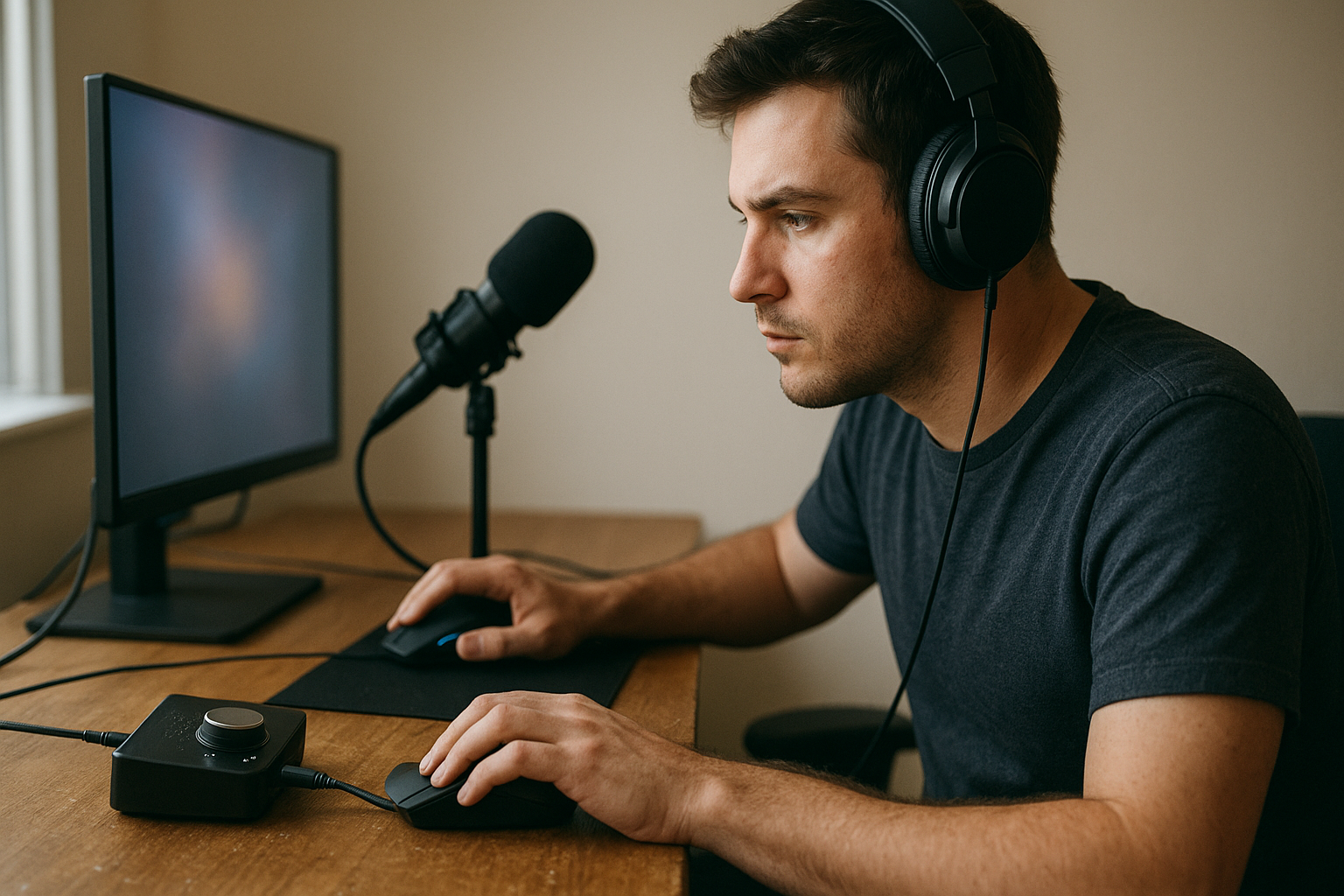
A practical Windows 11 low-latency profile can reduce unnecessary audio delay, prevent power-saving behavior from interrupting gameplay, and make real-time monitoring more dependable. It cannot eliminate every source of lag: the audio interface, driver, game engine, buffer size, USB path, and display pipeline still matter.
This guide covers the Windows 11 audio settings worth changing, explains how the Multimedia Class Scheduler Service (MMCSS) fits into the picture, shows when WASAPI low latency is useful, and identifies popular tweaks that can make stability worse. You will also get repeatable profiles for gaming, voice chat, music production, and live monitoring.
Table of Contents
- What a Low-Latency Profile Can and Cannot Do
- Windows 11 Low-Latency Profile: The Baseline
- Windows 11 Audio Settings for Gaming
- WASAPI, Audio Buffers, and Measurable Latency
- CPU Scheduling and the Multimedia Class Scheduler Service
- Profile Presets for Different Use Cases
- Troubleshooting Audio Delay and Dropouts
- Key Takeaways
- Frequently Asked Questions
- Conclusion
What a Low-Latency Profile Can and Cannot Do
Latency is the delay between an event and the sound reaching your ears. In a game, that event might be a gunshot, footstep, or menu click. In a recording application, it might be your voice entering a microphone and returning through your headphones.
Windows contributes to that delay, but it is only one link in the chain. A typical path includes the application, audio API, software mixer, driver, device buffer, USB or PCIe connection, digital-to-analog conversion, amplifier, headphones, and sometimes a wireless link. A Windows 11 low-latency profile primarily reduces avoidable scheduling and power-management delays; it does not turn Bluetooth headphones into a wired monitoring system.
Latency, responsiveness, and stability are different goals
The lowest possible buffer is not automatically the best setting. Smaller buffers can make monitoring feel immediate, but they give the CPU less time to process each audio block. If the system misses a deadline, you may hear clicks, pops, crackles, or brief dropouts.
For gaming, a stable stream usually matters more than chasing a tiny theoretical number. Competitive players may accept higher fan noise and power use in exchange for consistent frame and audio delivery. A laptop user who needs battery life may reasonably choose a balanced profile instead.
- Output latency: the delay before already-generated audio reaches the headphones or speakers.
- Input latency: the delay before microphone or instrument audio enters the application.
- Round-trip latency: input plus processing plus output; this matters most for live monitoring.
- Glitch resistance: the system’s ability to meet audio deadlines without dropouts.
Windows 11 includes power, gaming, communications, and audio features that can influence these results. However, no single Microsoft switch guarantees the lowest latency for every device and application.
Windows 11 Low-Latency Profile: The Baseline
Begin with reversible settings before changing registry values, services, or processor priorities. The following baseline is a sensible starting point for a desktop gaming PC and can be adjusted after you observe actual behavior.
1. Select the appropriate Windows 11 performance profile
- Open Settings and select System > Power & battery.
- Set Power mode to Best performance when the computer is plugged in and sustained responsiveness matters.
- Use Balanced for normal work, battery operation, or a system that already performs consistently.
- Restart the game or audio application after changing the mode.
Best performance can reduce aggressive power-saving behavior, but it also tends to increase energy use, heat, and fan activity. On a modern desktop, the difference may be modest; on a laptop, it can be more noticeable. Windows power modes also depend on the manufacturer’s firmware and power-plan configuration.
Do not assume that the Ultimate Performance plan is automatically better. It is not a universal audio-latency fix, and forcing hidden or third-party plans can generate more heat without improving the device driver’s actual buffer behavior.
2. Keep Windows, chipset drivers, and audio drivers current
Install Windows updates through the normal Settings interface, then obtain chipset, USB, graphics, and audio-interface drivers from the PC, motherboard, or device manufacturer. For a dedicated interface, its vendor driver is often more important than generic Windows audio support.
A driver update can improve scheduling and compatibility, but it can also introduce a regression. If a previously stable system begins producing dropouts after an update, record the driver version and use the manufacturer’s supported rollback procedure rather than randomly removing system files.
3. Reduce background contention
Before a competitive match or recording session, close applications that continuously scan, synchronize, index, or stream data. Common examples include cloud storage clients, browser tabs with active media, game launchers downloading updates, RGB utilities, hardware monitors, and screen-recording tools.
Do not disable security software indiscriminately. Instead, use its documented game mode or scheduled scanning controls, and leave real-time protection enabled unless an administrator is testing a specific issue in a controlled environment.
4. Configure Game Mode and overlays deliberately
Windows Game Mode can prioritize game-related behavior, but it does not directly set an audio buffer. Leave it enabled as a baseline if it behaves well on your computer. Test overlays individually because an in-game overlay, capture layer, or chat integration can affect CPU, GPU, and frame-time consistency.
For a clean comparison, test the same game scene with overlays enabled and disabled. Evaluate both sound stability and frame-time behavior; a higher average frame rate does not necessarily mean more consistent delivery.
Windows 11 Audio Settings for Gaming
The most useful Windows 11 audio settings are under Settings > System > Sound and in the classic device properties dialog. Exact labels can vary by driver and Windows build, so use the following as a diagnostic sequence rather than assuming every system will show identical options.
Choose the real playback device
Under System > Sound, select the headphones, speakers, or interface the game should use. In Volume mixer, check the game’s individual output device and volume. Windows can assign a different device to one application, which often appears to be a latency problem when it is actually a routing problem.
For a wired headset connected through a monitor, television, dock, or USB hub, test a direct connection to the computer as well. Each intermediary can add its own conversion, buffering, or driver layer.
Use a consistent sample format
Open the device’s advanced properties and choose a sample rate and bit depth supported by both the device and your main applications. A common choice is 24-bit, 48 kHz for games and video, while some music projects use 44.1 kHz. The key is consistency: unnecessary sample-rate conversion can add processing and complicate troubleshooting.
Changing from 44.1 kHz to 48 kHz does not automatically make Windows audio faster. Buffer size and the processing path generally have a much larger effect on interactive latency.
Test audio enhancements and spatial processing
Windows audio enhancements, vendor effects, virtual surround, equalizers, and spatial audio can improve positional perception for some listeners. They can also add processing time or conflict with a game’s own surround system.
For diagnosis, temporarily disable enhancements and compare the result. If the delay disappears, re-enable features one at a time. Windows Sonic, Dolby Atmos, DTS processing, and headset software should be treated as separate processing stages, not stacked automatically.
Choose shared or exclusive access based on the application
In shared mode, Windows mixes applications and manages the endpoint format. This is convenient for gaming, notifications, and voice chat. Exclusive mode allows a compatible application to take control of the device, which can reduce unnecessary mixing but may prevent other applications from using that endpoint simultaneously.
Try disabling exclusive-mode access if a game loses sound when another application starts playback. Conversely, a dedicated audio application may benefit from exclusive access if its documentation recommends it. The right choice depends on the application and driver, not on a blanket Windows rule.
Microsoft’s Core Audio API documentation explains how Windows exposes audio streams and devices. It is a better reference for API behavior than registry-tweak lists that promise a universal latency reduction.
WASAPI, Audio Buffers, and Measurable Latency
WASAPI low latency is not a Windows-wide switch. WASAPI, or the Windows Audio Session API, is an interface that applications can use to communicate with audio devices. An application may use shared mode, exclusive mode, event-driven buffering, or other implementation choices, each of which can produce different results.
Why buffer size matters
Audio is processed in blocks. At 48,000 samples per second, a 48-sample block represents about 1 millisecond of one-way audio time before driver, device, and processing delays are included. A 480-sample block represents about 10 milliseconds. Those figures describe only the buffer portion, not total system latency.
Reducing a buffer also reduces scheduling tolerance. If the CPU, driver, or USB controller is briefly busy, a small buffer is more likely to miss its deadline. Increase the buffer until glitches stop, then reduce it gradually if your application still needs lower monitoring delay.
| Scenario | Starting approach | What to prioritize |
|---|---|---|
| Competitive game with a normal headset | Use the device’s default stable format and test enhancements off | Consistent frame and audio delivery |
| USB audio interface for voice chat | Use the manufacturer driver and a moderate buffer | Clear speech without dropouts |
| Live guitar or microphone monitoring | Use the interface’s native low-latency mode if available | Round-trip latency and stable input/output timing |
| Music production with many plug-ins | Use a small buffer while recording and a larger one while mixing | Low monitoring delay during tracking; stability during mixing |
| Bluetooth headphones | Use the headset’s gaming or low-delay mode if supported | Wireless codec and device buffering |
Many digital audio workstations expose their own driver and buffer controls. If you need reliable live monitoring, an ASIO driver supplied by the interface manufacturer may be more appropriate than shared Windows audio. That does not make ASIO universally better for games; it simply targets a different workflow.
How to test Windows audio latency without guessing
- Choose one repeatable game scene or audio project.
- Note the device, sample rate, buffer size, power mode, and enhancements.
- Change one variable at a time.
- Listen for crackles and measure application-reported input or output latency where available.
- Repeat the test after a cold boot and after the system has been running normally.
Tools such as LatencyMon can help identify drivers associated with high deferred procedure call or interrupt service routine execution, but its results require interpretation. A reported driver delay does not prove that the driver is the sole cause of every audible click or game stutter.
CPU Scheduling and the Multimedia Class Scheduler Service
Windows uses scheduling priorities and multimedia policies to help time-sensitive work receive processor attention. The Multimedia Class Scheduler Service, commonly abbreviated MMCSS, supports multimedia workloads by classifying certain threads and managing their scheduling behavior.
MMCSS is not a magic “low latency” button, and most users should leave its service configuration at the Windows default. Audio applications and drivers may register for multimedia scheduling themselves. Editing registry values such as task priorities, system responsiveness, or scheduling categories without understanding the driver can reduce stability rather than improve it.
Why CPU availability still matters
Microsoft’s ongoing Windows quality work often involves shifting more work onto available CPU resources to keep application behavior, animations, and system interactions responsive. That can help a fast, well-cooled desktop, but extra CPU activity is not automatically beneficial for real-time audio.
If the processor is thermally throttling, a “maximum performance” setting may make the problem worse by increasing heat. Check clock behavior, temperatures, and background CPU usage before concluding that Windows scheduling is the cause.
Use Task Manager > Details to inspect a game or audio program, but avoid setting its priority to Realtime. Realtime priority can starve drivers and essential system tasks. If an application needs a priority adjustment, its developer should document the supported setting; for general troubleshooting, Above normal is already more conservative than Realtime, but it is rarely necessary.
Do not disable MMCSS or related services
Some tweak guides recommend disabling services, changing the multimedia scheduling registry branch, or applying a downloadable “gaming latency” file. These changes are difficult to validate, can be overwritten by updates, and may affect video playback, communications, or recording applications.
“The commitment to quality continues” is a reasonable goal for a Windows configuration, but quality means repeatable behavior rather than the largest number of aggressive tweaks. Keep a record of every change and create a restore point before modifying system settings outside the normal interface.
For background on Windows scheduling concepts, consult Microsoft’s documentation on thread scheduling priorities and its MMCSS reference. These sources describe the mechanisms without promising a particular benchmark result on your hardware.
Profile Presets for Different Use Cases
An effective Windows 11 low-latency profile should match the task at hand. Gaming audio, voice chat, live recording, and mixing have different failure modes, so their ideal settings are not identical.
Gaming and voice chat
- Use Best performance while plugged in if testing shows fewer stutters or dropouts.
- Choose the correct output in both Windows Volume mixer and the game.
- Use a wired headset or USB interface when wireless delay is distracting.
- Test spatial audio and headset effects separately from the game’s own audio mode.
- Keep the game and voice application on a stable, moderate device buffer.
- Disable unnecessary overlays, capture tools, and background downloads.
This profile is designed to reduce audio delay in gaming without making the system fragile. It is generally better to hear a sound a few milliseconds later but consistently than to use an extremely small buffer that produces random crackles during a firefight.
Live microphone, instrument, or podcast monitoring
- Install the audio interface manufacturer’s current driver.
- Use the interface’s direct-monitoring feature when you need near-immediate microphone or instrument feedback.
- Use a small buffer only after confirming that the CPU and driver can sustain it.
- Disable software monitoring for a track if direct monitoring already supplies the signal.
- Use one sample rate across Windows, the interface control panel, and the recording application.
Direct monitoring bypasses much of the computer’s round trip, which is why it can feel faster than any Windows tweak. It may also mean that plug-in effects are not heard in the monitored signal unless the interface provides hardware processing.
Mixing, streaming, and everyday use
Choose Balanced power behavior if the system is quiet and stable. Use a larger buffer for a project with many instruments or effects, because the additional processing time helps prevent dropouts. A streamer should also monitor encoder load, capture software, GPU utilization, and network activity; Windows audio latency may be only one contributor to perceived delay.
Who should avoid aggressive latency tweaks?
Users on battery-powered laptops, passively cooled systems, older computers, and machines with known thermal issues should avoid permanently forcing maximum clocks. People who depend on accessibility audio, Bluetooth microphones, virtual meetings, or multiple simultaneous endpoints should also be cautious about exclusive mode and device-specific enhancements.
If a PC already plays games and audio cleanly, do not change MMCSS, processor affinity, timer settings, or registry scheduling values merely because a guide lists them. A low-latency profile should solve a measured problem, not create a new one.
Troubleshooting Audio Delay and Dropouts
First determine whether the symptom is delay, interruption, or synchronization drift. A sound that is always late points toward buffering, wireless transmission, or signal processing. A sound that cuts out under load points more strongly toward driver scheduling, power management, a saturated CPU, USB contention, or an unstable buffer.
If game audio feels delayed
- Compare wired headphones with Bluetooth headphones.
- Test the motherboard output, USB headset, and dedicated interface separately.
- Turn off virtual surround, equalizer, and vendor effects temporarily.
- Check the game’s audio mode and any built-in latency or buffering option.
- Verify that Windows is not routing the game to a monitor or television.
- Check whether an AV receiver, television, or capture device is adding processing delay.
Bluetooth commonly adds more delay than wired audio because the signal is encoded, transmitted, decoded, and buffered. A gaming-oriented wireless mode may reduce that delay, but the result depends on the headset, transmitter, codec, and application.
If you hear pops, crackles, or dropouts
- Increase the audio buffer one step.
- Try a direct USB port instead of a hub or dock.
- Install the official interface or motherboard audio driver.
- Test with enhancements and exclusive mode disabled.
- Check LatencyMon or similar diagnostics for repeatedly active high-latency drivers.
- Temporarily stop capture, synchronization, RGB, and hardware-monitoring utilities.
- Check CPU temperature and clock throttling under load.
USB power management can matter for an interface that disconnects or clicks, but changing selective suspend settings is not a universal latency improvement. Apply that change only after confirming a power-related device problem, and revert it if it makes no difference.
If Windows audio and the application disagree
Some applications open an endpoint in exclusive mode, while others use the shared mixer. A recording application can also use a dedicated driver while games use Windows audio. Document each path before comparing latency; otherwise, you may be testing different devices or APIs without realizing it.
Microsoft’s Windows audio driver guidance is useful when a dedicated device behaves incorrectly after an update. For game-specific behavior, the game developer’s support documentation remains the most relevant source because audio engines expose different buffering controls.
Key Takeaways
- A Windows 11 low-latency profile combines power, driver, routing, buffer, and processing choices—it is not one hidden switch.
- Use Best performance only when it improves measured stability and the extra heat and power use are acceptable.
- WASAPI low latency depends on the application’s mode and the device’s buffer implementation.
- Keep MMCSS at its Windows default unless a qualified vendor or developer gives you a specific reason to change it.
- Smaller buffers reduce monitoring delay but increase the chance of dropouts.
- Wired audio and direct monitoring usually offer a more predictable result than software tweaks.
- Change one setting at a time and keep a record so you can undo a regression.
Frequently Asked Questions
What is the best Windows 11 low-latency profile for gaming?
Start with the correct playback device, current chipset and audio drivers, Game Mode enabled, and unnecessary overlays disabled. Use Best performance while plugged in if it improves consistency, then test audio enhancements and spatial processing individually. Keep the device at a stable sample format and moderate buffer. The best Windows 11 low-latency profile is the one that delivers consistent game audio without crackles, excess heat, or reduced system reliability.
How can I reduce audio delay in gaming on Windows 11?
Use wired headphones or a wired USB audio device, select that device directly in Windows and the game, and disable unnecessary virtual surround or enhancement layers while testing. Check the game’s own audio settings and avoid routing through a television, receiver, or capture device if those add processing. Lowering a buffer can help in some applications, but games often control their own audio buffering, so a Windows setting alone may not remove the delay.
Does WASAPI low latency work for every game?
No. WASAPI is an audio programming interface, and each game chooses how to use it. A game may use shared Windows audio, exclusive mode, another API, or an engine-specific path. WASAPI low latency is most relevant when an application exposes a compatible mode and the device driver supports efficient buffering. For ordinary gaming, stable routing and a responsive wired device are often more useful than trying to force a particular API.
Should I disable the Multimedia Class Scheduler Service?
No. MMCSS helps Windows coordinate certain multimedia workloads, and disabling it is not a general solution for audio delay or game performance. If you experience problems, investigate drivers, buffers, power behavior, background load, and device routing first. Registry changes to MMCSS settings should be made only with a documented, hardware-specific reason and a reliable rollback plan.
Is Best performance better than Balanced for gaming audio?
Sometimes, but not universally. Best performance may reduce frequency changes or aggressive power saving, which can help a laptop or desktop that experiences intermittent stutters. It also increases energy use and may increase temperature. Balanced is the better choice if it already provides stable audio, especially on a laptop or quiet system. Test the same workload in both modes instead of assuming the label predicts the result.
What buffer size should I use for low-latency audio on Windows?
There is no single correct value because devices, drivers, sample rates, and applications vary. Start with the lowest setting that remains free of clicks and dropouts during the heaviest expected workload. For live monitoring, reduce the buffer gradually; for mixing or a large project, increase it to give the CPU more processing time. Remember that the displayed buffer figure is only one component of total input, output, or round-trip latency.
Can Windows 11 audio settings fix Bluetooth headphone delay?
They may reduce software processing, but they cannot eliminate the buffering required by the wireless link. Use the headset’s low-latency or gaming mode if it has one, keep its firmware current, and compare it with a wired device. Bluetooth microphones can also change the active profile and reduce audio quality or alter routing. If synchronization is critical, wired headphones or a dedicated low-delay wireless transmitter are more predictable.
Conclusion
A reliable Windows 11 low-latency profile begins with the audio device and application, then uses Windows settings to remove avoidable power, routing, processing, and background-load problems. Set a sensible power mode, use the manufacturer’s driver, test enhancements and exclusive access, and select the smallest stable buffer—not simply the smallest available buffer.
Your next step is a controlled A/B test: record the current device, sample rate, buffer, power mode, and processing settings, then change one item and repeat the same game scene or audio workload. Keep the configuration that improves consistency without excessive heat or glitches, and leave MMCSS and other advanced scheduling settings at their defaults unless you have a specific, documented reason to change them.