
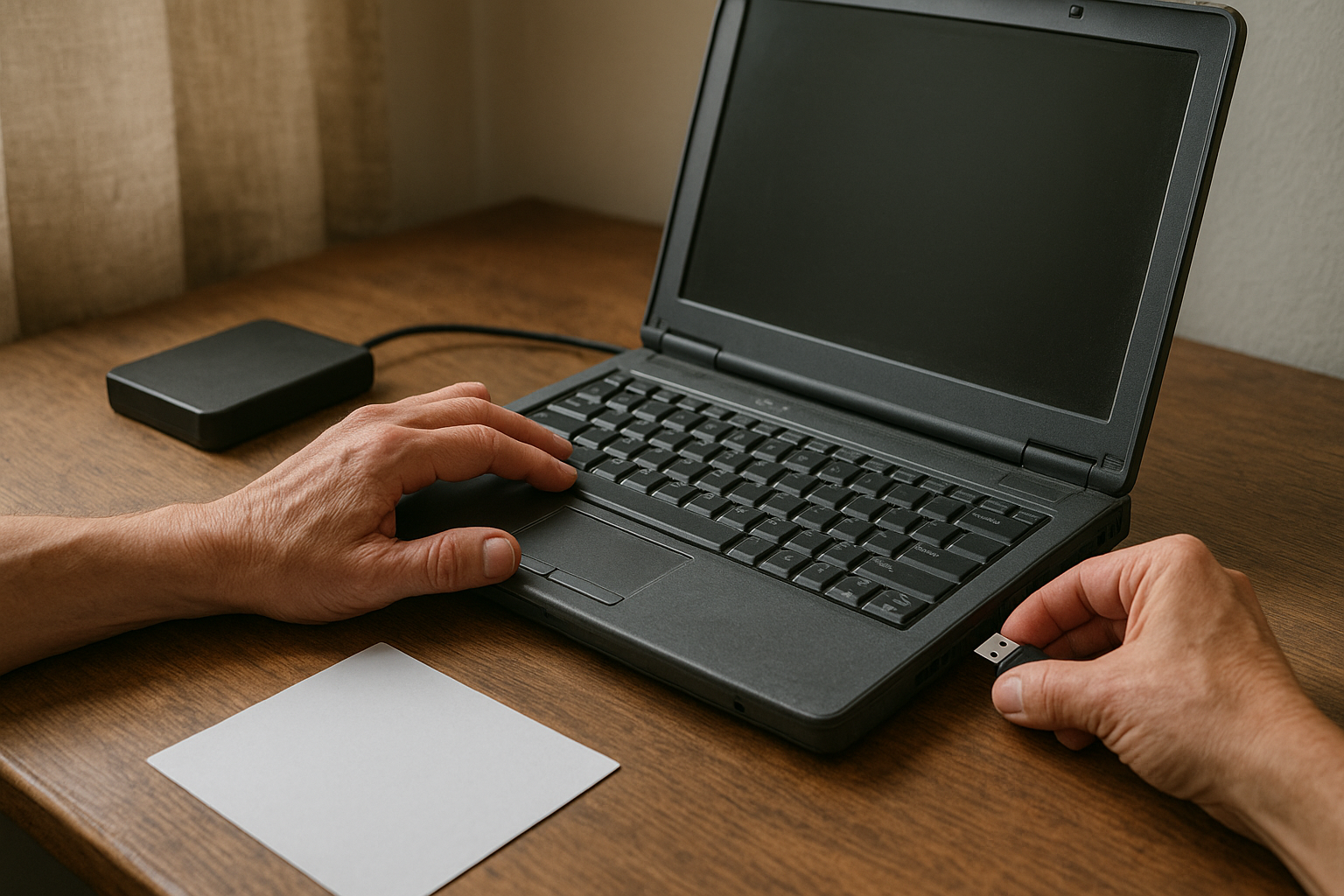
To install ChromeOS Flex, you need a compatible Intel or AMD computer, a USB flash drive, and enough time to back up the device before replacing its operating system. Google’s lightweight ChromeOS edition can give an older laptop a simpler, browser-focused interface—but it does not turn every computer into a full Chromebook. Hardware compatibility, firmware settings, missing drivers, and the lack of Android app support all matter.
This ChromeOS Flex installation guide shows you how to check compatibility, create a ChromeOS Flex bootable USB, test the system without erasing the internal drive, and complete a clean installation. It also covers common boot problems, backup precautions, post-installation setup, and situations where another operating system may be a better choice.
Table of Contents
- What Is ChromeOS Flex?
- Before You Install: Requirements and Compatibility
- Back Up Your Data and Prepare the Computer
- Create a ChromeOS Flex USB Installer
- Boot the Computer from the USB Drive
- Test and Install ChromeOS Flex
- What to Do After Installation
- Troubleshoot Common Installation Problems
- Advantages, Limitations, and Alternatives
- Key Takeaways
- Frequently Asked Questions
- Conclusion
What Is ChromeOS Flex?
ChromeOS Flex is Google’s operating system for compatible PCs and Macs. It centers on the Chrome browser, web applications, cloud services, and automatic background updates. The system is designed for computers that do not ship with ChromeOS, including many older business laptops and desktops.
It works well for web browsing, email, Google Workspace, online learning, streaming, video calls, and lightweight office work. A clean installation can also clear away years of accumulated software and startup programs from an aging Windows or macOS computer.
ChromeOS Flex is not identical to ChromeOS on a Chromebook. Most notably, ChromeOS Flex does not provide the Google Play Store or Android app support. Some ChromeOS hardware features—including certain tablet sensors, fingerprint readers, special media keys, or firmware functions—may also be unavailable on a converted computer.
For the best results, check Google’s official ChromeOS Flex certified models and system requirements before downloading anything. A computer that is not listed may still boot, but Google’s level of testing and support can be different.
Before You Install: Requirements and Compatibility
Checking ChromeOS Flex compatibility is the most important step in the process. The installer may run on a machine that Google has not certified, but that does not guarantee working Wi-Fi, sound, Bluetooth, graphics acceleration, sleep, camera, or touch input.
ChromeOS Flex System Requirements
Google’s published baseline requirements include the following:
- An Intel or AMD x86-64-bit compatible processor. ARM-based computers are not supported by the standard installation process.
- At least 4 GB of RAM.
- At least 16 GB of internal storage.
- Ability to boot from a USB drive.
- Administrative access to the computer’s firmware or BIOS/UEFI settings.
- An internet connection for downloading the installer, completing setup, and receiving updates.
These are minimum requirements, not a guarantee of a fast experience. For comfortable multitasking in Chrome, a relatively recent processor, solid-state storage, and more than the minimum memory will make a noticeable difference. Storage capacity also matters if you plan to keep local files, although ChromeOS Flex generally encourages cloud- and web-based workflows.
Check the Certified Models List
Look up the exact model, not just the manufacturer. A company may sell several revisions of a laptop with different wireless chips, graphics hardware, firmware, or touchpads. The certified list can also include notes about known limitations and the last supported version for a particular model.
Write down the computer’s full model name and processor before you begin. In Windows, you can find basic details under Settings > System > About. On a Mac, select About This Mac from the Apple menu. The manufacturer’s support page or the original label may provide a more precise model identifier.
Who Should Use ChromeOS Flex?
- Owners of older laptops: It can provide a cleaner interface for web browsing and everyday online tasks.
- Schools and small organizations: A browser-centered system may simplify shared-device management, though administrators should evaluate Google’s management options separately.
- Privacy-conscious users of old hardware: A fresh installation removes the previous operating system and its applications, but you should still review Google account and browser privacy settings.
- People with cloud-based workflows: Google Drive, Microsoft 365 on the web, webmail, and browser-based business tools are a natural fit.
It may be a poor fit if you depend on Windows-only desktop software, macOS applications, Android apps, specialized peripherals, high-end gaming, professional video editing, or manufacturer-specific utilities. Whenever possible, test the live USB session before committing.
Back Up Your Data and Prepare the Computer
A full installation erases the target computer’s internal storage. That includes documents, photos, downloads, browser profiles stored locally, installed applications, and any recovery partition. Do not begin until you have verified that important files open from a separate backup.
Use an external drive, a trusted cloud service, or both. Export browser bookmarks if they are not synchronized, record software license information, and make sure you can access important accounts without relying only on a saved password in the old system.
Also prepare these items:
- A USB flash drive with at least 8 GB of capacity. The creation process erases the USB drive, so do not use one containing needed files.
- The computer’s charger or power adapter. An interruption during installation can leave the device unusable until the process is repaired.
- A second computer with Chrome and internet access to create the installer, if the target computer cannot do so.
- Wi-Fi or Ethernet details for setup, plus a phone or another device if account verification is required.
If the laptop uses full-disk encryption, such as BitLocker, do not assume that the files can be recovered after installation. Copy the files first and, if you are keeping the old operating system temporarily, save any recovery key in a secure location.
Create a ChromeOS Flex USB Installer
The standard way to create installation media is Google’s ChromeOS Recovery Utility, a Chrome browser extension. Google provides the official utility through the Chrome Web Store listing for Chromebook Recovery Utility.
How to Install ChromeOS Flex USB Media
- Insert the blank USB flash drive into a working computer.
- Open Chrome and install the official Chromebook Recovery Utility extension.
- Open the extension from Chrome’s extensions menu.
- Select Get started, then choose the option to select a model from a list rather than entering a Chromebook model manually.
- Choose Google ChromeOS Flex as the manufacturer and select the appropriate ChromeOS Flex option.
- Select the USB drive carefully. Check its capacity and name because the utility will erase it.
- Start the creation process and wait while the utility downloads and verifies the image.
- Safely eject the USB drive when the utility reports that it is ready.
The wording and screens may change as Google updates the extension, but the essential choices remain the same: select ChromeOS Flex, select the correct removable drive, and confirm that you accept the erase operation. Avoid third-party images or unofficial download sites when the official utility is available.
If the utility does not recognize the drive, try a different USB port or another flash drive. Some computers have unreliable front-panel ports, USB hubs, or damaged removable media. Do not use a USB drive that disconnects during large file transfers.
Boot the Computer from the USB Drive
With the ChromeOS Flex USB installer ready, shut down the target computer completely. Insert the drive, turn the computer on, and open its one-time boot menu. The required key varies by manufacturer; common choices include F12, F9, Esc, or F2, but check the computer’s manual or startup screen rather than relying on a universal shortcut.
Choose the USB storage device from the boot list. If two entries appear, the one labeled with UEFI is usually the appropriate modern option. Do not change firmware settings randomly: record the original setting first, especially if you may need to restore the existing operating system.
When the USB Drive Does Not Appear
- Try another USB port, preferably a direct port rather than a hub.
- Recreate the installer with a different flash drive.
- Enter BIOS or UEFI setup and confirm that USB booting is enabled.
- Check whether a firmware boot menu is disabled by an administrator password.
- Review Secure Boot settings only after reading the computer manufacturer’s documentation.
- Use the target computer’s exact model number when searching for firmware guidance.
Some older systems use legacy BIOS booting, while newer machines normally use UEFI. ChromeOS Flex support can depend on the firmware implementation, so an unusual boot error may indicate a compatibility problem rather than a defective installer.
Test and Install ChromeOS Flex
After booting from the USB drive, ChromeOS Flex should display a welcome screen. If available, choose the option to try the system first. This temporary session lets you check essential hardware without immediately changing the internal drive.
Test These Features Before You Install ChromeOS Flex
- Connect to Wi-Fi and confirm that the connection remains stable.
- Play audio through the built-in speakers and, if relevant, headphones.
- Test the touchpad, keyboard, brightness controls, and external display output.
- Open the camera application or a browser video-call test to check the webcam.
- Connect Bluetooth accessories such as a mouse or headphones.
- Test sleep, wake, suspend, and battery reporting if the device is a laptop.
- Open several browser tabs and visit the services you use most often.
A live USB session is slower than an installed system because it runs from removable storage. It is still valuable for identifying major problems. For example, missing Wi-Fi or a non-working touchpad is a strong reason to research the exact hardware before erasing the original system.
Install ChromeOS Flex on an Old Laptop
When you are satisfied with the test, choose the installation option from the welcome screen or system menu. Read the warning carefully: the installation removes the existing operating system and local data from the internal drive.
- Choose Install ChromeOS Flex when prompted.
- Confirm that you understand the drive will be erased.
- Allow the installer to partition and format the internal storage.
- Wait for the installation to finish without removing power or the USB drive.
- Shut down when prompted, remove the installer USB, and start the computer again.
The exact labels may differ by release, but there is no safe shortcut around the erase confirmation. If you are uncertain which drive is the internal disk, stop and verify before proceeding. Installing to the wrong drive can destroy the only copy of your files.
When the computer restarts, complete the on-screen setup. Choose a language and keyboard layout, connect to the internet, review the terms, and sign in with a Google Account if required. If the computer belongs to an organization, use the account and enrollment process supplied by its administrator rather than setting it up as a personal device.
What to Do After Installation
Once ChromeOS Flex loads from the internal drive, let it check for updates. Restart if requested, then repeat the update check until the system reports that it is current. Updates can include security fixes, browser improvements, and hardware-related changes.
Sign in to Chrome and review the synchronization settings. Sync can restore bookmarks, extensions, passwords, history, and other browser data, depending on what you enable. On a shared or donated computer, do not enable personal synchronization unless you are confident that other users cannot access the account.
Set Up Your Everyday Workflow
- Pin frequently used web applications to the shelf or bookmark them in Chrome.
- Install extensions only from sources you trust, and remove extensions you no longer need.
- Use Google Drive or another approved cloud service for files that need to be available on multiple devices.
- Check the Files app and confirm that downloads are going where you expect.
- Pair printers, Bluetooth devices, and external displays one at a time so you can identify any problematic accessory.
- Set a screen lock and configure recovery methods for your Google Account.
ChromeOS Flex is primarily a browser and web-app platform. A Windows installer, macOS package, or Android APK will not automatically work. Before migrating, identify the web version of each service you rely on and confirm that it supports the features you need.
Troubleshoot Common Installation Problems
ChromeOS Flex Starts, but Wi-Fi or Sound Does Not Work
This usually indicates a driver or hardware compatibility issue. Confirm the exact wireless chipset and computer model, then check Google’s certified model notes and the manufacturer’s documentation. A USB Wi-Fi adapter may help in some cases, but its compatibility is not guaranteed.
The Computer Boots Back into Windows or macOS
The computer probably booted from the internal drive instead of the USB installer, or the installation was not completed. Reopen the one-time boot menu and select the USB device. If ChromeOS Flex was already installed, remove the USB after shutdown so the computer does not repeatedly start the installer.
The Installation Fails or Freezes
Recreate the USB installer and try a different flash drive or port. Confirm that the computer remains connected to power and meets the storage and processor requirements. If the problem occurs on an uncertified model, investigate that model’s firmware and hardware before repeating the installation.
The Screen Is Blank After Installation
Give the system a short time to start, then try a different display connection if available. An external monitor, graphics adapter, or unusual display configuration can expose compatibility problems. If the computer is certified but still shows no image, use another device to consult Google’s current troubleshooting documentation and the manufacturer’s firmware guidance.
You Need to Restore the Original Operating System
ChromeOS Flex does not normally provide a one-click return to Windows or macOS. You need official recovery or installation media for the original operating system, plus any product key, recovery partition, or manufacturer-specific drivers required by that computer.
Because the internal drive was erased, restoration depends on the backups and recovery media you prepared beforehand. That is why testing the live USB session and creating a verified backup are essential, not optional.
Advantages, Limitations, and Alternatives
| Choice | Best suited to | Main strengths | Important limitations |
|---|---|---|---|
| ChromeOS Flex | Web browsing, education, cloud work, and simple daily tasks | Clean interface, Chrome integration, and a low-maintenance workflow | No Google Play Store or Android apps; hardware support varies by model |
| Keep the existing Windows installation | Users who need desktop software, games, or manufacturer utilities | Broad application and peripheral compatibility | May run slowly on aging hardware and require more maintenance |
| A lightweight Linux distribution | Users who want more control or traditional desktop applications | Flexible software choices and broad community support | Setup and troubleshooting can require more technical knowledge |
ChromeOS Flex Versus a Chromebook
A Chromebook is designed and tested as a complete hardware-and-software product. ChromeOS Flex is installed on hardware originally made for another operating system. That makes Flex appealing for recycling an old laptop, but it also explains why features such as Android apps, firmware behavior, touch support, and battery life can differ.
If you need Android applications, a Chromebook with Play Store support is the more appropriate purchase. If you mainly use browsers and online services and already own suitable hardware, ChromeOS Flex can be a practical experiment.
Should You Install ChromeOS Flex?
Install it if the computer is no longer useful with its current system, your work is mostly online, and you have a verified backup. Try it first on a secondary machine if the laptop is used for school, work, or essential communication.
Avoid installing it when the device contains irreplaceable data, the model has important untested hardware, or you depend on applications that require Windows, macOS, or Android. In those cases, test from USB without installation or consider a dual-boot and virtualization strategy only if you understand the additional complexity.
Key Takeaways
- Check Google’s certified models list and the published ChromeOS Flex system requirements before starting.
- Back up every important file because a full installation erases the internal drive.
- Use the official ChromeOS Recovery Utility to create a ChromeOS Flex USB installer.
- Boot from USB and test Wi-Fi, sound, graphics, camera, Bluetooth, sleep, and the touchpad before installing.
- ChromeOS Flex is designed for web applications and does not include the Google Play Store or Android app support.
- Keep the computer connected to power and remove the USB drive after the first completed shutdown.
- Save original-system recovery media and keys before replacing Windows or macOS.
Frequently Asked Questions
Can I install ChromeOS Flex on any old laptop?
No. ChromeOS Flex requires compatible x86-64 hardware, enough memory and storage, USB boot support, and working firmware. Many older Intel and AMD laptops can start the system, but an uncertified model may have problems with Wi-Fi, audio, graphics, Bluetooth, touch input, or sleep. Check the exact model in Google’s certified list and test the live USB environment before erasing the internal drive.
Does installing ChromeOS Flex erase Windows?
Yes, choosing the full installation normally erases the existing operating system and the data on the internal drive. That includes personal files, applications, local browser data, and recovery partitions. Back up your documents and verify that the backup works before continuing. If you only want to evaluate ChromeOS Flex, boot from the USB drive and use the temporary try-before-install option instead.
Can I install ChromeOS Flex without a USB drive?
The standard process uses a USB flash drive created with Google’s ChromeOS Recovery Utility. A USB installer is also useful because it lets you test compatibility before making changes to the computer. Alternative deployment methods may exist for managed organizations, but they are not the normal route for a personal installation and can require additional administrative tools.
Does ChromeOS Flex support Android apps and the Google Play Store?
No. ChromeOS Flex does not provide the Google Play Store or the normal Android app experience found on supported Chromebooks. It is intended mainly for Chrome, progressive web apps, web services, and cloud-based work. If Android applications are essential, use a compatible Chromebook or another operating system that officially supports the applications you need.
How much RAM does ChromeOS Flex need?
Google lists 4 GB of RAM as a minimum requirement. That may be sufficient for basic browsing, but browser tabs and web applications can use substantial memory, especially during video calls or document editing. A computer with more memory and an SSD will generally provide a more comfortable experience than a machine that only meets the minimum specification.
Can I return to Windows after I install ChromeOS Flex?
Usually, yes, but not through a simple undo button. You must reinstall Windows using Microsoft’s official installation or recovery media, and you may need the computer manufacturer’s drivers and activation information. The process can permanently remove the ChromeOS Flex installation and any files left on the drive, so prepare recovery media and keep a complete backup before installing Flex.
Why is my ChromeOS Flex USB installer not booting?
Possible causes include a damaged flash drive, an incomplete image, a USB port problem, disabled USB booting, firmware restrictions, or an unsupported boot mode. Recreate the installer, try another drive and port, and consult the computer manufacturer’s instructions for its boot menu and UEFI settings. If the device still fails, compare its model and hardware with Google’s compatibility information.
Conclusion
ChromeOS Flex can give a compatible old laptop a focused, low-maintenance environment for browsing, web apps, email, streaming, and online documents. The safest way to install ChromeOS Flex is to verify the exact model, back up the internal drive, create the installer with Google’s official recovery utility, and test the hardware from USB before accepting the erase warning.
Your next step is straightforward: check the certified-model list, locate a spare USB drive, and make a verified backup. If the live session handles your Wi-Fi, sound, display, camera, and daily browser tasks correctly, proceed with the full installation. Otherwise, keep the original system or evaluate another lightweight operating system.