

Back to school laptop sales can make a capable computer much more affordable, but the lowest price is not always the best value. A discounted laptop with 4GB of RAM, limited storage, or poor battery life may become frustrating before graduation, while a slightly more expensive model can last through years of classes, research, video calls, and everyday use.
This guide explains how to evaluate back to school laptop deals, which specifications matter for different students, and which types of laptops are worth considering. You will also find practical recommendations for high school and college students, a RAM and storage guide, a checklist for comparing discounts, and advice on when a Chromebook, Windows laptop, or MacBook makes the most sense.
Table of Contents
- Best back to school laptop sales by student type
- What to look for in student laptops
- Laptop RAM and storage guide
- Windows, MacBook, or Chromebook?
- Best laptops for school use cases
- How to evaluate back to school laptop deals
- Student laptop buying checklist
- Key Takeaways
- Frequently Asked Questions

A mid-range student laptop open on a library desk beside a calculator, ruled notebook, USB-C charger, and backpack, illustrating how to comp
Best back to school laptop sales by student type
The right choice depends less on a promotional badge and more on the student’s workload. A laptop for writing papers and browsing can have very different requirements from one used for engineering software, photo editing, game development, or frequent travel between classrooms.
Best back to school laptop sales for high school students
Most high school students need a reliable device for web research, Google Workspace or Microsoft 365, learning platforms, presentations, video calls, and streaming. A Windows laptop with a recent Intel Core i3 or Core 3 processor, AMD Ryzen 3 or Ryzen 5 processor, or equivalent is usually a sensible starting point. A Chromebook can also work well if the school relies mainly on browser-based tools.
Look for at least 8GB of RAM and 128GB of storage. A 13- to 15-inch display is a practical range: smaller models are easier to carry, while 15-inch laptops offer more room for split-screen assignments. A back-to-school discount is most attractive when it includes a comfortable keyboard, a usable webcam, and enough battery capacity for a full school day rather than only a low headline price.
Good fit: an affordable Windows laptop, Chromebook Plus model, or refurbished business laptop from a reputable seller.
Avoid: 4GB Windows laptops, models with 64GB of eMMC storage unless the student’s work is almost entirely online, and devices with a keyboard or screen that feels uncomfortable after a few minutes of use.
Best back to school laptop sales for college students
Laptops for college students need to handle longer sessions, larger research projects, more demanding multitasking, and several years of ownership. A 13- or 14-inch model is often the best balance of portability and workspace, although students working with spreadsheets, design tools, or code may prefer a 15- or 16-inch screen.
For a general college workload, target 16GB of RAM and at least 512GB of SSD storage if the budget allows. That configuration is not mandatory for simple coursework, but it gives more breathing room for browser tabs, video calls, office software, and locally stored files. Students should also check whether their major requires Windows-only applications before choosing a MacBook or Chromebook.
Good fit: a well-built Windows ultrabook, MacBook Air, business-class laptop, or higher-end Chromebook for a web-based curriculum.
Avoid: buying solely on processor branding, assuming every program works on macOS, or choosing a gaming laptop for general study when its extra weight and short unplugged runtime are unnecessary.
Best back to school laptop sales for specialist courses
Course requirements can change the recommendation completely. Engineering, architecture, 3D design, film production, computer science, and music production may require specific operating systems, graphics hardware, ports, or memory capacities.
- Engineering and architecture: confirm the required CAD or simulation software, graphics support, and minimum RAM with the department.
- Computer science: most introductory coding works on Windows, macOS, or Linux, but some courses require a particular development environment or virtual machines.
- Creative work: prioritize a color-accurate display, 16GB or more of RAM, a fast SSD, and enough sustained performance for the applications being taught.
- Gaming or 3D development: a dedicated graphics processor may be necessary, but it usually adds weight, fan noise, and cost.
- Health and professional programs: check compatibility with secure testing software, electronic medical record systems, and institution-specific applications.
Before using back to school laptop sales for a specialist purchase, read the school’s technology requirements. A bargain is not a bargain if the laptop cannot run the required software or connect to the school’s accessories.
What to look for in student laptops
Specifications matter, but they do not tell the whole story. A laptop is a daily tool that will be carried, opened repeatedly, charged in crowded rooms, and used for long periods. Build quality, keyboard comfort, repair options, webcam quality, and port selection can matter as much as a small processor upgrade.
Performance without overbuying
For documents, web applications, online classes, and presentations, modern entry-level processors are sufficient. Moving to a mid-range processor is worthwhile when the student regularly multitasks, edits media, compiles code, or wants a longer useful lifespan.
Do not compare processor names across generations without checking the complete model. “Core i5,” “Ryzen 5,” and similar labels describe broad product tiers, not identical performance. An older premium chip can be less desirable than a newer efficient processor, and sustained performance depends on cooling, power limits, and the laptop’s design.
Display, keyboard, and webcam
A sharp 1920-by-1080 display is adequate for most schoolwork. Higher resolutions can make text and images look cleaner, but they may consume more battery and increase cost. An IPS or equivalent panel generally offers more consistent viewing angles than a basic TN panel.
- Screen size: 13 to 14 inches favors portability; 15 to 16 inches helps with spreadsheets and split-screen work.
- Aspect ratio: taller screens can show more of a document or webpage, while wider screens suit video and side-by-side windows.
- Brightness: a brighter display is easier to use in classrooms, libraries, and near windows.
- Keyboard: look for comfortable key travel, a stable deck, and a layout the student can use quickly.
- Webcam: 1080p is preferable when available, but image quality also depends on the sensor, microphones, and software processing.
If possible, handle a display and keyboard before buying. Online reviews can describe these features, but comfort is personal. Students who write frequently should not sacrifice a good keyboard for a minor specification upgrade.
Ports, connectivity, and repairability
USB-C is useful for charging, monitors, docks, and accessories, but not every USB-C port supports the same features. Check whether it supports charging, display output, or fast data transfer. At least one USB-A port can still be convenient for flash drives, older printers, and classroom equipment.
Also check Wi-Fi support, Bluetooth, an SD or microSD card slot if needed, and the charger included in the box. A student who presents often may need an HDMI port or a USB-C video adapter. For repairability, research whether the SSD, battery, or memory can be replaced; some thin laptops have components that are soldered or difficult to service.
Laptop battery life for students
Laptop battery life for students depends on display brightness, wireless activity, video calls, software, battery capacity, and processor efficiency. Manufacturer estimates are useful for comparing models from the same brand, but they are not a guarantee of classroom runtime.
For a student who moves between classes, a laptop with strong efficiency and a relatively large battery is often more useful than one with the fastest processor. Read independent testing where available, and pay attention to whether the test measured web browsing, video playback, or a heavier mixed workload.
USB-C charging can make life easier because the student may already carry a compatible charger for a phone or tablet. However, confirm the required wattage before assuming one charger can safely power every device.
Laptop RAM and storage guide
RAM and storage affect different parts of the experience. RAM holds active applications and data, while storage keeps files, applications, and the operating system when the laptop is turned off. Understanding the difference helps shoppers avoid paying for the wrong upgrade during back to school laptop sales.
| Configuration | Best suited to | Limitations |
|---|---|---|
| 4GB RAM / 64GB eMMC | Very light browser use on a basic Chromebook | Limited multitasking and little local space; poor choice for most Windows laptops |
| 8GB RAM / 128GB to 256GB SSD | Web, documents, school portals, video calls, and everyday homework | Less headroom for creative applications and large local media libraries |
| 16GB RAM / 512GB SSD | College multitasking, coding, photo work, and longer ownership | Costs more; unnecessary for very light browser-only use |
| 32GB RAM / 1TB SSD or more | Virtual machines, professional creative workloads, large datasets, and advanced development | Usually excessive for general schoolwork and may increase price and weight |
How much RAM do students need?
8GB is a reasonable minimum for a basic Windows laptop used for ordinary schoolwork. 16GB is the more comfortable target for college students, especially if the laptop is expected to last several years or the student keeps many browser tabs and applications open.
Chromebooks can feel responsive with less memory because ChromeOS and web applications have different requirements, but browser tabs still consume RAM. A student who uses Android applications, Linux tools, video calls, and many tabs should consider 8GB or more rather than choosing the smallest configuration.
Memory upgrades are not always possible. Check the manufacturer’s service information before assuming RAM can be added later. If it is soldered, buying the preferred capacity at the start is usually the safer decision.
How much storage do students need?
An SSD makes a laptop feel faster than an older hard drive, particularly when starting the operating system, opening applications, or searching files. 256GB is workable for documents and cloud storage, while 512GB is a better general-purpose choice for students who keep photos, projects, downloaded videos, or creative files locally.
Cloud storage can extend a small drive, but it should not be treated as a complete backup. Important coursework should exist in more than one place, such as the laptop plus institutional cloud storage or an external drive. Students should also check whether their school provides Microsoft OneDrive, Google Drive, or another service.
Be cautious with 64GB or 128GB drives in Windows laptops. Operating system updates and applications can consume a substantial portion of the available capacity, leaving little room for coursework.
Windows, MacBook, or Chromebook?
There is no universal winner among the three major laptop platforms. The best operating system depends on the software required, the student’s existing devices, budget, and willingness to manage local files or technical limitations.
| Platform | Strengths | Potential drawbacks | Best for |
|---|---|---|---|
| Windows | Broad software support, many price points, strong accessory compatibility | Quality varies widely; lower-cost models can have weak displays and build quality | Most students, specialist software, and flexible budgets |
| macOS | Consistent hardware and software experience, strong battery efficiency on current Apple silicon models | Higher starting prices in many configurations; some Windows-only applications may not run natively | Students already using Apple devices and compatible creative or general coursework |
| ChromeOS | Simple management, quick startup, often lower cost, strong browser integration | Dependence on web applications; limited support for some desktop software | Web-based schoolwork, cloud documents, and straightforward daily tasks |
When a Windows laptop is the best choice
Windows is usually the safest choice when the student has not received clear platform guidance from the school. It supports a broad range of office applications, utilities, peripherals, games, programming tools, and professional software.
Windows also offers the widest range of back to school laptop deals. That variety is useful, but it requires careful comparison because two laptops with similar processor names may differ sharply in screen quality, battery size, memory, and construction.
Before buying, verify that the model meets Microsoft’s current operating system requirements. Microsoft publishes its official Windows 11 specifications and requirements, including processor, memory, storage, firmware, and security expectations.
When a MacBook is the best choice
A MacBook Air is attractive for students who value low weight, quiet operation, long unplugged use, and integration with an iPhone or iPad. It is a strong option for writing, research, coding, general productivity, and many creative workflows.
The limitations are compatibility and upgrade flexibility. Apple laptops generally do not offer the same broad selection of ports or user-upgradable memory and storage as some Windows business laptops. Students should confirm software support, particularly for engineering, accounting, testing, and specialized university applications. Apple’s Mac comparison page is useful for checking the configurations currently sold by Apple.
When a Chromebook is the best choice
Chromebooks are a good fit when assignments take place in a browser and files live primarily in Google Drive or another cloud service. They are often easy to manage, have straightforward security updates, and can offer excellent value in the lower price range.
They are less suitable for students who need full desktop versions of Adobe applications, specialized engineering programs, some programming environments, or software that requires Windows or macOS. A Chromebook Plus model can provide a better multitasking experience than an entry-level Chromebook, but buyers should still confirm the school’s application requirements. Google describes the Chromebook Plus platform and its capabilities on its official site.
Best laptops for school use cases
Instead of searching only for the “best student laptop,” match the computer to how it will be used. This approach narrows the choices and prevents paying for hardware that will sit unused.
Best budget laptop for school
Prioritize a solid keyboard, 8GB of RAM, an SSD, a full-HD display, and a recent entry-level processor. A budget Windows model is appropriate when the student needs desktop applications; a Chromebook may provide a smoother experience at the same price for browser-first work.
At the lowest prices, inspect the compromises carefully. A model with a dim screen, weak hinge, cramped keyboard, or 64GB Windows drive may cost less today but offer poor everyday value.
Best portable laptop for college
Choose a 13- or 14-inch laptop with a comfortable keyboard, efficient processor, USB-C charging, and a weight the student can carry daily. A 16:10 display can provide useful vertical space without making the chassis as wide as some traditional 16:9 models.
Portability should not mean accepting an unusably small keyboard or too few ports. If the student frequently connects monitors, projectors, cameras, or storage drives, a slightly thicker business or productivity laptop may be more convenient.
Best laptop for creative students
Creative students should prioritize the applications they actually use. Photo editing benefits from a good display and sufficient RAM; video editing benefits from fast storage, memory, sustained processor performance, and sometimes dedicated graphics; 3D work can require a powerful dedicated GPU.
Display specifications deserve special attention. Resolution alone does not establish color accuracy, so consult reliable independent testing or the manufacturer’s color coverage information when visual work is central to the course.
Best laptop for long-term value
For a laptop expected to last through a degree, consider 16GB of RAM, 512GB of SSD storage, a strong hinge, a replaceable battery or accessible service design where possible, and a manufacturer with clear support policies. A business-class model may offer a better keyboard and repair ecosystem than a cheaper consumer laptop, although its display or design may be less flashy.
Long-term value also includes software support. Check the manufacturer’s update policy, warranty terms, and availability of replacement chargers and batteries. The cheapest model is rarely the best choice if it is difficult to repair or has no capacity for the student’s likely workload.
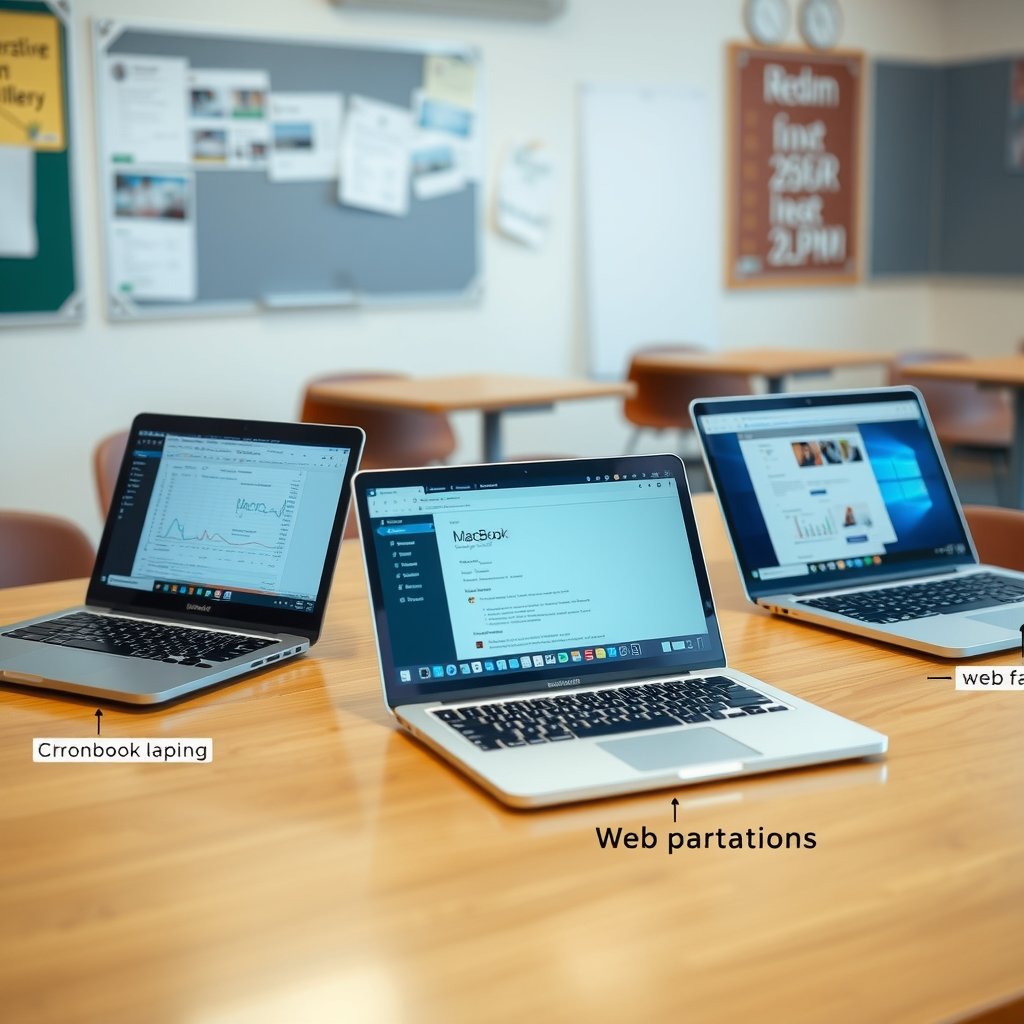
Three student laptop setups on a classroom table: a Windows laptop running a spreadsheet, a MacBook displaying a design project, and a Chrom
How to evaluate back to school laptop deals
Seasonal sales often combine genuine discounts with clearance models, retailer-exclusive configurations, and short-term promotional pricing. Compare the complete specification rather than trusting a percentage-off label.
Compare the real configuration
Record the exact model number, processor, RAM, storage type, display resolution, operating system, and warranty. Retailers sometimes use similar product names for configurations with very different memory or storage, making a direct comparison difficult.
- Compare SSD capacity and type, not just the word “storage.”
- Check whether RAM is upgradeable or permanently installed.
- Confirm the charger, keyboard layout, and included accessories.
- Look for the return period and restocking conditions.
- Check whether the advertised price requires membership, a coupon, or a trade-in.
- Review the warranty and identify who handles service.
Watch for clearance limitations
Clearance can be worthwhile when the laptop still meets the student’s needs, but older stock may have a shorter support horizon or a battery that has spent months in storage. It may also be harder to find a replacement charger or matching dock later.
Refurbished laptops can offer strong value when sold with a clear condition grade, warranty, return policy, and battery standard. Avoid listings that do not identify the exact model or that use vague phrases such as “similar item shown.”
Consider the total cost
The laptop price is only part of the budget. A student may also need a protective sleeve, mouse, USB-C hub, external storage, software subscription, or extended warranty. Some schools provide accessories or cloud storage, so check before buying duplicates.
Do not automatically purchase an extended warranty. Compare its price, coverage, accidental-damage exclusions, deductible, repair process, and the laptop’s expected replacement cost. Accidental-damage protection can be useful for a student who carries the device constantly, but a standard warranty normally covers manufacturing defects rather than drops or liquid spills.
Student laptop buying checklist
Use this checklist before placing an order during back to school laptop sales:
- Confirm software compatibility. Check the school’s requirements and ask the department about Windows, macOS, Chromebook, Linux, or virtual-machine support.
- Set a realistic workload. Separate basic documents and browsing from coding, design, video editing, or specialist applications.
- Choose the memory target. 8GB can suit basic work; 16GB is a safer long-term choice for many college students.
- Choose the storage target. Prefer an SSD, with 256GB as a practical baseline and 512GB for more comfortable long-term use.
- Inspect the display. Check size, resolution, brightness, viewing angles, and whether the student needs accurate color.
- Check battery and charging. Read independent battery tests and confirm USB-C charging details if that feature matters.
- Review ports and wireless features. Make sure the laptop connects to the student’s monitor, projector, storage, printer, and accessories.
- Check serviceability. Look at warranty length, update support, repair options, and replacement-part availability.
- Verify the return policy. The student should be able to test the keyboard, display, webcam, and software before the return window closes.
- Compare the exact model. Use the full model number instead of relying on a retailer’s shortened product title.
Key Takeaways
- The best back to school laptop sales reduce the price of a suitable configuration; they do not make an unsuitable laptop a good purchase.
- For most students, 8GB of RAM and a 256GB SSD are a practical minimum, while 16GB and 512GB offer better long-term flexibility.
- Confirm course software before choosing between Windows, macOS, and ChromeOS.
- Battery life, keyboard comfort, display quality, webcam performance, and repair support matter in daily student use.
- Chromebooks are excellent for browser-first coursework but may not support specialist desktop applications.
- Compare the exact model number, warranty, return policy, and total ownership cost before buying.
Frequently Asked Questions
When are the best back to school laptop sales?
The biggest promotions commonly appear during the weeks leading up to the school year, but useful discounts can also occur around major shopping events, product refreshes, and clearance periods. There is no guarantee that one calendar date will offer the lowest price for every model. Start by identifying the required specifications and tracking the exact configuration. That makes it easier to recognize a genuine discount instead of reacting to a large percentage-off claim.
What is the best student laptop for most people?
For general schoolwork, the best choice is usually a well-built Windows laptop or MacBook with a comfortable keyboard, a good display, 8GB or 16GB of RAM, and an SSD. A Chromebook is often the better value when assignments are browser-based and the school supports ChromeOS. There is no single best model for every student, so software compatibility, portability, battery performance, and budget should guide the decision.
Are Chromebooks good for high school students?
Yes, Chromebooks can be very effective for high school students who use web-based learning platforms, Google Docs, Microsoft 365 online, email, and video conferencing. They are less suitable when the student needs full desktop applications, advanced local media editing, specialist engineering software, or a Windows-only testing tool. Confirm the school’s supported devices and applications before buying, particularly if the Chromebook will be the student’s only computer.
Is 8GB of RAM enough for college?
8GB can handle documents, web browsing, presentations, email, and ordinary video calls. However, 16GB is a more comfortable target for many college students because it provides more room for multitasking and future software updates. Students using virtual machines, large creative applications, advanced data tools, or many demanding browser tabs should consider more than 8GB. Also check whether the memory can be upgraded later.
How much storage does a student laptop need?
256GB of SSD storage is enough for documents, applications, and cloud-backed coursework for many students. 512GB is preferable when the laptop will store photos, video, games, design files, downloaded lectures, or several large applications. A 128GB drive can work for a carefully managed Chromebook, but it is restrictive for many Windows installations. Regardless of capacity, keep important assignments backed up in a second location.
Should students buy a MacBook or Windows laptop?
Choose Windows when the student needs the broadest software and accessory compatibility or when the school specifies Windows applications. Choose a MacBook when macOS supports the coursework and the student values Apple-device integration, portability, and efficient performance. Neither platform is automatically better for every major. Before buying, check the school’s application list, exam software, printer requirements, and any remote-access or virtual-machine instructions.
Are refurbished laptops safe to buy for school?
A refurbished laptop can be a good value if it comes from a reputable seller and includes the exact model number, a meaningful warranty, a clear return policy, and information about condition and battery health. Business laptops are often attractive refurbished options because they may have durable chassis and service documentation. Avoid listings with unspecified processors, unclear cosmetic grades, no return protection, or batteries that are explicitly excluded from coverage.
The most useful way to shop back to school laptop sales is to begin with the student’s software and workload, then compare memory, storage, display, battery, ports, and support. For general schoolwork, prioritize a comfortable and dependable 8GB or 16GB SSD laptop over a flashy specification that will not improve daily use. Before ordering, verify the exact configuration and return policy, then test the keyboard, screen, webcam, charging, and required applications while returns are still available.